
Loading...
Loading...
Loading...
Loading...
Loading...
Loading...
Loading...
Loading...
Loading...
Loading...
Loading...
Loading...
Loading...
Loading...
Loading...
Loading...
Loading...
Loading...
Loading...
Loading...
Loading...
Loading...
Loading...
Loading...
Loading...
Loading...
Loading...
Loading...
Loading...
Loading...
Loading...
Loading...
Loading...
Loading...
Loading...
Loading...
Loading...
Loading...
Loading...
Loading...
Loading...
Loading...
Loading...
Loading...
Loading...
Loading...
Loading...
Loading...
Loading...
Loading...
Loading...
Loading...
Loading...
Loading...
Loading...
Loading...
Loading...
Loading...
Loading...
Loading...
Loading...
Loading...
Loading...
Loading...
Loading...
Loading...
Loading...
Loading...
Loading...
Loading...
Loading...
Loading...
Loading...
Loading...
Loading...
Loading...
Loading...
Loading...
Loading...
Loading...
Loading...
Loading...
Loading...
Loading...
Loading...
Loading...
Loading...
Loading...
Loading...
Loading...
First time planning in Aphex? Start here
Switch between Views to see the Plan the way you need - this could be anything from your own Tasks, to upcoming Milestones, or Tasks with delays from a specific subcontractor over the last 7 days. Each View lets you filter, group, and set a date range that fits.
The main navigation controls live at the top of the page:
Add and remove Filters to reveal relevant Tasks
Change the Date Range to view Tasks occurring within a particular timeframe
Update the Grouping to change how Tasks are organised in your Plan
Swap between the Gantt, Map, List & Board View tabs that are open at the top of your page
Create your own Views for personal use, or to share with your Team
Next up: start adding new Tasks or editing existing ones.
Add Tasks inside your project's existing structure by clicking Add Task
Open the Column Picker to view and edit Task information
Select tasks and use the multi-select to apply edits in bulk
Draw links
Once your Tasks are up to date, mark your plan as ‘Ready’ to show your team it’s good to go for the Weekly Published Version.
Check the upcoming deadline in the top-right for when you have to be Ready by. Typically this will line up with your existing short-term planning cycle.
Resolve any Missing Data, Clashes or Overdue Blockers
Once you're happy to be accountable for your plan, you can mark your Tasks as
Once your Admin publishes the official Weekly Version, you can share the plan with anyone, even if they’re not using Aphex.
Copy the public URL to your Weekly Version and share with non-Aphex users
Open and select Print View to generate a PDF
Under View Options you'll also find Export Tasks to CSV
As work proceeds and the plan changes, keep your tasks up to date by recording delays and improvements.
Extend your Promised Tasks or use the Thumbs Down to log a delay
Use the Thumbs Up to log an Improvement or On Schedule
Mark Tasks as completed by changing the Status to
Open to turn on the Baseline to compare the live plan to previous weeks
Drag Task Bars to adjust dates & sequences


Diary Entries
Gallery
Recap
Diary Performance
Can't remember your password? We've gotcha!
You can reset your Aphex password in two ways:
If you are already logged in to Aphex, you can reset your password from Account Settings.
If you aren't logged in to Aphex, you can reset your password from the Login Page.
To reset your password from account settings:
First, click on your Avatar icon in the top right corner of Aphex and select Profile from the menu
Scroll down to the Password section and click . A reset link will be sent to your registered email address
Open the email and click Reset Password
To reset your password from the login page:
Head to the Aphex login page , enter your email and hit Continue
Next, click Forgot Password then Reset your Password
Enter your email and select Send Reset Instructions
Enter your new password, confirm it and hit Continue
Your Aphex password will now be updated accordingly!
Open the email and click Reset Password
Enter your new password, confirm it and hit Continue
Your Aphex password will now be updated accordingly!


A Diary Entry is where you log your day's work. Once created, contributors can add content to the Diary Entry. The Diary Entry workflow is the same whether you're using the mobile or web app, though the interface differs slightly. If you are using a mobile, see our .
Before you can create Diary Entries, you will need to .
To create a new Diary Entry:
Navigate to the Diary Entries section and click
Select which Diary you want to create an entry for, or create a new diary
Select the diary entry date
Select the Shift Start and End time from the dropdown
Click
Once you open a diary entry, you can edit the shift start and end times at any point before submitting it for review.
To edit the Diary Entry Shift Time:
Open a Diary Entry
Click on the left hand panel and select Edit Details
Select a new Start and End shift time
Click
Once your entry is created and open, you and other contributors can start adding content. See


Delay Reasons give context to delayed tasks, allowing the team to explain why their task didn't progress as expected from a dropdown. Every project starts with a default list of Delay Reasons, but Project Admins can edit and add custom Delay Reasons at any time.
Creating Delay Reasons lets you build a reusable library of Delay Reasons to add when adding a delay to Tasks.
Open the Delay Reasons page, then click
Create your custom Delay Reason by entering a name and selecting a category
Once Delays have been logged, you can filter any View to show Tasks impacted by specific Delay Reasons - or simply highlight all Tasks that have recieved any Delay at all.
Click and
Select Delay Reason in the first dropdown
Select from Is, Is Not, Is Empty and Is Not Empty
See also: create & share
As the team starts to record delays against Tasks, all updates (including Delays, On Track & Improvement events) can be traced back to the responsible Task Owner or Subcontractor. This makes it easy to understand how all parties are performing across the project.
User Power BI to build custom reporting on delays and performance, based on data in your weekly Published Versions. Aphex provides free templates as a starting point but everything can be customised to suit your project reporting requirements.
Utilise Aphex Insight to track Delay Concentration by Delay Reason. See trends and drill down into specific Tasks to identify which Delay Reason has the highest delay concentration.
See also:
Select your desired Delay Reason in the third dropdown
Inadequate Planning
Insufficient Resources
Prior Work
Quality
Safety
Scope Change
Submittals and Approvals
Delay Categories


Environmental
Multi-select
To generate a session token, you must provide a valid Client ID and Client Secret.
While in closed beta, you can obtain your API keys by contacting our Customer Success team.
Use this endpoint to generate a temporary Access Token
Use this endpoint to revoke a previously generated Access token
If you've downloaded one of our free Power BI dashboards, you may have questions about how the PPC (Percent Plan Complete) is being calculated.
PPC shows you what percentage of your planned work actually got done between two dates (usually last week and this week). There are two ways to measure it:
This method looks at how many work days you completed as planned.
Example:
Let's say you have three tasks:
Task A: 3-day task, all days planned for the reference week
Task B: 2-day task, all days planned for the reference week
Task C: 4-day task, with 2 days planned for the reference week and 2 days the following week
What actually happened:
Task A: ✓ All 3 days completed during the reference week
Task B: ✗ Slipped—only 1 of the 2 planned days completed during the reference week
Task C: ✗ Slipped—only 1 of the 2 planned days completed during the reference week
How we calculate it:
Task A: 3 / 3 days = 100% PPC
Task B: 1 / 2 days = 50% PPC
Task C: 1 / 2 days = 50% PPC
Total PPC = Average(100%, 50%, 50%) = 66%
This method only counts tasks that were completely finished on schedule.
Example:
Let's say you have three tasks:
Task A: Final day planned to occur in the reference week
Task B: Final day planned to occur in the reference week
Task C: Final day planned to occur in the reference week
What actually happened:
Task A: ✓ Final day of task occurred in the reference week
Task B: ✗ Slipped—final day pushed to the following week
Task C: ✓ Final day of task occurred in the reference week
How we calculate it:
Task A: Completed = 100% PPC
Task B: Not Completed = 0% PPC
Task C: Completed = 100% PPC
Total PPC = Average(100%, 0%, 100%) = 66%
Project assets are the defined lists of objects that can be attached to tasks within a project. You can query these assets to assist in constructing more precise Task queries.
Use this endpoint to query the list of Users on a project.
Use this endpoint to query the list of Subcontractors on a project.
Use this endpoint to query the tree of Folders on a project.
Use this endpoint to query the list of Packages on a project.
Use this endpoint to query the list of Calendars on a project.
Use this endpoint to query the list of Locations on a project.
Use this endpoint to query the list of Delay Reasons on a project.
Use this endpoint to query the list of Production Measures on a project.
In Aphex, the project’s WBS is built using Folders. Folders and Subfolders are how teams organise and group Tasks across the plan - whether you're pulling in a detailed structure from P6 or Asta, or building a more streamlined setup to suit daily and weekly site planning.
Root Folders sit at the top of your Folder hierarchy - everything else rolls up into them. You can create one directly from the Gantt while planning, or use the Folders Management page to build out your structure more intentionally.
Make sure that your set to Folders
An option to Add Root Folder will appear on the Gantt
Click your Project Title in the top left, then select Project Assets
Select Folders from the menu
Click
Subfolders help you build out your Folder Structure with as much detail as your plan needs. You can nest Subfolders as deep as required - there's no limit!
From the Folders Management Page:
Click your Project Title in the top left, then select Project Assets
Select Folders from the menu
Hover over the Folder you would like to add a Subfolder to
Hover over the Folder you are adding to
Click on the + symbol
Select Add Subfolder
Type in the Subfolder Name & select the
If parts of your Folder Structure need to stay exactly as they are, you can apply Folder Protection. You can lock down changes to names, codes, position, or structure - including the ability to add Subfolders.
Click your Project Title in the top left, then select Project Assets
Select Folders from the menu
Locate the Folder you'd like to Protect
Reordering Folders is quick and flexible. Move a single Folder or an entire branch - just remember that the Folder Structure is shared with everyone on the project, so your updates will apply project-wide.
Click your Project Title in the top left, then select Project Assets
Select Folders from the menu
Hover over the Folder name & click and hold to the left of the checkbox
To move a Folder using the Overflow Menu
Hover over the Folder & click the ...
Select Move to bring up the menu
Click on the Folder you want to move to & confirm using the button
You can duplicate Folders to help build out your Folder Structure faster – avoiding the need to recreate similar setups manually.
From the Folders Management Page:
Click your Project Title in the top left, then select Project Assets
Select Folders from the menu
Hover over the Folder & click the ...
From the Gantt:
Locate the Folder(s) you want to duplicate.
Hover over the Folder & click the ...
Choose one of the two duplication options:
Duplicate
To use the Folder Importer, upload a spreadsheet with both a Code and Name for each Folder.
The importer works with CSVs exported from other planning tools. If your system doesn’t support folder exports, you can copy folder codes and names manually into our template.
Click your Project Title in the top left, then select Project Assets
Select Folders from the menu
Click
See also: import Folders from your
Folders can be deleted one by one or in bulk - whatever works best for your clean-up.
Click your Project Title in the top left, then select Project Assets
Select Folders from the menu
Hover over the Folder you wish to delete
This organises your Tasks by the Folders they belong to. It's a simple way to view your plan in the same structure used across the Project.
Click the menu in the top left of the Gantt
Pick Folder as a Primary Grouping
Click the menu in the top left of the Gantt
Select the button next to Folder to switch to Flattened Folders
Flattened Folders shows only the lowest level Folder for each Task in a single row
Apply a Folders Filter to see only the Tasks sitting in certain parts of your Project structure.
Click and
Select Folder in the first dropdown
Select the Operator in the second dropdown
See also: create & share
Click Save
The Folder is added to the project structure, ready for the team to add Tasks into
+ symbolSelect Add Sub-Folder
Add a Folder Name and update the code if needed
Click Save Changes
The Subfolder is added to the project structure, ready for the team to add Tasks into
Create [Folder Name]State column to cycle through the various Protected States: Default
Semi-Protected
Protected
Click Save Changes
Click Save Changes
Save ChangesChoose one of the two duplication options:
Duplicate – duplicates only the selected Folder.
Duplicate Branch – duplicates the Folder and all its Sub-Folders.
Click Save Changes
Duplicate Branch – duplicates the Folder, all its Sub-Folders, and the tasks visible within them.
Choose one of the two options in the Task Ownership Modal
Keep original Owners
Assign Ownership to me
Click Confirm Duplicate
Upload a File or Copy and PasteAdd your data (upload CSV or copy and paste)
Map both the Folder Code and Name fields
Review your data
Complete the Import
... and then Delete FolderThe full Folder path appears above the Folder Name, saving vertical space
Click the same icon again to return to Folder Tree mode
Folder Tree shows your full Folder hierarchy, one row per level, so you can see exactly where each Tasks sits in the structure.
Is WithinIs to reveal Tasks that belong to the specific Folder
Pick your Folders in the third dropdown
Click Apply Selected


Gantt
Board
List
Map
Tasks
Blockers
Calendars
Clashes & Work Area
Exports
Folders
Labour & Plant
Locations
Master Schedule Import
Materials
Owner, Assignee & Teams
Packages
Printing
Publishing
Readying & Reviewing
Relationship Links
Shift
Spreadsheet Import
Status
Subcontractor
Tags
Views
Your homepage gives you an at-a-glance view of Diary completion - how regularly and accurately your team is logging against the plan.
A heatmap shows how many Diary Entries have been logged across the year.
How the heatmap works:
The darker the square, the more Entries have been logged that day
Hover over any square to see its date and Entries - this appears once you've logged at least one Entry
See an overview of performance for the Diaries you contribute to and follow.
For every Diary you follow or contribute to, you'll see:
30-Day Completion: the percentage of expected Entries that were actually completed over the last 30 days, with an arrow showing whether that's trending up or down compared to the previous 30 days.
Streak: a icon shows your current streak of closed Entries on required routine days, plus a 7-day snapshot ( Closed, Awaiting Review, Missed or not required)
To follow a Diary:
Locate the Diary you wish to follow from the Diaries tab
Click into the Diary to open the Diary details
In the top right-hand corner, click


Protected
-
-
-
-
Member (With Delegate Permissions)
Tasks owned by other users will be skipped unless you have delegate permissions.
All duplicated tasks will be assigned to you.
1
Default
✓
✓
✓
✓
Semi-Protected
-
-
-
Admins Only
Can duplicate any folder or branch.
All duplication options are disabled.
Admins & Members (Allow Root Folders: On)
Can duplicate any folder or branch.
Can duplicate any folder or branch.
Admins & Members (Allow Root Folders: Off)
Can duplicate any folder or branch.
Cannot duplicate root-level folders, but can duplicate any nested folders.
Admins Only
Can duplicate any folder or branch.
All duplication options are disabled.
Admins & Members (Allow Root Folders: On)
Can duplicate any folder or branch.
Can duplicate any folder or branch.
Admins & Members (Allow Root Folders: Off)
Can duplicate any folder or branch.
Cannot duplicate root-level folders, but can duplicate any nested folders.
Admin
All duplicated tasks will keep their original owners.
All duplicated tasks will be assigned to you.
Member (No Delegate Permissions)
Tasks owned by other users will be skipped and not duplicated.
Folder Name
Any String
Multi-select


✓
All duplicated tasks will be assigned to you.
Project Insight and the Power BI integration work alongside each other. Project Insight brings the most common performance reports directly inside Aphex, computed server-side, updated every publication. Power BI remains the best option for deeper, plan-level analysis.
These reporting needs are now available directly in Aphex. Where the same metric also appears in Power BI, the table notes it.
For the following, continue to use the Power BI integration:
Plan Comparison - compare the full plan between any two Published Versions at the task level. Useful for schedule audits and board reporting.
Publication Summary - readying completion, clashes, and blocker counts per user per publication. Useful for publication quality monitoring.
Resource actuals - Project Insight currently shows planned Labour, Plant, and Material only. Actuals (fed from the Site Diary) are coming next.
If you already have Power BI connected, these templates continue to work as before.
See also
PPC & Task Progress over time
PPC Dashboard
Yes (calendar-day basis)
PPC / Task Progress by Subcontractor & Owner
PPC Dashboard
Yes
Delay breakdown by reason, subcontractor & owner
Delay Breakdown
Partial
Milestone status & movement over time
Milestone Analysis
Yes (Variance template)
Planned Labour / Plant / Material demand
Resources
Yes
Sensat
MetroMap
If your team uses Propeller to capture drone surveys and aerial imagery, you can bring that same data into Aphex. The Propeller integration uses WMTS (Web Map Tile Service) to stream live site imagery directly onto your Map, so your team plans against the most current picture of the site, without anyone downloading or re-uploading a thing.
This guide walks you through how to generate a WMTS link in Propeller, add it to your project in Aphex, and set a Layer Policy to control what shows up.
Propeller generates a unique WMTS link per site. You'll need this link to connect your survey imagery to Aphex.
In Propeller, click your User Icon → WMTS and API
Click , give the link a clear name, and select the Site you want to connect
Click
Copy the generated link - this is the link you’ll use in Aphex
Once you’ve got your WMTS link handy, you can plug it into any real-world Location in your Project.
Visit our doc for step by step instructions on how to add layers to the Map.
When Aphex connects to your Propeller WMTS link, it detects all available survey sublayers for that site. A Layer Policy controls which of those sublayers are brought into your project, keeping things clean and relevant for your team.
Because Propeller WMTS links auto-update with each new survey upload, your Layer Policy also determines how Aphex handles those incoming datasets over time.
Visit our doc for step by step instructions on how to define a layer policy.
Propeller WMTS links update automatically each time a new survey is processed and published for your site. You don't need to regenerate the link or reconnect the layer in Aphex, new datasets will appear in line with your Layer Policy, with no action needed on your end.
From time to time, some customers find that we're unable to create group chats due to external access restrictions in their Teams configuration.
Your Aphex Customer Success Manager might contact you saying they're experiencing an error when trying to add team members to a Teams group chat. The error typically appears as:
"We can't set up the conversation because your organisations are not set up to talk to each other"
"External access is not enabled for this organisation"
If your Customer Success Manager reports seeing these errors, it's usually caused by your organisation's Teams external access settings blocking communication with external domains.
To resolve this issue, you'll need:
Teams Administrator Access: The person making these changes must have Microsoft Teams administrator privileges in your Microsoft 365 environment
Permission to Modify Security Settings: This change affects organisation-wide communication policies, so appropriate approval may be required depending on your company's change management process
Go to
Sign in with Teams administrator credentials
You have two recommended options:
Option A: Allow All External Domains (Simplest)
In the "Teams and Skype for Business users in external organisations" section
Select "Allow all external domains" from the dropdown
Click Save
Option B: Allow Specific Domains (More Restrictive)
In the "Teams and Skype for Business users in external organisations" section
Select "Allow only specific external domains"
Add aphex.co to the allowed domains list
Click Save
Wait 2-4 hours for the changes to propagate across Microsoft's systems
Contact your Aphex Customer Success Manager to test group chat creation
Verify functionality by sending a test message in the group chat
If issues persist after 4 hours, contact your Teams administrator to verify the configuration was saved correctly.
The Resource reports show planned Labour, Plant, and Material demand across your project, helping you anticipate peaks and plan ahead.
Each resource report has two widgets: a stacked bar chart of total planned quantity by date, and a summary table with the minimum, maximum, and total planned quantity per resource.
The bar chart shows demand across time, with each resource type represented by its own colour.
The summary pivot table shows Minimum, Maximum, and Total planned quantity per resource - expandable to see each individual task-day.
The date range defaults to today + 6 weeks.
Use the date range picker to focus on a specific window of time.
To change the date range:
Use the Date Range picker in the filter bar
Select a start and end date for the period you want to analyse
The chart and table will update to reflect your selection
Below the chart, the Summary table breaks down planned quantities per resource, with the option to expand each row to see the day-by-day detail.
Each resource appears as a collapsed row showing three values across your selected date range:
Minimum Planned Quantity - the lowest planned quantity on any single day
Maximum Planned Quantity - the highest planned quantity on any single day
Planned Quantity - the total planned quantity across the full date range
To see the day-by-day breakdown for a resource:
Click the > arrow next to any resource name to expand it
Each date row shows the planned quantity for that specific day
Narrow the report to show resource demand for a specific part of the project.
To filter resource reports:
Click in the top right corner
Select one or more values. You can filter by: Task Owner, Subcontractor, Shift, Package, Assignee, Folder, Labour, Plant, and Material
Applied filters appear as removable tags; select to reset
To change which publication the report is anchored to:
Use the Publication selector in the filter bar
Defaults to the latest published version
See also
Every chart and table can be exported as a CSV, with your active filters applied. Read our doc for a step by step guide.
By connecting Aphex to Power BI, you can use your weekly Published Plans to create consistent, reliable dashboards without adding extra steps. The data’s already there, this is just a way to make use of it.
This page pulls together everything you need to get set up, along with links to downloadable reporting templates and supporting docs.
Each project can generate its own secure connection to Power BI, giving teams full control over whether and when to enable reporting.
You can enable the Power BI data source from the project’s Integrations menu, then generate a token and URL to connect to Power BI.
The Power BI API is based entirely on Published Versions, meaning your reports are built from official, reviewed snapshots of the plan. Because these versions are already created as part of your planning cycle, there’s no extra work required.
You get access to everything: task details, PPC, variance, subcontractor activity, who’s made ready, delays & even milestone movement.
Because it’s versioned data, it’s easy to track changes over time.
Managing a Diary Entry
Capture


To help you get started quickly, we’ve created a set of plug-and-play Power BI templates. These dashboards work with your weekly Published Pan data and cover common use cases like PPC tracking, delay trends, and subcontractor performance.
Once you’ve connected your project, you can also schedule a refresh so the dashboards pull in each week’s data automatically after a new version is published. Most teams choose to align this with their weekly planning cycle.
Templates are free to download and easy to customise.
Primavera P6
Microsoft Project
Asta Powerproject

The Delay Breakdown shows where delay days are coming from, sorted by impact, so you can see your biggest problem areas before drilling into who's responsible.
Bars are sorted largest impact first, giving you an immediate picture of which delay reasons are having the most effect on the project.
Use the filter bar to narrow the report to a specific part of the project or a specific date range.
To set a date range:
Use the Date Range picker in the filter bar to choose the window you want to analyse
To filter by subcontractor, owner, or other dimensions:
Click in the top right corner
Select one or more values - you can filter by: Task Owner, Subcontractor, Shift, Package, Assignee, Folder, and Location
Applied filters appear as removable tags; select to reset
To change which publication the report is anchored to:
Use the Publication selector in the filter bar
Defaults to the latest published version
See also
Below the chart, two pivot tables let you see exactly which subcontractors or task owners are behind each delay reason.
Click any reason row in the Delays by Reason & Subcontractor or Delays by Reason & Task Owner table
The row expands to show a breakdown by Subcontractor or Task Owner
Each row shows the Tasks Delayed count and total Impact Days
Every chart and table can be exported as a CSV, with your active filters applied. Read our doc for a step by step guide.
A guide for users in accessing their accounts when Enterprise SSO is enabled
Single Sign On (SSO) allows users to log into many applications or websites using an identity provider. Security Assertion Markup Language (SAML) is a security standard for managing authentication and access.
In a SAML SSO set-up, the identity provider manages the organisation's user accounts and credentials. The service provider (Aphex) is the app or website that provides services to the user or organisation.
When using SAML SSO, members are forced to log in to their Aphex account using the organisation's identity provider.
Head to the Aphex log-in page ()
Milestone Analysis shows the current status of every milestone in your project and how each date has shifted across publications.
Every milestone in the project appears as a row, showing its current date, target date, and whether it's ahead, on target, or behind.
To sort the table:
Click any column header to sort by that column
The Date Variance Over Time sparkline column isn't sortable


You will be redirected to your Identity Provider (Microsoft, Okta, etc) to confirm your identity
Once completed, you will be redirected back to Aphex in a logged-in state
If you have issues with logging into Aphex via SSO, please check the following possible issues;
Unable to proceed past the login page with no visible errors:
This usually means you have attempted an invalid login method (such as email/password) while SSO is enabled.
The most common cause is your browser attempting to autofill and auto-submit your email and password.
To solve this, please delete the saved password in your password manager
User does not exist error:
This usually means that the email address returned by the Identity Provider does not exist in Aphex.
This could indicate that you are a new user and can head to the Sign Up page, or
Successful login but cannot find your usual projects
This usually means that the email address returned by the Identity Provider does not match your usual one in Aphex.
Use the status filter to focus on upcoming milestones, or get a full view of past and future ones.
To filter milestones by time period:
Use the status filter in the top-right of the widget
Switch between Current (next 6 weeks), Future, Past, and All
Current is the default
To change which publication the report is anchored to:
Use the Publication selector in the filter bar
Defaults to the latest published version
Every chart and table can be exported as a CSV, with your active filters applied. Read our doc for a step by step guide.

The Projects section in the Admin console allows Organisation Admins to manage all projects at an Organisation level. They can see at a high level the number of Users, Planner Seats and Diary Seats on each project. From here, Admins can also manage and edit individual project settings without having to open up each project, or even be added to it.
Business units gives Super Admins and System Admins the ability to group Projects on an Organisation level. Allowing total number of Users, Planner Seats and Diary Seats to be viewed on a Project and Business unit level.
To create a new Business Unit:
Open the Admin App and select Projects
Click
Select Business Unit
Enter Business Unit name
Select which Projects you would like to add to the Business Unit
To edit a Business Unit:
Open the Admin App and select Projects
Locate the Business Unit you want to edit and click
Select
Edit the Business Unit Name
To delete a Business Unit:
Before you can delete a Business Unit, you'll have to remove any projects from the group (see steps above).
Open the Admin App and select Projects
Locate the Business Unit you want to delete and click
Select
System Admins can edit individual project settings from the Projects section in the Admin console. This means they can make changes to projects without having to open up the project - or be added as a user.
To manage project settings from the Admin console:
Navigate to the Admin Console and select Projects from the dropdown
Locate the project you want to manage
Click the at the end of the row
To add a new user to a project from the Admin Console:
Navigate to the Admin Console and select Projects from the dropdown
Locate the project you want to manage
Click the at the end of the row and select Project Settings
For more on editing project users and rules, see .
Gallery lets you see all of the images added to Diary entries in one centralised location.
Use filters to quickly locate specific Images in the Gallery.
To Filter Images:
Click next to the search bar.
Choose from the following filters:
Date using the calendar date selector
Recorded By
Diary
To Group Images:
Click next to the Filters button.
Use the Grouping option to group results by:
Diary Date (default)
Recorded By
To Search Images:
Search by the Diary entry name, or by the image's Description
The Inspect panel displays a larger version of the image alongside its data.
To inspect an image:
Locate the Image from Gallery
Hover over the image and click the
Select Inspect
Download any image from the Gallery to your computer.
To download an image:
Locate the Image from Gallery
Hover over the image and click the
Select Download
The image will download to your computer
See which Diary Entry your images are linked to.
To see linked Diary Entries:
Locate the Image from Gallery
Hover over the image and click the
Select View Diary Entry
The Diary Entry details will appear in the right-hand flyout
Share a link to the image with other Diary contributors.
To copy a link to an Image:
Locate the Image from Gallery
Click into the Image
Click the in the top right corner of the panel
Select Copy Link
Project Insight is a built-in reporting dashboard inside each project. It gives your team instant visibility into PPC, delays, milestones, and resource demand, without leaving Aphex.
Project Insight gives you an up-to-date view of how your project is performing, with no setup required. The reports update automatically each time a new Published Version is created.
To view your Project Insight:
Open your project and select from the top navigation
[email protected] but your company identifies you as [email protected] you will appear as a new and separate user.Owner
The milestone's Task Owner
External ID
The milestone's External ID
Date
The milestone's current end date
Target
The milestone's Target Date
Variance to Target
Number of days between the current date and Target Date
Status
Ahead, On Target, or Behind, based on variance to target
Date Variance Over Time
A sparkline showing how the milestone date has shifted each publication - improvements above the anchor line, delays below

Planner
Organisations & Projects
Integrations & APIs


Diary to Filter Images
The link will take you directly to that image's Inspect panel


Click
Click
Project Settings Select the Users Tab at the top, under the Project Name
Click
Enter email addresses separated by commas
Choose between Admin or Member for their Project Role
Toggle the Full or Limited/None Planner & Diary Access options as needed
Click


Project Insight includes six reports, each powered by your Weekly Published Versions.
PPC Dashboard
PPC and Task PPC scores, trend over time, and performance by Subcontractor or Task Owner
Delay Breakdown
Total delay days by reason (sorted by impact), with breakdowns by Subcontractor and Task Owner
Milestone Analysis
All reports are anchored to a Published Version. By default this is the latest, but you can switch to any previous version to see how performance looked at that point in time.
To change the published version:
Click the Published Version dropdown at the top left of the report
Select the version you want to view
Reports load at a fixed width of 940px, use the toggle in the top-right corner of the report to stretch it horizontally and fill the available space.
Every chart and table can be exported as a CSV, with your active filters applied.
To export report data:
Click the button in the top-right corner of any chart or table
Click Download as CSV - a CSV will be saved to your downloads


Views let you customise how you see the plan, from full project Gantt charts, to Maps, Board Views, or focused daily Task Lists. Every View draws from the same underlying project data but can show different filters, groupings, overlays and layouts.
Views can be saved for quick access - build Personal Views as shortcuts for your own use, or Shared Views to create standardisation for meetings or collaborative sessions.
Click + View at the top of your page
Click Create new View
Choose from Gantt, Map, List and Board
Enter a name for your new View
Click Create View
See also: how to use the , , &
Shared Views are great when a group of people (or the whole project) will need to see the plan data & layout set up in a specific, consistent way.
Open the View you'd like to share
Select View Options on the right-hand side
Click Shared with and toggle on Shared View
Any View you open is fully customisable. You can adjust filters, grouping, layout and view controls at any time to suit what you’re working on. If your changes differ from the Saved View definition, you can either save them (if you have edit access) or reset the view to return to its original definition.
Open a View
Make adjustments to the View Controls
Select Save View or Save View for Everyone in the top right
Open a View
Make adjustments to the View Controls
Select Reset View in the top right to return the View back to the Saved View definition
Every project includes a set of pre-made views. You can adjust them as you work, or duplicate one to create your own saved version.
Full screen mode expands your plan by hiding page headers, giving you more room to focus on the content inside your Gantt, Board, List, and Map views.
Open a new or existing View
Select View Options on the right-hand side
Click Full Screen
Or, use the Keyboard Shortcut
Move your cursor to the top of the Page
In the header that is revealed, select the Exit Full Screen Mode button
Or, use the Keyboard Shortcut Esc
As you open Views, they appear as tabs at the top of the page so you can quickly switch between them. You can open as many as you need, reorder them to suit how you work, and hide them when you’re done, without affecting the view itself. Your open View tabs stay just the way you left them, ready for next time.
If your plan already lives in Excel, you don’t need to start from scratch. Quickly import Task names, dates and more - turn your spreadsheet into a live plan in Aphex.
Start by selecting your CSV file or copying data directly from your spreadsheet.
Click your Project Title in the top left
Select Import Tasks
Choose between Upload a CSV or Copy and Paste
Upload your CSV file, or paste your data into the importer
Select
Aphex will scan your spreadsheet and show the columns it found. Just match each one to the right Aphex property - like Task Name, Start Date, or Shift. You only need to map what you’re using.
Choose which columns in your spreadsheet match Aphex properties like Task Name, Start Date, End Date, Subcontractor, Shift, or Package.
If needed, toggle Exclude up to row to skip up to the first 10 rows - handy if your file includes notes or headers before the actual data starts
Get a quick sense check of what you’re about to create. We’ll show you a preview of the task names, dates, and any mapped fields so you can confirm it’s all as expected.
Review the Tasks you're about to import
If you're happy, select to add your Tasks to the Plan
To add an extra layer of protection to your account, you can enable Multi-Factor Authentication.
Click your User Avatar in the top right corner
Hit Account & Preferences
Scroll down to the bottom of Account Settings & Click Add MFA
On your chosen authenticator app, scan the QR code
Enter the verification code shown on your authenticator app to complete MFA setup
If your team uses ArcGIS to manage design context, utilities, exclusion zones, or aerial imagery, you can bring that same data into Aphex. The ArcGIS integration allows you to overlay live GIS layers directly onto your Map, so that short-term planning happens with real site context in view.
This guide walks you through how to connect your ArcGIS account, find the correct URL for your layer, add it to your project in Aphex, and manage the integration moving forward.
Aphex supports a range of commonly used ArcGIS layer types. Here’s what you can connect and display in your project. We’ll keep this list updated as more are added:
Feature Layers
Map Image Layers
Tile Layers (
Milestones mark critical points in your project, from contract deliverables to site handovers. In Aphex, they work just like Tasks, so you can assign all the same details: like Owners, Resources, Subcontractors, Blockers, Work Areas, and Delays.
Milestones can include a fixed Target Date, giving you a reference point to track progress against. The Gantt will summarise & highlight whether you're on track or slipping, across all your Milestones.
To create a Milestone, convert any existing Task or Subtask, or import Milestones directly from your Master Schedule.
Create a Milestone from the Gantt:
Hover over the task name
Calendars define your project’s working and non-working days. Task durations are based only on the working days set in the assigned Calendar, so Tasks won’t be scheduled on non-working days.
Create a custom Calendar to set specific working and non-working days that match your project’s schedule.
Click your Project Title in the top left, then select Project Assets
Select Calendars
List View turns your Gantt into a daily to-do list. See what’s on for today, or the next day - filter by properties like Supervisor (Assignee) or Location, and report progress with a Thumbs-Up or Thumbs-Down.
Use grouping to organise your Task List around what matters most. Sort Tasks by the team doing the work, where they're happening or how they're tracking.
Click in the top left
Select from Subcontractor, Owner
The Resources section in Diary brings every logged Labour and Plant record across a project's diary entries into a single table. You can use the table to search for resources across all Diary entries, or to review and export the list as a CSV.
To narrow the results down, you can filter both tables by Type, Subcontractor or Diary.
To filter resources:
Navigate to the or tab you want to export
Upload a PNG or JPEG as a Custom Project Logo to be used on PDF printouts (optional)
Project Name
Custom Project Name
External Project ID
Custom ID used for business reference (optional)
Diary Access
Toggle on/off Diary access for this project
Project Location
Entering a Location for a Project enables the Weather feature, and serves as the default position for any Real World Maps.
Project Timezone
Sets the default timezone for Planner and Diary features
Project Language
Controls the language of pre-loaded project values (delay reasons, shifts, calendars).
Who can add Users to the Project
Controls who can add user to the Project: All members or project admins only.
Archive Project
Archive project and remove it from user's active lists.
Whether the User has Admin or Member permissions on the Project
Planner Access
Whether the User has full Planner Access on the Project
Diary Access
Whether the User has full Diary Access on the Project
Task Delegates
Who has been assigned as a Delegate to the User
Plan Reviewer
Who they have been assigned as a Reviewer for


Milestone status (ahead, on target, or behind) with a variance-over-time sparkline across publications
Labour Resources
Planned labour demand over your selected date range
Plant Resources
Planned plant demand over your selected date range
Material Resources
Planned material quantities over your selected date range


Choose to share your View with Everyone or specific Users & Teams
Select if users can Edit View or have View Only access
AltEnter


Select


RasterVectorTo connect a layer to Aphex, you’ll need the page URL from the ArcGIS Item Details page. This makes sure the layer metadata and access permissions load correctly.
Login to your ArcGIS instance
Navigate to the layer you want to connect to your Aphex Project
Make sure the layer is one of the supported layer types
Click into the layer to open the Item Details Page
Copy the URL from your browser’s address bar - this is the URL you’ll use in Aphex
The ArcGIS Item Details URL will commonly appear in a format similar to the below;
You can connect your ArcGIS account to Aphex using either your ArcGIS login credentials or a registered app. Once linked, you’ll be able to access and validate layers tied to your connected ArcGIS account.
Open your Aphex Project
Click your Project Title in the top left then select Integrations
Scroll to the Mapping Connection section
Click and select from:
Registered User
Registered App (Client ID and Client Secret - OAuth2)
Select
Once you’ve got your Layer URL handy, you can plug it into any real-world Location in your Project. After connecting it, set a Layer Policy to control exactly which sublayers show up in Aphex, keeping things neat and relevant for your team.
Aphex will then automatically pull through any updates from ArcGIS, so your map stays fresh without you needing to re-upload or re-import a thing.
Both private and public layer sources from ESRI ArcGIS can be used as a canvas for mapping in Aphex. Each Aphex Location will accept up to 20 different layer connections.
Visit our doc for step by step instructions on how to add layers to the Map and define a layer policy.
Aphex supports layers being connected from any ArcGIS service (Online or Enterprise); however, there are some common things to validate if you experience issues;
Check that the ArcGIS user or app you’re using has permission to view the layer. Try logging into ArcGIS directly and opening the layer using the same credentials - if it works there, it should work in Aphex.
By default, ArcGIS allows CORS - meaning external services like Aphex can, with the appropriate credentials, view resources such as layers. However, some GIS administrators may disallow this feature as an added security feature.
If you find that a layer connects successfully, but no data is visible on the map, it may be a result of the ArcGIS CORS policy at your company.
ArcGIS supports CORS access enabled, disabled, or disabled with exceptions. Therefore you can either ask your GIS administrator to return the CORS policy to default enabled or to add the following domains as CORS exceptions;
https://app.aphex.co
https://dev.aphex.co
For guides on adjusting the ArcGIS CORS policy, please refer to the ArcGIS Help Guide here.
Make sure you're using the Item Details page URL (not the direct tile or REST endpoint). Only supported layer types (listed above) will load.
Aphex is designed to be as fast and lightweight as possible for users who could be accessing their project on poor connections or underpowered devices.
ArcGIS, however, is a powerful GIS service that allows its customers to create immense geographical datasets.
Connecting an ArcGIS layer to Aphex will allow that layer to be loaded to an almost identical way to the way that layer is loaded from ESRI services.
To keep load times as short as possible, each sublayer within a layer can be set to Hide or Show, depending on the context needed at the time.
There is currently a limit of 42 sublayers per layer - any sublayers that attempt to load past this amount will not render.
Therefore, teams creating layers for use in Aphex should seek to balance information and end-user performance. The more data that is included in a layer, the longer it will take to load for everyone.
For ArcGIS Map Service Layers (Raster Tile Layers & Map Image Layers) you have the ability to change the request mode, once the Layer has been connected to your Aphex Location, to reduce server requests.
Open your Aphex Project
Click your Project Title in the top left then select Locations
Locate your Layer and click ...
Select View Summary and scroll to the Minimise Server Requests section. Make a choice between:
Optimised (default)
Reduce Server Requests
Click
This mode is set on a layer-by-layer basis.


https://<your-source>.maps.arcgis.com/home/item.html?id=<id>Click and select Convert to Milestone
Each Milestone can be assigned a Target Date: the original or ideal date you’re aiming for, often pulled from a Master or Contract Schedule. The Target Date marker changes colour based on performance, helping you see at a glance how things are progressing against the plan.
Right click a Milestone and select View Details
In the Task Panel that opens, locate the Target Date section
Toggle Set Target Date
Pick the date
If your Milestone has slipped the Target Date marker will appear as
If your Milestone is on track, Target Date marker will appear as
Use the +/- indicators to see how many days a Milestone is ahead or behind
Use the Milestone Panel to compare current Milestone Dates to Target Dates, or pervious Weekly Versions to see how things have shifted over time - and spot the impact of today's changes on future Milestones, even if they're outside of your View.
On the Gantt, select the Milestone Icon in the right-hand panel
This opens the Milestone Panel, showing Milestones across the Project
Click the ⌄ next to any Milestone to expand its history and see how it’s changed over time
Open the config menu to toggle filters for delayed or improved Milestones
In the Milestones Panel, click into the Compare To dropdown
Select Target Date
Instantly see how many days ahead/behind for each Milestone, compared to their Target Dates
In the Milestones Panel, click into the Compare To dropdown
Select Previously Published Version
Instantly view the variance between current and baseline dates
Turn on the Critical Path Overlay to highlight the short term path to any Milestone. The critical path will light up in gold, and everything else fades to blue - so it's easy to see what's critical and what's not. You can view paths for all Milestones or focus on one at a time.
To turn on the Critical Path
Open the Gantt and click
Select Critical Path to highlight all Milestone paths in gold
Or click the > to choose specific Milestone pathways to highlight individually
Click and
Select Milestone in the first dropdown
Select from Is True or Is False in the second dropdown
Your Project comes with a pre-made Upcoming Milestones View.
Click + Views within the open View Tabs
Select Upcoming Milestones View

Click
Add a name and choose a colour to represent the Calendar
Pick your base Working Days
Click specific days on the Calendar to mark them as Working or Non-Working exceptions
Optionally,
Click Done once you're finished editing
The Calendar is added to the library of Calendars the team can assign to their Tasks
You can edit an existing Calendar to update working days, non-working days, change its name or colour.
Click your Project Title in the top left, then select Project Assets
Select Calendars from the menu
Hover over the existing Calendar
Click then select Edit
If the Calendar is already in use, select whether to apply changes to existing Tasks or keep their current dates unchanged
Assigning a Calendar to a Task sets its working days and controls when it can start or finish.
On the Gantt, navigate to the column picker and toggle on Calendar
Click a cell in the column to add a Calendar to the Task from the dropdown
See the non-working days appear with reduced opacity on the Task Bar
Filter by Calendar to focus on Tasks working to a certain schedule.
Click and
Select Calendar in the first dropdown
Select from Is or Is Not in the second dropdown
Select your desired Calendar in the third dropdown

ScheduleLocationPackageFolderShiftTasks and Groups will reorganise automatically
Choose what Task details appear on each Task Card in List View. Show only the properties that matter for the day and hide all the rest.
Click at the top left of the List
Toggle any property you'd like to display on the Task Cards
Use the ⋮⋮ drag handles to reorder the properties on the Task Cards
Optionally, click the > beside the property to open more options
Use the to hide specific values within that property from view
Track daily progress in List View with a simple thumbs up or down. Every update adjusts the task, schedule, and reporting, automatically.
Locate the Task you want to update
Choose to mark it on track or improved, or to record a delay
If delayed, select a reason, add the number of impacted days, and optionally include a comment or photo
Task Update Compliance shows how many Tasks have been updated for the selected day. It appears at the top of List View and summarises what’s on track, delayed, or missing updates.
Click
Toggle on Show Task Update Compliance
Click to dismiss
Filters in Aphex let you show only what matters, whether that’s Tasks with certain properties, or ones that are missing something. Keep it simple or build something more detailed, it's up to you.
Click at the top of the List
In the dropdown that appears select and choose the property you'd like to filter by
Change the logic from options like or to or to hide or reveal the relevant Tasks
Click to swap between and

Select the properties you wish to filter to:
Type: Filter to specific Resource Types
Subcontractor: Filter to resources assigned to specific Subcontractors
Diary Template: Filter to specific Diaries
Select the Date Range you wish to filter to
To add columns to the resource table:
Click
Select the columns you wish to display on the table
You can export your resource table to csv. The export will reflect whatever filters, dates and columns you’ve set at the time.
To export to CSV:
Navigate to the resource tab you want to export (Labour or Plant)
Configure the filters, date range and columns you wish to export
Click in the top right corner
A CSV will download to your computer


The Location library is where you create and manage all Locations for your Project. Locations can be geolocated maps that connect to external layers like ArcGIS or drone flyovers, or static images to represent a zone, floor, or layout. Each Task can be assigned to a Location - which can then be used in filters, to group the plan, or to open Map Views.
Pick a Location type, set a name and save it to your Project's library.
Click your Project Title in the top left
Select Project Assets
Select Location from the menu
Click
Pick a Location Type; Model Space, Real World or Off Site
Give your Location a name and select
See also: open a
These are real-world Locations with coordinates - similar to Google Earth. You can switch between base maps (satellite or street), and connect external layers to give the team extra context while they’re planning.
You can connect up to 10 external map layers to a Map Space Location. These layers come from tools like ArcGIS or drone services like Propeller, and let your team overlay context - like utilities, survey data, or design drawings - directly in the Map. Layers can be shown or hidden as needed to help mark up work areas or communicate plans more clearly.
Click your Project Title in the top left
Select Project Assets
Select Location from the menu
Click into your Map Space Location
See also:
When you connect a layer, Aphex will detect all available sublayers. Layer Policies help you control which ones are brought into your project - and whether they stay synced automatically or not.
Open the Configure Location Layer menu
Click into the Layer Policy dropdown
Make a selection from: Most Recent, Change Over Time, All Layers
These policies & selected Sublayers can be changed at any time.
Model Space Locations use a single uploaded image, like a site GA, floor plan, or layout export as the base for marking up Work Areas.
Click your Project Title in the top left
Select Project Assets
Select Location from the menu
Click into your Map Space Location
Locate the Location you'd like to replace
Hover the Image layer and click ...
Select Replace File
Upload your replacement image and confirm
Off Site Locations are simple placeholders for areas that aren't part of the site map. They're helpful for tagging work that happens elsewhere (like a precast yard) without need for a visual representation.
Off Site Locations cannot be opened in a Map View, and no Work Areas can be marked up on them.
Archiving a Location removes it from active use - it can't be opened in Map View or assigned to Tasks. The data is still part of the project's history and you can restore it at any time if you need to bring it back.
Locate the Location you'd like to replace
Hover the Image layer and click ...
Select Archive
Each Task can be assigned to a Location from your Project's library - the first step in showing that Task on the Map.
To assign a Location:
On the Gantt, use the Column Picker to enable the Location column
Click the Location cell for your Task and choose a Location from the dropdown
See also: mark up a
Group Tasks by Location to organise your plan by where work is happening. It's possible in all View Types, but let's first take a look at grouping by Location on the Gantt:
Open a Gantt View
Click the menu in the top left
Select Location as the primary grouping
Tasks will be arranged into groups based on their assigned Location
Filter by Location to focus on Tasks happening in a specific area or zone.
Click and
Select Location in the first dropdown
Select from Is, Is Not, Is Empty in the second dropdown
See also: create & share
Integrating ArcGIS layers into Aphex allows construction teams to visualise their schedules on top of the actual project design, imagery or services. If you have any issues during setup, this is a really useful starting point that collects the most common problems and resolutions.
To set up an ArcGIS integration, make sure your Aphex project has the following;
Subscription: There is an active subscription to Pro+ or Enterprise plans (unless your project is on the Limited Beta program)
Location: A Map Space location is created from the Locations page in Aphex Planner, and you are initiating the integration from this Map Space location.
Aphex supports layers being connected from any ArcGIS service (Online or Enterprise); however, there are some common things to validate if you experience issues;
Connecting an ArcGIS layer to Aphex requires valid credentials to be provided during setup. Please make sure that the credentials provided have permission to view the layers being connected.
Aphex currently supports the following source resources from ArcGIS;
Feature Layers
Map Image Layers
Tile Layers (Raster and Vector)
Web Map Tile Service (WMTS)
By default, ArcGIS allows CORS - meaning external services like Aphex can, with the appropriate credentials, view resources such as layers. However, some GIS administrators may disallow this feature as an added security feature.
If you find that a layer connects successfully, but no data is visible on the map, it may be a result of the ArcGIS CORS policy at your company.
ArcGIS supports CORS access enabled, disabled, or disabled with exceptions. Therefore you can either ask your GIS administrator to return the CORS policy to default enabled or to add the following domains as CORS exceptions;
https://app.aphex.co
https://dev.aphex.co
For guides on adjusting the ArcGIS CORS policy, please refer to the ArcGIS Help Guide .
Aphex is designed to be as fast and lightweight as possible for users who could be accessing their project on poor connections or underpowered devices.
ArcGIS, however, is a powerful GIS service that allows its customers to create immense geographical datasets.
Connecting an ArcGIS layer to Aphex will allow that layer to be loaded to an almost identical way to the way that layer is loaded from ESRI services.
To keep load times as short as possible, each sublayer within a layer can be set to Hide or Show, depending on the context needed at the time.
There is currently a limit of 42 sublayers per layer - any sublayers that attempt to load past this amount will not render.
Therefore, teams creating layers for use in Aphex should seek to balance information and end-user performance. The more data that is included in a layer, the longer it will take to load for everyone.
Some common tactics can be used to maximise layer loading performance in both ArcGIS and Aphex;
Layer Type: Tiled or raster image layer types generally load faster than feature layers. This is especially true for layers with many strings (lines), such as design alignments. Where possible, seek to publish layers with these types;
Map Image Layers: Designs, utilities, alignments. Anything that is suited to a feature layer will perform well in Aphex as a Map Image.
Tile Layers: Drone or other aerial imagery are often already stored as tile layers and perform well. If your company's ESRI account doesn't support this, Map Image will work, too.
First time using Diary in Aphex? Start here.
A Diary is your project's daily log where team members capture what happened on-site - progress updates, weather conditions, resource usage, and any other information important to your project. Use Diaries to build a complete, time-stamped record of your work and stay connected across shifts and teams.
To get started, you'll create a new Diary and configure settings like who can contribute, what data to capture, and when Diary Entries should be completed.
If your Diary has already been created, head to .
Start by creating a new Diary on your project. Once created, you'll configure the settings that determine how your team logs and reviews Diary Entries.
To create and set up a Diary:
Blockers help you surface, monitor & resolve anything that needs to happen before a Task can start (or finish). Use them to stay on top of permits and sign-offs to stop delays before they occur. Add due dates, get visibility on what’s overdue, and tick things off once they’re sorted.
Set up a library of Blockers that can be used across the Project. Give each Blocker a name, category, and an optional due date rule so deadlines stay in sync automatically as the plan evolves.
Click your Project Title in the top left, then select Project Assets
Exporting lets you download key project data from live plans and published versions to Resources, Folders, Blockers, and Milestones.
You can export your live plan from the Gantt, Map, Board, or List views. The export will reflect whatever filters and dates you’ve set at the time.
To export a Live plan:
Open your preferred view and click
Select
If your team uses Civillo to manage geospatial data (utilities, design models, boundaries, work zones, and permits) you can bring those same layers directly into Aphex. The Civillo integration lets your site teams access up-to-date spatial context right alongside their short-range plan, without switching between systems.
This guide walks you through how to retrieve your Layer URL from Civillo, add it to your project in Aphex, and set a Layer Policy where applicable.
Navigate to your project space in Civillo and select the desired layer you wish to publish.
From the selected layer's view, click the three-bar menu to access the admin view.
Delete the View
Convert the View
Duplicate the View
Save as New View
Override the Saved View Definition
Save as New View
Override the Saved View Definition
Viewers: All Users & Teams who are not the Author or Editor for a specific View.
Viewers can:
If Shared, they can open the View from the View List
If Personal, they can open the View from direct URL
Save as New View
Duplicate the View
Gantt
Group by Folder, All Future Tasks
My Upcoming Plan
Gantt
Group by Folder, Filter by Owner OR Assignee = Me, Next 6 Months
Board View
Board
Group by Subcontractor & Shift,This Week
Map View
Map
Group by Owner, Today + One Week Forward
Upcoming Milestones
Gantt
Group by Folder, Filter by Milestone = True, All Future Tasks
Clashing Tasks View
Gantt
Group by Owner & Folder, Filter by Issue = Clash, All Future Tasks
Unresolved Issues
Gantt
Group by Owner & Folder, Filter by Issue = Clash
OR Missing Data
OR Overdue Blocker, All Future Tasks
My Daily Briefing List
List
Group by Schedule, Filter by Owner OR Assignee = Me, Today
Project Daily Briefing List
List
Group by Schedule, Filter by Owner OR Assignee = Me, Today
Server Selection: If your company can publish layers to an Enterprise or ArcGIS online server, there is usually a performance difference across those. Whichever is faster for loading layers in the ESRI service will be faster in Aphex.
Record Date
The following columns can be toggled on:
Type
Subcontractor
Start
End
Hours
Cost Cose
Tasks
Notes


Task Name
Any String
"New Task"
Start
dd/MM/yyyy',
'dd/MM/yy',
'yyyy/MM/dd',
'dd-MM-yyyy',
'dd-MM-yy',
'yyyy-MM-dd',
'ddMMyy',
'yyyyMMdd',
Prefix of the day are also supported i.e. "Tue ddMMyyyy"
Today
End
Same as Start
Same as Start
Shift
'Day',
'Afternoon',
'Night',
'All',
Day
Package
Any String
N/A
Subcontractor
Any String
N/A
Designs, utilities, alignments. Anything that is suited to a feature layer will perform well in Aphex as a Map Image.
Tile Users
Drone or other aerial imagery are often already stored as tile layers and perform well. If your company's ESRI account doesn't support this, Map Image will work, too.
Server Selection: If your company can publish layers to an Enterprise or ArcGIS online server, there is usually a performance difference across those. Whichever is faster for loading layers in the ESRI service will be faster in Aphex.


Map Image Layers
Attempting to set the Duration to 0 will also trigger the Convert to Milestone flow
You can convert a Milestone back into a Task or Subtask at any time
Target Dates will show red if:
The Milestone End Date is after the Target Date
On the Gantt, a Variance Number will show how many days the Milestone has slipped or improved by
Target Date Icons & Variance update in real time as changes are made to the plan
Behind Target: the end date has passed the Target Date
No Target: no Target Date has been set
You can also group by Owner, Subcontractor, Folder, or Package. Sort By: Controls the order Milestones appear within each group. Sort by date or variance, in ascending or descending order. Spotlight Milestones with Variance: When toggled on, this highlights Milestones that have slipped or improved. You can choose to spotlight just slippage, just improvements, or both. Your configuration is saved automatically per user, so the panel will remember your preferences next time.
Milestones
Is True Is False


Multi-Select
Monday, Tuesday, Wednesday, Thursday, Friday, Saturday
Seven Day
Monday, Tuesday, Wednesday, Thursday, Friday, Saturday, Sunday
The edited calendar will not be applied to any existing Tasks
Making any changes to the start date, end date or duration of a Task will apply the updated calendar to the Task
Save and force reschedule existing Tasks
The edited calendar will be applied to all future planned tasks and Tasks with days in progress
The edited calendar will not automatically be applied to any Tasks that have finished (no working days in progress or in the future)
Five Day
Monday, Tuesday, Wednesday, Thursday, Friday


Six Day
Save and hold dates on existing Tasks
Status categories:
On Schedule includes On Schedule, Move, and Shorten updates
Delayed is triggered by any negative update and takes priority if multiple updates exist
Missing Update applies when no update has been recorded for that day


Select
Paste in your Layer URL and click Continue
If required, select the correct Credential to access the layer
Review the Layer Summary and click to add the layer to the Location
Custom SelectionIf you select Custom, use the checkboxes to manually pick sublayers
If you select Most Recent, define the Layer Quantity
Click to add the layer to your Location
The selected policy will apply to both existing and future sublayers
Select
Select the file you want to upload
Select to add the image to the Location
Use the ⋮⋮ to drag and reorder groups as needed
Select your desired Location in the third dropdown


Navigate to your Project and select the Diary section
Click to create a new Diary
Select whether to or
If copying from an existing Diary, select which Diary to copy
If Starting from scratch, enter a name for your Diary (e.g., "Site Diary - North Tower")
Click - your Diary is now ready to configure
Once your Diary is created, open Diary Settings to configure shifts, contributors, routines, weather logging, entry steps, and custom data fields.
Link the Diary to shifts so you don't repeat it for every Diary Entry.
To configure Shifts:
Navigate to the Diary Shifts section of your Diary Settings page
Enter the Diary Shift details:
Shift Name - Day, Afternoon, Night, or All
Shift Start - the time that shift begins
Shift End - the time that shift ends
Decide who can contribute to and review Diary Entries.
To add Contributors:
Navigate to the Contributors section of the Diary Settings
Click
Search for and select the user you want to add
To assign a Reviewer:
Navigate to the Contributors section of the Diary Settings
Locate the user you would like to make a reviewer
Click and select
Routines set the days that Diary Entries are expected to be completed for a Diary, helping teams stay on top of their workflows and compliance. These drive completion percentage tracking and streak calculations on the Performance tab.
To set the Diary Routine:
Navigate to the Diary Routine section of the Diary Settings
Choose your routine type:
Custom Weekly Routine:
Select
Choose a Start and End date
Select the days the diary entries should be completed
Project Calendar:
Select
Choose a Calendar from the dropdown.
To create or edit a Project Calendar, see
To enable Auto-Close, toggle on Auto-Close Diaries . This will automatically close the entry 7 days after it was created.
To delete a Diary Routine:
Navigate to the Diary Routine section of the Diary Settings
Locate the Diary Routine you wish to delete
Clickto delete the routine
Weather Logging automatically records site weather conditions on your Diary Entries, giving you an accurate, time-stamped record without needing to check or note it manually.
To set the Weather Logging Frequency:
Navigate to the Weather Logging section of the Diary Settings
Click
Select a time to automatically log Weather on your Diary
To set the Weather Logging Location:
Navigate to the Weather Logging section of the Diary Settings
Search for the Weather location on the map
Select the location from the dropdown to confirm
Diary Steps let you control which additional prompts contributors see when creating an Entry, so your Diary only asks for the information that's relevant.
To configure Diary Steps:
Navigate to the Diary Steps section of the Diary Settings
Toggle the steps you want to appear:
Task Progress Updates - contributors can update the progress of tasks they have permission to edit
Track Quantities - contributors record actual material quantities against the day's planned quantities
Build a custom table to capture Labour and Plant data that matters to you.
To configure Labour & Plant Actuals:
Navigate to the Labour Actuals and Plant Actuals section of the Diary Settings
Click to open the Table Settings
Select and toggle the properties you wish to add to the table
Click


Blockers from the menuClick
Configure your Blocker by entering a name, selecting a category, choosing a colour & setting an optional Automated Due Date
The Blocker is added to the library of Blockers the team can assign to their Tasks
One or more Blockers can be assigned to a Task at any time.
To assign Blockers:
On the Gantt, use the Column Picker to enable the Blockers column
Click the Blocker cell for your Task and choose a Blocker type from the dropdown
The Blocker will be added to the Task with a status of Open or Overdue depending on its Due Date settings
To override or reset the Due Date:
On the Gantt, use the Column Picker to enable the Blockers column
Click into the Blocker cell
Select the ... next to the relevant Blocker
Select Set Due Date
Pick a new Due Date from the calendar, or select Reset Due Date to re-apply the Blocker Due Date rule to the Task
Overdue Blockers are the early warning signs of delay. Whether you're clearing your own list or reviewing risk across the plan, it's easy to surface overdue Blockers and get ahead of what's slipping.
To see Overdue Blockers from the Gantt:
On the Gantt, open the menu in the top right
Toggle Show Overdue Blockers
Task Bars with Overdue Blockers will now be marked with an next to them
Click the icon to open the Blockers Panel
A list of all Overdue Blockers and associated Tasks will appear
Overdue Blockers form part of an owner’s Unresolved Issues - items they need to clear before Making Ready, ahead of the weekly Published Version deadline.
Mark a Blocker as Resolved so your team knows that it has been actioned.
Navigate to the Blocker Task Cell or double click on the Task Gantt bar to open it
Click the next to the Blocker to Resolve it
A date stamp is added to the Task history to indicate when it was marked as Resolved
The Blockers Panel gives you a focused view of everything that’s overdue or upcoming. Filter to see just your own Blockers or the full Project list. You’ll see due dates, task names, and a live view of anything at risk of causing delays - with quick access to resolve things as they’re sorted.
Open the right hand panel
Click the icon to open the Blockers Panel
Blockers will be listed and grouped by Blocker Type
Click the to resolve a Blocker directly from the list
Use the to choose which Blockers to display
Change the Owner dropdown from My Tasks to All Tasks to view Blockers across the entire project
Toggle Overdue Blockers only on or off to switch between seeing just overdue Blockers or all open and overdue Blockers for Tasks in your current view
Switch to Summary Mode to get a traffic-light view of each Task. Strip all the Blocker information back to just see a quick count of Blockers, colour coded by status.
Turn on Summarise Blockers from Board:
On Board, open the menu
Locate Blockers and select the >
Toggle Summarise Blockers
See the Blockers Summary for each Task
Turn on Summarise Blockers from the Gantt:
On the Gantt, use the Column Picker to enable the Blockers column
Hover over the column name & click the ...
Toggle Summarise Blockers
See the Blockers Summary for each Task
Filter by Blocker type to focus on Tasks needing a specific permit or sign-off, or by Blocker Status to see what’s still Open, Overdue, or Resolved.
Click and
Select Blockers in the first dropdown
Select from Is, Is Not, Is Empty or Is Not Empty
Select your desired Blocker Type in the third dropdown
To Filter by Blocker Status:
Click and
Select Blocker Status in the first dropdown
Select from Is or Is Not
Pick from Open, Overdue or Resolved in the third dropdown

Exporting a published version lets you download plan data exactly as it was at the moment it was published. The export will reflect whatever filters and dates you’ve set at the time.
To export a Published version of a plan:
Open any Published version and Click
Select Export Tasks to CSV
Export the Resource Overlay to get a daily breakdown of Labour, Plant, Materials, or Subcontractors based on your current view and filters.
To export Resources:
Navigate to the Gantt view and select
Click and select the desired resource
Select and click
Exporting a project’s folder structure creates a CSV file with each Folder’s name and code, making it easy to review or reuse your Folder setup.
To export Folders:
Click your project title in the top left
Select Project Assets
Open the Folders page from the menu
Select
You can export Blockers from the live Gantt, and the file will match whatever filters and dates you’ve set at the time.
To export Blockers:
Navigate to the right-side of the Gantt and click
Click the configuration icon and select
You can export Milestones from the live Gantt, and the export will reflect the filters and date range you’ve set at the time.
To export Milestones:
Navigate to the right-side of the Gantt and click
Click the configuration icon and click
You can export Clashes from the live Gantt and Map, and the export will reflect the filters and date range you’ve set at the time.
To export:
Navigate to the right-side and click
Click in the top-right of the Clashing Tasks panel
Click


Go to Administration > Layers > Edit.
Scroll to the bottom of the page to find the Published Layer box.
Click the box to initiate the publishing process.
After you trigger the publishing process, you'll receive an email notification that is essential for accessing your published layers:
Locate the email from Civillo that confirms the layer publishing has started.
This email contains a direct link to the project's publishing page. This link is important because the publishing area can be difficult to access through standard navigation.
Save or bookmark this URL for future use. The page provides a summary of all published layers within your project.
Once you have published the layer, you will be able to copy the layer URL to paste into Aphex. All Civillo layer URLs are accessed through your Civillo Publish portal.
Navigate to your project, then choose the service type you need. Civillo exposes its geospatial data through two service types that Aphex supports:
ESRI Vector Tile Service
Vector data including design models, utilities, boundaries, and work zones. These layers do not require credentials in Aphex and connect directly without a login. Layer Policy and Quantity options are not available for this layer type.
Web Map Tile Service
Pre-rendered raster imagery such as aerial photography. These layers follow the same rules as other WMTS connections in Aphex, including Layer Policy support.
Log in to your Civillo Publish portal and open your project
Click ESRI Tile Service. This opens the ArcGIS REST Services Directory, listing all available layers with their service name and code
Locate your layer by name, then click into it to open the layer detail page
Click in the top-right corner to view the layer in JSON format
Copy the url value. This is the Layer URL you'll use in Aphex
A Civillo Vector Tile URL will appear in a format similar to the below;
Log in to your Civillo Publish portal and open your project
Click Web Map Tile Service. This opens a list of available imagery datasets for the project
Click in the top-right corner
Copy the URL from your browser's address bar. This is your WMTS Capabilities URL
A Civillo WMTS URL will appear in a format similar to the below;
Once you’ve got your Layer URL handy, you can plug it into any real-world Location in your Project.
Layer Policies apply to Civillo WMTS layers and control which sublayers are brought into your project. They do not apply to ESRI Vector Tile Service layers.
https://pub.civillo.com/<id>/<id>/arcgis/rest/services/<layer-code>/VectorTileServerhttps://pub.civillo.com/<project-id>/wmts/WMTSCapabilities.xmlMaterials can be added to Tasks to forecast your daily resource demand and track planned vs actual quantities.
Creating Materials lets you build a reusable library of Materials to assign to Tasks.
Creating New Materials:
Click your Project Title in the top left, then select Project Assets
Select Materials from the menu
click
Create your custom Material resource by entering the name, unit, Material type and colour
The Material is added to the library of Materials the team can assign to their Tasks
Assigning Materials to tasks helps plan how much is needed for each one, making it easier to manage demand across your project.
To add Planned Materials to a task:
On the Gantt, navigate to the column picker and toggle Materials
Click the Material cell for your task & select Materials from the dropdown menu
See also:
When you add a planned Material, Aphex spreads the total amount across the Task’s planned days. If you expect to use more or less of a material on a certain day, you can adjust the daily quantity to match.
Double-click your task bar on the Gantt to open the right-hand panel
Scroll down to Planned Resources and click to expand your chosen Material
Click into the Quantity box and change the value
Material tracking doesn't just stop at forecasting demand. Use Actuals to log what was used each day, directly on the Task - giving you a clear picture of performance over time, and use the inputs to automatically generate planned vs actual quantity reports.
Adding Actuals to Tasks:
Double-click your task bar on the Gantt to open the right-hand panel
Scroll down to Actual Materials and click to expand your chosen Material
Click and select a planned material
Pick a day to record the Actual against, enter the Quantity and click
Use the Resource Overlay in the Gantt to forecast Material demand day by day. You'll see how much of each Material is needed across the project, with a clear breakdown of which Tasks are driving that usage and who's using it.
View the Resource Overlay by Material:
Click and select Resources and click Material
Hover over the numbers to view your Total and Project Utilisation
Click to filter to a specific Material type
See also:
Filter by Material to quickly review and manage work related to a particular Material items across your plan.
Click and
Select Material in the first dropdown
Select from Is, Is Not, Is Empty or Is Not Empty
See also: create & share
Once Materials have been assigned to Tasks, all updates (including Delays, On Track & Improvement events) can be traced back to each Subcontractor. This makes it easy to understand how each Subcontractor is performing across the project.
Connect your Project as a datasource for Power BI to report on Material Demand, and track Planned vs Actuals.
Utilise Aphex Insight to track Material Demand. See trends and drill down into specific Tasks to identify where each Material Resource is allocated.
See also:
Task Status helps track the lifecycle of work, from planning, to commitment, to completion. It’s a simple way to bring structure and accountability to the plan.
Promised Tasks are commitments. If the committed dates are changed, a delay reason must be recorded in order for the update to save.
On the Gantt, use the Column Picker to toggle Status
Click the Status cell for your task & select Promised from the dropdown menu
See also:
Done Tasks are those determined to have actualised start and end dates. Done Tasks are locked in place so no date changes or Progress Updates can be made.
On the Gantt, use the Column Picker to toggle Status
Click the Status cell for your task & select Done from the dropdown menu
See also:
Planned Tasks are those not yet promised to be delivered, and can be moved freely. This is the default state of all tasks.
On the Gantt, use the Column Picker to toggle Status
Click the Status cell for your task & select Planned from the dropdown menu
The promised Period can be set when Publishing. The Promised Period is shown as a hatched section on the Gantt, ending with a solid purple Promised Line.
On the Gantt, Hover over and Click
A menu will appear, on the menu click
See also:
Filtering by Status lets you show or hide Tasks based on whether they're Planned, Promised or Done.
Filter by Status:
Click and
Select Status in the first dropdown
Select from Is or Is Not in the second dropdown
See also: create & share
Diary Reviewers give submitted entries a final check before they’re locked - they can approve an entry if everything looks right, or reopen it if something needs fixing.
If you're configured as a Reviewer, you'll see submitted entries awaiting your approval.
To review a submitted entry:
Open the submitted entry via the Awaiting Review card on your Diary Homepage or from the Diary Entries list
Review the content in the right panel - check for accuracy and completeness
If changes are needed, click to reopen the entry
If the entry is correct, click to approve and finalise it
The entry will move to a Locked status, preventing any further edits from being made
This feature is in a closed beta phase and is available upon request only for Enterprise partners. Talk to us to learn more.
The foundation of the Aphex Planner data model are projects and tasks. Tasks reflect planned work and crucial properties such as subcontractors or shifts.
For customers and partners wanting to build external or internal applications and workflows on top of planned tasks, we provide a broad set of endpoints that give access to real-time data from a Plan workspace.
Typically use cases for these endpoints include;
Third-party platforms and products building integrations to Aphex
Internal customer teams using planned tasks as the trigger for internal apps or workflows
Our APIs follow the essence of REST and all queries must be made via HTTPS to pass the endpoint security rules.
Endpoints query rules and response structure can be accessed from the following page;
Creating a Diary Entry
Contributing to a Diary Entry
Reviewing a Diary Entry
Managing a Diary Entry


Production is left blank. Production % Complete is filled in when the project is set to Track % Complete and progress has been logged.The daily allocation of the Resource
For Non-Conflicting rows, Overlap Start, Overlap End and Overlap Duration are left blank
Group By and Overlay Property are UI-only and do not affect the CSV structure
Each CSV includes: Task Name, Activity ID, External ID, Owner, Owner Email, Start Date, End Date, Duration, Location, Folder, Subcontractor, and the matching fields for the clashing Task, plus Clash Status, Overlap Start, Overlap End and Overlap Duration.
Total Task Utilisation
The number of Tasks that have the Resource assigned per day


Total Project Utilisation
Click the Resources Configuration icon to switch between Tasks in View and Project Utilisation
Hover over to see the daily breakdown
Select your desired Material item in the third dropdown


Select from Planned, Promised or Done in the third dropdown


Manage Diary Settings & Access
Create Entries
Routine drives the 30-Day Completion percentage shown on the Performance
Project Calendars can be created and edited from Project Settings
Auto-Close Diary Rules:
If Auto-Close Diaries is toggled off , each Diary Entry must be closed manually
When Auto-Closed:
The Diary status changes to Closed
The Diary must be manually reopened to edit
The Diary remains in your history and can be viewed
Contributors receive a notification that the Diary has been closed
Weather data pulls from OpenWeather. This source cannot be changed.
Add up to 5 Weather Logging Frequencies and 2 Weather Logging Locations per Diary
Weather logging is optional and can be disabled anytime from Diary Settings


Environmental
External Stakeholder
Quality
Resource
Other Permit
N / A
Resetting the Due Date will restore the dynamic behaviour: updating automatically based on the Task’s dates and the original Due Date rule.
Overdue
The Blocker has a Due Date that lies anywhere from Yesterday and into the past
Resolved
The Blocker has manually been marked as completed by a Project User
Blocker Status
Is Is Not
Multi-Select
Design
Open
Blockers
Is Is Not Is Empty Is Not Empty


Safety
The Blocker has a Due Date that lies anywhere from Today and into the future. Blockers without Due Dates also hold the Status of Open
Multi-Select
Production Measures let you define the measurable outputs work is planned against, each created with a name, unit (e.g. ‘Panels, each’), and an optional target rate per day. When a target rate is set, Aphex calculates the implied daily rate and compares it against that target, surfacing the variance as a red, amber, or green indicator in a dedicated Production Measure column on the Gantt.
Creating Production resource lets you build a reusable library of Production to assign to Tasks.
Click your Project Title in the top left, then select Project Assets
Select Production from the menu
Click
Create your custom Production resource by entering the Name, Unit and a Colour
Optionally assign a Unit Name and toggle Set Daily Target Rate
The Production resource is added to the library of Production the team can assign to their Tasks
From Gantt view, click Column
Toggle on Production
Click on the Task's Production cell
Select the Production Measure
You can change or remove a task’s measure at any time by selecting a new Production Measure from the dropdown. Logged updates are never deleted. Each update stays as it was recorded, and the running total is recalculated against the task’s new measure.
Make changes to the production breakdown where needed and impact the cumulative total needed.
Right-click a Task and select View Details
Scroll to Planned Resources and click into
Update the value and see the cumulative total impact
When a task's average production rate is below or in excess of its target, you can extend or shorten the task duration in one click so it lines up with the target rate no manual recalculating needed.
Hover the Target Rate Variance icon on the Production Gantt cell, in the Task side panel, or on a Board/List task card
Where the average is off target, an Align Task Duration button appears
Click it to extend or shorten the task duration until the daily average production matches the target rate
Once a Production Measure with a target rate is assigned to a task, Aphex continuously compares the task's planned daily rate against that target so misalignment is visible before it becomes a problem.
Resizing or dragging a task with a Production Measure assigned updates its plan in real time.
As you stretch or shrink the Task Bar, a Task Resize Indicator tooltip shows a live preview of the new average daily production rate
If the measure has a target rate set, the tooltip also shows whether that new average is aligned, above, or below target
Release the bar to confirm the new duration the daily breakdown recalculates automatically
On the Gantt, navigate to and toggle on Production
Check the visuals of , and to check the Target Rate Variance
Click and
Select Production in the first dropdown
Select from Is, Is Not, Is Empty or Is Not Empty
See also: create & share
SAML Single Sign-On (SSO) integration with Aphex streamlines access management by allowing your team to use existing identity provider credentials. If you're experiencing issues with your SSO configuration or want to prevent common problems, this guide covers the most frequent issues and their resolutions.
For step-by-step setup instructions, see our Setting up SAML SSO guide.
Scenario: SSO has been enabled, but some team members continue to log in using email and password instead of being redirected to SSO.
Most likely cause: These colleagues have email addresses from domains that weren't included in your SSO configuration.
Why this happens: Only domains that have been verified as part of the SSO setup process will trigger enforced SSO workflows. Construction teams often use email aliases for joint venture projects or project-specific emails (e.g., [email protected] vs [email protected]). If the joint venture domain wasn't included when SSO was set up, those users won't be subject to SSO enforcement.
Resolution:
For administrators: Review which domains were registered during SSO setup. You can view and modify these settings in the Aphex admin console, or contact to add any missing domains that should be subject to SSO.
Scenario: User attempts to log in, gets redirected to identity provider (e.g., Microsoft), but receives an "unauthorised" error screen.
Most likely cause: The user hasn't been assigned to the Aphex application in your identity provider.
Why this happens: For authentication to succeed, your identity provider needs to confirm both who the user is and that they have permission to access Aphex. This permission is controlled by application assignments within your IdP.
Resolution:
For end users: Contact your internal IT team to request access to the Aphex application
For administrators:
Log into your identity provider (e.g. Microsoft Entra, Okta)
Navigate to the Aphex enterprise application
Scenario: User logs in with [email protected] but gets logged into an account for [email protected], or receives an error about the @company1.com account being unauthorised.
Most likely cause: The primary identifier returned by your identity provider differs from the email address the user is attempting to use for login.
Why this happens: When a user enters any email address from a domain configured for SSO, Aphex routes them to your identity provider. However, the identity provider returns its own primary identifier for that user (which might be their main corporate email), regardless of which alias they used to initiate login.
Resolution:
For End Users:
Check which email address your Aphex invitation was sent to - this indicates the account you should be accessing
Ask your administrator which email address was used when your account was set up
Use that primary email address for login
If your team uses DroneDeploy to capture drone imagery, you can stream those surveys directly into Aphex as a WMTS layer. This means your team plans against the most current aerial view of the site, without downloading or re-uploading a thing.
Each map layer in DroneDeploy has a unique WMTS URL. This is the URL you'll paste into Aphex.
To retrieve the URL:
Log in to DroneDeploy and open your project
In the top navigation bar, select the Explore tab
Scroll to Apps + Integrations on the left side-panel
Expand the WMTS Integration section
Click Copy Link next to Map-Level WMTS - this is the URL you will paste into Aphex.
The DroneDeploy URL will follow a format similar to this:
Once you’ve got your Layer URL handy, you can plug it into any real-world Location in your Project.
Visit our doc for step by step instructions on how to add layers to the Map.
Once your DroneDeploy layer is connected, a Layer Policy controls which sublayers appear in Aphex and how new ones are handled as fresh surveys are uploaded to DroneDeploy.
Visit our doc for step by step instructions on how to define a layer policy.
Tasks properties are the details and metadata that can be assigned to Tasks.
Admins can set project-specific rules from Project Settings. Any changes that are made to Project Settings will apply to all users across the project.
Project Settings can be located from the dropdown after clicking on the Project Name in the top left corner.
Running Aphex on your browser requires your browser to be in good health. If not, it's possible that you may experience any of the following:
Stuck on 'Fetching Data' loading screen
Notification of Errors like 'Disconnected from Server' or 'Internal Server Error'
Unresponsive pages
Piles
Earthworks
Roadworks
Electrical
Drainage
Steel
Other
Metres
Metres Squared
Metres Cubic
Kilometers
Kilograms
Tonnes
Tons
Yards
Yards Squared
Yards Cubic
Project Utilisation
The demand for your entire project
Hide Un-utilised resources
Removes resources that aren’t assigned to any Tasks from the resource list
Multi-Select


Edit Entries That Others Create
Mark as Reviewed
If a Reviewer Submits a Diary Entry, the Entry will move straight to 'Locked'.
Lock Diary Entries
If there is no Reviewer assigned in the Diary settings, Contributors can lock the Diary
Unlock Diary Entries
If there is no Reviewer assigned in the Diary settings, Contributors can unlock and edit the Diary Entry


You will need to have the ESRI integration included in your DroneDeploy subscription to use this feature. If you are unsure whether you have access, contact your DroneDeploy Customer Success Manager.

https://www.dronedeploy.com/api/v1/wmts/plan/{plan-id}?jwttoken={token}Set the total quantity, review the daily breakdown and alignment, then
Select your desired Production measure in the third dropdown


Assign the user or their group to the application
Refer to step 4 in our Setting up SAML SSO guide for detailed instructions
For administrators:
Review what identifier field is being mapped from your IdP to Aphex (user principal name, primary email, etc.) in the Aphex admin console
Ensure users understand which email address corresponds to their Aphex account
Consider whether the current mapping strategy aligns with how your users expect to access the system
If needed, you can adjust identifier mapping settings in the admin console or contact for assistance
Unique identifier automatically assigned to every Task in the plan. Non-editable.
Delete Task
Project Logo
Upload a PNG or JPEG as a Custom Project Logo to be used on PDF printouts (optional)
External Project ID
Custom ID used for business reference (optional)
Project Location
Entering a Location for a Project enables the Weather feature, and serves as the default position for any Real World Maps.
Project Timezone
Sets the default timezone for Planner and Diary features
Tasks without a Production Measure
Choose how progress is tracked for tasks without a production measure. Opt to Track % Complete or Track End Date. See also .
Project Admins can control who can add users to the Project.
Project Admins can control who can edit Task Status (Planned → Promised → Done).
Additionally, if Admin & Owners, or Admins, Owners & Assignees is selected, Projects can control the direction of Status changes to make sure their commitments can't be undone.
Project Admins can control who can edit Create and Manage Folders.
Additionally, if Admins & Members have permission to Create & Manage Folders, Projects can disable the option for Members to create Root Folders .
Projects can control who can edit Create and Manage Blockers.
Projects can control who can edit Create and Manage Tags.
Projects can be transferred from one Organisation into a different Organisation (within the same data region).
All data inside a transferred Project is preserved. Transferring a Project impacts the Project URL, leaving any prior URLs to Published Versions and Shared Plans invalid.
If the users on the Project do not already exist as a User inside the Destination Org, they will be automatically invited as Standard Organisation Users.
In order to start a Project transfer, the user initiating must be an Organisation Admin in both Organisations.
If a project is Archived, it is no longer accessible to any users and will not appear in the Project list. Archived Projects can be restored at any time.
Archived Projects can be permanently deleted. All project data will be deleted without any possibility of being restored.
Project Name
Custom Project Name
Unresponsive actions
Chat / Aphex Messenger not loading
Good news! We've found most of these issues are resolved after taking some minor steps below to check the health of your browser.
Turn off any browser extensions when you're accessing Aphex
Ensure your browser is updated to the latest version
Clear your browser's cookies/history/cache
Test accessing Aphex from another browser or from an Incognito window
Hard refresh Aphex in your browser
If you've given all the troubleshooting steps above a shot and you're still stuck, then it's likely some of the services or technology we require to run Aphex are being blocked by your device or company IT security.
We'd recommended unblocking and (or) whitelisting the following domains from HTTPS/SSL inspection:
aphex.co
Inc. subdomains: app.aphex.co, help.aphex.co
.cloudfunctions.net
https://firestore.googleapis.com
https://storage.googleapis.com/aphex-prod.appspot.com
https://storage.googleapis.com/aphex-prod-aus.appspot.com
api.workos.com
Also, if it's specifically the Aphex Chat Messenger that's not loading, unblocking and(or) whitelisting these domains from HTTPS/SSL inspection should do the trick:
api-iam.intercom.io
widget.intercom.io
If you'd like a hand liaising with your company's IT tech to get things diagnosed and sorted, we're more than happy to help! Feel free to copy us in, or drop us a line directly on [email protected]
Promised
Task Bar Visualisation
Done
Task Bar Visualisation
Planned
Task Bar Visualisation
Multi-Select
In addition to our built in reporting app, Aphex Insight we also provide an integration with Power BI so that teams can customise their reports and hunt for insight.
In this guide we will go through the key steps to start analysing your data in Power BI. Where necessary we will include links to more advanced features throughout.
The Power BI Integration is enabled at a project level so that every team has control over who can access their data. To start, head to your project in Aphex Planner and locate the Integrations page.
Open your project
Click your project title in the top left and select Integrations from the menu
Locate the Power BI section and toggle Enable Source
Once you've enabled the Power BI source, you’ll be able to copy your project's unique URL endpoint.
To keep your data secure, the endpoint won’t return any data unless the request includes a valid token. The token is shown once only, so be sure to copy it before closing the window. If it expires or you forget to save it, you can generate a new one at any time.
On the Integrations page, click + Generate New Token
Give your token a name so that people know what it's being used for
Click Generate Token
Next up: pick a template. We’ve created a set of ready-to-use Power BI dashboards so you don’t have to build your own from scratch. Choose one that fits your reporting needs, then you’ll be ready to connect your project data.
Visit
Pick a Template
Enter in your details & email
Open the email and click the download link
or build your own using the
Next step: open your template Before the template can show anything, it needs to connect to your project. This is where you plug in the values you saved earlier and let Power BI load your project data into the report.
Open the PBIT file in Power BI Desktop
You’ll be prompted to enter three values:
Project API URL
Token
With your data loaded, the dashboard is ready to use. If you’re familiar with Power BI, you can tweak visuals, add filters, or expand the reports to fit your project’s workflow.
Most connection issues come down to one of a few predictable causes. This section walks through the ones we see most often and how to fix them.
When Power BI prompts you with the Access Web Content window, make sure Anonymous is selected.
This is important because the API uses your token for authentication - selecting any other method (like Windows or Organizational Account) will block the connection.
In the Access Web Content window, select Anonymous
Make sure no other method is selected, and that no other information has been entered into the window (like Web API Key, or Organizational Account)
You may also need to ensure the Privacy Level is set to None or Public to avoid errors when refreshing
Open the template
Click Transform Data
Select Data Source Settings
Click Edit Permissions
By default, your request will return data from the 5 most recent Published Versions. If your project’s dataset is too large, the connection may fail to load. Unless you're on an Enterprise plan, the API response must be under 32MB. You can reduce the amount of data being returned by using query parameters to limit the response size.
Read more about query parameters in our
Bearer tokens used for the Power BI integration are valid for 90 days. After that, the connection will stop working until you generate a new token.
If your token has expired, simply return to the project’s Integrations page, revoke the old token, and generate a new one. You’ll need to re-enter the new token into your report to restore the connection.
Generate a new Token from inside your Aphex Project
Open your template in Power BI
Click Transform Data then Edit Parameters
Once your report is connected, you can configure scheduled refresh in Power BI to keep your data up to date automatically.
We suggest setting the refresh to run a few hours (or the day after) your team typically creates the weekly Published Version in Aphex. That way, your dashboard will always reflect the latest plan, without any manual updates.
Publish your report to Power BI Service
In Power BI Desktop, go to File → Publish → My Workspace (or your team’s shared workspace).
Open dataset settings
A guide for system administrators to configure an enable SAML based SSO for their teams.
Single Sign On (SSO) allows users to log into many applications or websites using an identity provider. Security Assertion Markup Language (SAML) is a security standard for managing authentication and access.
In a SAML SSO set-up, the identity provider manages the organisation's user accounts and credentials. The service provider (Aphex) is the app or website that provides services to the user or organisation.
When using SAML SSO, members are forced log in to their Aphex account using the organisation's identity provider.
How SAML SSO works:
Member attempts to log in to Aphex with an email at a registered SAML SSO domain
Aphex enforces login via SAML SSO
Aphex sends a SAML request to the identity provider
The identity provider checks this member's credentials
The identity provider sends a response to Aphex to verify the member's identity
Aphex accepts the response and logs the member into their Aphex account
If the user is new, they will be provisioned in
Note: Aphex uses SAML 2.0 for all SAML SSO configurations. This includes configurations with supported identity providers and any custom configurations.
The process for configuring SAML will depend on your specific identity provider. We've outlined the general process for implementing SAML SSO below.
SAML SSO only applies to users from the organisation's registered domains. Other users (from other domains) accessing the organisation's data in Aphex can continue to log in via other methods such as email + password or Sign in with Microsoft.
Domains are the way we identify entities on the internet. They let Aphex know which authentication methods to allow or enforce for users.
Organisations can typically have a single domain however, we do support more than one domain, including subdomains.
For example: ACME Corp has three domains registered to their organisation: acme.org, acme-abc-jv.com, and acjv.com.
Anyone with an acme.org, acme-abc-jv.com, or acjv.com email address will be subject to the enforced SSO rules applied.
Contact your Account Manager or Customer Success Manager to request the SAML SSO setup for your domains.
Once approved, you will be provided with access to an SSO which will guide you through the set up.
Within your company's identity provider, create or register a new enterprise application for Aphex. As you setup the SAML SSO for the application you will need to enter the information provided in the prior step.
When you add Aphex to your identity provider, they will provide you with;
Identifier (for example: Microsoft Entra ID Identifier)
Login URL
Logout URL (optional)
Certificate (in Base64, Raw or XML format)
You will need to save these and return them securely to your Aphex Account Manager or Customer Success Manager.
Certain services allow you to customise the logo of your Enterprise application. If so, you can use this logo here.
Now that you have created the enterprise application, you need to assign your users/user groups to it.
Under the Getting started section, select Assign users and groups.
Select the Add user/group button.
Under Users, select the None Selected link.
In the search field, enter the user or group of users that you want to assign to the enterprise application.
Aphex will expect three specific properties as part of the SAML SSO configuration. You can add these as custom claims in your IdP;
firstName: The user's fist name (For example this will be mapped to user.givenname in Microsoft Entra)
lastName: The user's last name (For example this will be mapped to user.surname in Microsoft Entra)
mail: The user's unique, primary email address (For example this will be mapped to user.userprincipalname
Once configured, the connection can be tested in a development environment with your Aphex Account Manager or Customer Success Manager.
Once tested, your Aphex Account Manager or Customer Success Manager can deploy your SAML SSO configuration.
The next time users from your domains attempt to access Aphex they will be required to login again and the use of SAML SSO will be enforced (meaning they will no longer be able to use their prior authentication methods).
Entry versions save automatically every 2 minutes, but you can view older versions of an Entry and restore them if needed.
To view and restore a previous version:
Open the Diary Entry and tap in the top right-hand corner
Select Diary History and click on any previous versions to preview it
If you want to restore that version, click
The Entry will revert to the selected version and its contents
Diary Entries can be archived, restored and deleted. Archived entries don't count toward performance or completion metrics.
To archive an entry:
Click the Diary Entry from the Diary Entries list
Tap the menu in the top right-hand corner
Tap Archive Diary Entry
The entry moves to Archived status and hides from your Entries list
To restore an archived entry:
On the All Diary Entries list, click and tap
Click the Archived Entry you want to restore
Tap - the entry will return to its previous status (Open, Awaiting Review or Locked)
To delete an archived entry:
On the All Diary Entries list, click and tap
Select the Archived Entry you want to delete
Tap the menu in the top right-hand corner
Tap Delete Diary Entry
Export individual or multiple entries as PDF files for sharing and reporting.
To export a single entry:
Tap the Diary Entry to open Diary Entry Details
Tap the menu in the top right-hand corner
Select which sections to include or hide and drag & drop the sections to reorder them
Click
Board View gives you a whiteboard-style layout of your plan, powered by your lookahead. Drag and drop Tasks, record progress, and adjust your plan as work progresses - all changes update instantly across your schedule.
The date picker lets you choose how many weeks to display on the board, from one week up to four.
Click the date range
Select your preferred range at the top of the picker: 1 week, 2 week
If your team uses Nearmap for high-resolution aerial imagery, you can stream it directly into Aphex as a WMTS layer. This means your team plans against current, regularly-refreshed aerial imagery of the site, without downloading or re-uploading a thing.
This guide walks you through how to retrieve your API key from Nearmap, build your Layer URL, and add it to your project in Aphex.
Nearmap authenticates WMTS requests using an API key tied to your user account, rather than a username and password.
To retrieve your API key:
Log in to
Users who can help to edit and update a Task
Tick-off items that need to be completed before a task proceeds or finishes
Working and non-working days of a Task
Thread of communication on the Task, with @mentions of other users.
Documents that can be uploaded and attached to Tasks
Duration in working days. Minimum duration of 1 day.
End date
A custom unique identifier used to connect a task to an external plan, this commonly represents an Activity ID in a master schedule
Structure used to group and organise Tasks in the plan. Typically represents the Project WBS.
Human resources required to deliver the Task
Visual map of an on-site location of the Task, or description of the off-site location
Material resources required to deliver the Task
Name given to the Task
Additional notes that can be attached to Tasks
User responsible for the Task
Custom way of grouping related Tasks in the plan
Parent Task of a Subtask
Equipment and machinery required to deliver the Task
Predecessors and Successors. Relationships can exist between Tasks in the form of Logic Links
Used to label if work is scheduled during the Day, Afternoon, Night or All.
Start date
Subcontractor responsible for delivering the Task
The overall state of a Task
Custom labels used to group, filter, or track tasks across your Project
Milestone Target Date
Physical location of a Task on-site, marked-up on a Map
Duplicate Task
Add Subtasks
Update Task Links
Update Task Dates, Duration, Calendar and Shift
Update Task Blockers
Update Task Tags
Update Task Subcontractor, Labour, Plant and Materials
Update Task Location and Work Area
Update Task Parent
Update Package
Update Folder
Update External ID
Mark as Non-Conflicting
Convert to Milestone
Update Target Date
Update Task Owner
Update Task Assignees
Add Task Comment
Update Task Notes
Update Task Documents
Update Task Status
Update Material Actuals
Record Progress Update
All Members
All members of the project can add users to the organisation
Pro+
Providing users have permission to add other users to the project, there is no restrictions based on them existing at the Organisation level or not
Admins & Owners
Editing Task Status is restricted to Admins and Task Owners
Admins, Owners & Assignees
Editing Task Status is available to Admins, Task Owners & Task Assignees
False
Project Members cannot regress Task Status. Only Project Admins can regress task status in the following ways. E.g Promised ← Planned Done → Promised or Planned
Admins & Members
Creating and Managing Folders can be done by Admins and Members
*Managing Folders includes editing all properties (name, code, colour, position) and the ability to delete folders. It does not include the permission to change Folder Protection State. This will always be reserved for Admins Only.
False
Members cannot create Root Folders. (Subfolders can still be created)
Admins & Members
Creating and Managing Blockers can be done by Admins and Members
Managing Blockers includes editing all properties (name, category, colour, automated due date) and the ability to archive & delete Blockers.
Admins & Members
Creating and Managing Tags can be done by Admins and Members
Managing Tags includes editing all properties (name, colour) and the ability to archive & delete Tags.
Admins only
Adding users to the organisation is restricted to Admins only
Enterprise
Adding of users to the Organisation can be restricted to System Admins only (if a person you want to add isn't a user at the organisation level, you will not be able to add them to the project unless you are a System Admin at the Organisation level)
Admins Only
Editing Task Status is restricted to Admins Only
True
All project members can regress Task Status. E.g: Done → Planned or Promised Promised → Planned
Admins Only
Creating and Managing Folders is restricted to Admins Only
True
Members can create Root Folders
Admins Only
Creating and Managing Blockers is restricted to Admins Only
Admins Only
Creating and Managing Tags is restricted to Admins Only


Copy TokenClick Done to close the window
A PBIT file will download to your device
Project Name (this is just for display inside the report)
Click Load
Power BI will securely request your project data and load it into the report
Make sure that Credentials match:
Type: Anonymous
Privacy Level: None
If needed, select Edit to open the Access Web Content window
Edit TokenDelete your old token and add your new one, then select Save
You may need to Reload Data
In Power BI Service, go to your workspace → Datasets tab.
Find the dataset linked to your Aphex report and click the More Options (⋯) → Settings
Set authentication method to Anonymous
Under Data source credentials, confirm that the method is set to Anonymous.
Also check that Privacy Level is set to None or Public, if prompted.
Enable “Skip test connection”
To avoid false errors during refresh setup, make sure to enable “Skip test connection”.
This setting tells Power BI not to validate the connection in advance, which is fine, because the bearer token is already embedded in the query.
Set up scheduled refresh
Expand the Scheduled refresh section and turn it on:
Choose daily or weekly refresh
Save your changes
Your dashboard will now stay in sync with the latest Published Plan - no manual exports or updates needed.
Visit the Microsoft Documentation to learn more about Scheduled Refresh in Power BI


Integrations, then the API Keys tabChoose the application you want to use from the dropdown
Click Create Key
Copy the key that appears in the API Key column - this is what you’ll use to build your Layer URL
Nearmap’s WMTS endpoint takes your API key as part of the URL path, rather than Aphex requesting it separately as a credential.
Replace YOUR_API_KEY with the key you copied from MyAccount. This complete URL is what you’ll paste into Aphex - no additional parameters need to be added.
Once you’ve got your Layer URL handy, you can plug it into any real-world Location in your Project.
Nearmap maintains a history of aerial captures over time, so once connected, Aphex will detect each available capture date as a sublayer. A Layer Policy controls which of those are brought into your project, and how new captures are handled as Nearmap refreshes imagery for the site.
https://au0.nearmap.com/maps/api/wmts/v1/apikey/YOUR_API_KEYSelect the check box next to the user or group that you want to assign.
Select the Select button at the bottom of the page.
Select the Assign button at the bottom of the page.
3 week4 weekClick any start date in the calendar, the end date calculates automatically
Use the arrow controls, zoom slider and scrubber to move through your timeline and adjust how much of your plan is visible at once
Click to move forward or backward by one week
Click to jump to the current period
Shows one week in detail
Shows two weeks for a broader view
The highlighted shows what’s currently visible
Drag the highlighted section to move through your plan
Board Views can be organised into different swim lanes, depending on what type of set up you need.
Click at the top of the Board View
Select how you want to group tasks
Use ⋮⋮ to drag your Groups in the order in which you want them to be displayed
Tasks and Groups will reorganise automatically
Click the in the bottom left-hand corner
Complete the Task details
Click to add it to the plan
Tasks created from the Board use your current view to pre-fill details like Group and date.
Click on any visible Task Property
Select a new value
Changes are saved automatically
Change dates: Drag to a different day
Reorder: Drag up or down within a Group
Reassign: Drag between Groups
Tasks on the Board will always be sorted by Start Date - the earlier a Task starts, the higher it will appear within it's grouping.
Aphex will hold the position of your Tasks while you make edits, and then when you're ready to re-apply the Sort Order, click in the bottom right corner.
Refreshing your Aphex window will also trigger the sort order to be re-applied to your Board View.
Use Board to record how each day went and keep your plan up to date. Every update feeds into reporting and the wider schedule, with changes reflected instantly across all other Views.
Open and toggle Progress
Click the progress bar on the day you want to log an update
Choose to mark it on track or improved, or to record a delay
The progress bar will turn green or red based on the update type
See at a glance how many of your Tasks have been updated each day, with a live breakdown of what's on schedule, delayed or missing an update.
Click
Toggle Show Task Update Compliance
Click , or to filter to just that day
Optionally, click to show all missing updates of tasks today/past within the view
Click to dismiss
Filters in Aphex let you show only what matters, whether that’s Tasks with certain properties, or ones that are missing something. Keep it simple or build something more detailed, it's up to you.
Click at the top of the Board
In the dropdown that appears select and choose the property you'd like to filter by
Change the logic from options like or to or to hide or reveal the relevant Tasks
Click to swap between and
Tailor your Board View to suit the way you plan & communicate. Adjust the layout, colour coding, visible days of the week and more.
Click at the top left of the Board
Toggle any property you'd like to display on the Task Cards
Use the ⋮⋮ drag handles to reorder the properties on the Task Cards
Optionally, click the > beside the property to open more options
Use the to hide specific values within that property from view
Click
Select Days
Pick from 5 Day, 6 Day or 7 Day
Click
Select Layout
Pick between Waterfall or Masonry
Click
Select Card Colour
Pick from Owner, Subcontractor or Shift

Carries over (40% stays 40%)
Unchanged
Units → %
Converts (50 of 100 panels becomes 50%)
Stay visible
% → Units
Resets to 0
Stay visible, but don’t count towards the unit total
One unit → another unit
Resets to 0
Stay visible, but don’t count towards the new total
Measure removed on a Track End Date project
No % is tracked
Stay visible
On the current Target and is in accordance with the daily forecast rate
Under the current target and could mean the duration of the task can be shortened
Multi-Select


Bring selected parts of your Master Schedule into Aphex using XER, XML, or MPP files from P6, Asta, or MS Project. Import only the activities your team needs - this helps seed the lookahead plan with the right level of detail or key Milestones - just enough for the team to breakdown, adjust and build from.
The first step is to upload your file.
Click your Project Title in the top left
Select Master Schedule Import from the dropdown menu
Work Areas let you define the physical space each Task needs to take place. Once a Task is assigned to a Location, you can draw its Work Area on the map. That shape stays linked to the Task and automatically updates as dates change - helping you communicate exactly where work is planned to happen.
Clashes are triggered when two tasks are scheduled to use the same space at the same time. If their Work Areas overlap and their dates intersect, a Clash is flagged - giving teams a chance to coordinate early and avoid planning conflicts on site.
To create a Work Area, open a Task and draw the shape directly on the Map.
On the Map, click the work area cell
Packages give you a flexible way to organise your Tasks without changing the project’s core structure. While the Folder tree typically remains the shared backbone of the plan, Packages let anyone group Tasks by whatever makes the most sense for delivery: zones, trades, phases, disciplines - you decide.
They’re easy for anyone to create, drag into a custom order, and use to shape views that are more practical for how you plan and build.
Packages can be created at any time while planning. Just give it a name and you're ready to start grouping Tasks in a way that works for you.
Make sure that your is set to Package
Tags give you a way to label Tasks with anything that matters to your team, from safety and risk, to key priorities, review flags, or anything else. They’re multi-select, fully custom, and can be used to filter views to suit different meetings, roles, or priorities.
Creating tags lets you build a reusable library of Tags to assign to Tasks.
To create a new Tag:
Click your Project Title in the top left, then select Project Assets
The PPC Dashboard shows how well your team is delivering against the plan, tracking Task PPC and Task Day PPC across your publication history.
The PPC dashboard shows two KPIs side by side, Task PPC and Task Day PPC.
The trend chart tracks both Task PPC and Task Day PPC across your full publication history, so you can spot patterns and see whether performance is improving.
Use the toggle above the chart to switch between
Generate token
gb | au
OK
Not Found
Unprocessable Entity
Internal Server Error
POST /{region}/v1/auth/token HTTP/1.1
Host: app.aphex.co/
Content-Type: application/json
Accept: */*
Content-Length: 41
{
"clientId": "text",
"clientSecret": "text"
}{
"accessToken": "text",
"expiresIn": "text",
"tokenType": "text"
}Revoke token
gb | au
OK
Not Found
Unprocessable Entity
Internal Server Error
POST /{region}/v1/auth/token/revoke HTTP/1.1
Host: app.aphex.co/
Content-Type: application/json
Accept: */*
Content-Length: 56
{
"clientId": "text",
"clientSecret": "text",
"token": "text"
}textGet users
gb | au
projectId
access token
OK
Unauthorized
Unprocessable Entity
Internal Server Error
GET /{region}/v1/projects/{projectId}/users HTTP/1.1
Host: app.aphex.co/
X-API-Key: text
Accept: */*
{
"paging": {
"next": {
"after": "text",
"link": "text"
}
},
"results": [
{
"displayName": "text",
"email": "text",
"id": "text"
}
]
}Get subcontractors
gb | au
projectId
access token
OK
Unauthorized
Unprocessable Entity
Internal Server Error
GET /{region}/v1/projects/{projectId}/subcontractors HTTP/1.1
Host: app.aphex.co/
X-API-Key: text
Accept: */*
{
"paging": {
"next": {
"after": "text",
"link": "text"
}
},
"results": [
{
"id": "text",
"name": "text"
}
]
}Get folders
gb | au
projectId
access token
OK
Unauthorized
Unprocessable Entity
Internal Server Error
GET /{region}/v1/projects/{projectId}/folders HTTP/1.1
Host: app.aphex.co/
X-API-Key: text
Accept: */*
{
"paging": {
"next": {
"after": "text",
"link": "text"
}
},
"results": [
{
"code": "text",
"id": "text",
"name": "text",
"parentId": "text",
"path": "text"
}
]
}Get packages
gb | au
projectId
access token
OK
Unauthorized
Unprocessable Entity
Internal Server Error
GET /{region}/v1/projects/{projectId}/packages HTTP/1.1
Host: app.aphex.co/
X-API-Key: text
Accept: */*
{
"paging": {
"next": {
"after": "text",
"link": "text"
}
},
"results": [
{
"code": "text",
"id": "text",
"name": "text"
}
]
}Get calendars
gb | au
projectId
access token
OK
Unauthorized
Unprocessable Entity
Internal Server Error
GET /{region}/v1/projects/{projectId}/calendars HTTP/1.1
Host: app.aphex.co/
X-API-Key: text
Accept: */*
{
"paging": {
"next": {
"after": "text",
"link": "text"
}
},
"results": [
{
"id": "text",
"name": "text",
"type": "five-day"
}
]
}Get locations
gb | au
projectId
access token
OK
Unauthorized
Unprocessable Entity
Internal Server Error
GET /{region}/v1/projects/{projectId}/locations HTTP/1.1
Host: app.aphex.co/
X-API-Key: text
Accept: */*
{
"paging": {
"next": {
"after": "text",
"link": "text"
}
},
"results": [
{
"id": "text",
"name": "text",
"type": "map"
}
]
}Get delay reasons
gb | au
projectId
access token
OK
Unauthorized
Unprocessable Entity
Internal Server Error
GET /{region}/v1/projects/{projectId}/delayReasons HTTP/1.1
Host: app.aphex.co/
X-API-Key: text
Accept: */*
{
"paging": {
"next": {
"after": "text",
"link": "text"
}
},
"results": [
{
"category": "text",
"id": "text",
"name": "text"
}
]
}Get production measures
gb | au
projectId
access token
OK
Stored value, not a display label. Meters/Metres and Tonnes/Tons are distinct.
Unauthorized
Unprocessable Entity
Internal Server Error
GET /{region}/v1/projects/{projectId}/productionMeasures HTTP/1.1
Host: app.aphex.co/
X-API-Key: text
Accept: */*
{
"paging": {
"next": {
"after": "text",
"link": "text"
}
},
"results": [
{
"id": "text",
"name": "text",
"targetRateEnabled": true,
"targetRateValue": 1,
"taskCount": 1,
"unit": "text",
"unitName": "text"
}
]
}Get tasks
gb | au
projectId
YYYY-MM-DD formatted date
YYYY-MM-DD formatted date
day | afternoon | night | 24hr
comma-delimited user IDs
comma-delimited folder IDs
comma-delimited package IDs
comma-delimited location IDs
comma-delimited calendar IDs
comma-delimited subcontractor IDs
comma-delimited user IDs
comma-delimited additional fields (assignees,wbs,package,parent,contractor,labourResources,plantResources,materialResources,location,workArea,progress,predecessors,successors,externalId,notes,tags,blockers,production,productionPlanned,atRisk)
access token
OK
True when the task's total output up to this date falls short of the total planned by this date. Compares running totals, so a slow day on a task that is ahead overall reads false.
Unauthorized
Unprocessable Entity
Internal Server Error
GET /{region}/v1/projects/{projectId}/tasks HTTP/1.1
Host: app.aphex.co/
X-API-Key: text
Accept: */*
{
"paging": {
"next": {
"after": "text",
"link": "text"
}
},
"results": [
{
"assignedTo": [
{
"displayName": "text",
"email": "text",
"id": "text"
}
],
"atRisk": true,
"blockers": [
{
"category": "text",
"displayName": "text",
"dueDate": "text",
"id": "text",
"status": "open"
}
],
"calendar": {
"id": "text",
"name": "text",
"type": "five-day"
},
"duration": 1,
"externalId": "text",
"finish": "text",
"folder": {
"code": "text",
"id": "text",
"name": "text",
"parentId": "text",
"path": "text"
},
"id": "text",
"keyTask": true,
"labour": [
{
"id": "text",
"name": "text",
"quantity": 1
}
],
"location": {
"id": "text",
"name": "text",
"type": "map"
},
"materials": [
{
"dailyActual": [
{
"date": "text",
"quantity": 1
}
],
"dailyPlanned": [
{
"date": "text",
"quantity": 1
}
],
"id": "text",
"name": "text",
"quantity": 1,
"unit": "text"
}
],
"name": "text",
"notes": "text",
"owner": {
"displayName": "text",
"email": "text",
"id": "text"
},
"package": {
"code": "text",
"id": "text",
"name": "text"
},
"parent": {
"id": "text",
"name": "text"
},
"plant": [
{
"category": "text",
"id": "text",
"name": "text",
"quantity": 1
}
],
"production": {
"averageDailyOutput": 1,
"behindPace": true,
"completedQuantity": 1,
"measureId": "text",
"name": "text",
"percentComplete": 1,
"remainingQuantity": 1,
"targetRate": 1,
"totalQuantity": 1,
"unit": "text",
"unitName": "text"
},
"productionPlanned": {
"ANY_ADDITIONAL_PROPERTY": 1
},
"progress": [
{
"amount": 1,
"date": "text",
"name": "text",
"production": {
"behindPace": true,
"cumulativePercent": 1,
"cumulativeQuantity": 1,
"measureId": "text",
"outputToday": 1,
"unit": "text",
"unitName": "text"
},
"type": "delay"
}
],
"relatedTasks": [
{
"id": "text",
"lag": 1,
"name": "text",
"relation": "predecessor",
"type": "start-start"
}
],
"shift": "day",
"start": "text",
"status": "planned",
"subcontractor": {
"id": "text",
"name": "text"
},
"tags": [
{
"displayName": "text",
"id": "text"
}
],
"workArea": {
"bbox": [
1
],
"geometry": null,
"id": null,
"properties": {
"ANY_ADDITIONAL_PROPERTY": "anything"
},
"type": "text"
}
}
]
}Ranges shorter than one week are not supported
Your last selected range length is remembered across sessions
If a Task is assigned to multiple people and appears in multiple Groups, it's only counted once
Relationship links can also be hidden or displayed by toggling the property on and off in the View Options menu.
Relationship links will be turned off when grouping by assignee.
Owner
Folder
Subcontractor
The colour of the Tasks allocated Subcontractor


Click
Upload your File
Choose exactly which Tasks to bring into Aphex. Use a custom field (like a UDF in P6) to flag only the relevant Tasks you want to import; for example, bringing in Construction activities while skipping Design or Procurement.
Click the Column dropdown and select the UDF column you want to filter by
Click the Value dropdown and choose the value you want to import
Click
Importing your schedule in smaller timeframes helps keep things tidy. Most projects avoid bringing in the entire long-range plan at once. By importing just what's needed for the next stage, then running regular imports (e.g. monthly) to add the next few weeks as the project moves forward, you give the team relevant, up to date data they can build from.
Select from Next 4 Weeks, Next 12 Weeks, All Future, All Past and Future
Click
To keep Aphex simple & intuitive, some Master Schedule features aren’t supported. During import, you’ll be prompted to make smart decisions about how to handle things like actual dates, or LoE / WBS Summary Bars that don’t translate 1:1. This helps ensure Tasks still land on the dates they’re supposed to.
If your Import file contains WBS Summaries or Level of Effort (LoE) Tasks, you can choose how to handle these tasks.
For WBS Summaries, you can choose to:
Ignore them from the import so they will be excluded.
Import as Tasks. If imported, WBS summaries will convert to Task Dependant types.
For Level of Effort (LoE) Tasks you can select from:
Milestones in your file will always be imported as Milestones in Aphex. You can also choose to set the imported Milestone date as a Target Date - this gives you a stable benchmark to compare against, so you can easily see how the Milestones in the short-term plan are tracking against your baseline or contract dates.
Set Milestone Target Date from the imported Dates
Do nothing
Click
Map the right data across. Task names, logic, and calendars come through automatically, but you can also import WBS structure, assign Owners, Notes, Locations, or Subcontractors based on your UDFs, and bring over key metadata that helps delivery teams plan faster.
To import your current WBS into your Project's Folder tree, select the WBS option from the Folder Code drop-down list.
Additionally, you can also import Subcontractor, Location, Owner and Notes, if you've predefined these in your source tool before exporting.
This is your final review before Tasks are imported into the Project. You'll see a summary of what's about to be created, including Task counts & any new assets. If any changes were made during the process, you can download a CSV to review the modifications. Nothing has been created yet - confirm when you're ready.
Review the data you're importing
Download the skipped tasks, folders or modifications CSV
Select
Before your newly imported work appears on the Gantt, your next step is to distribute tasks to the team. Then, once tasks have been assigned to an owner, the user will be notified that they have newly imported work waiting for them to add to the plan.
Click your Project Title
Click Master Schedule Imports, then navigate to the Project Data page using the side-menu
tool to draw a Work AreaAdjust the work area shape by dragging and dropping if needed, click on the fab to exit
On the Gantt, open the column picker and toggle Location and Work Area
Make sure the Task you want to mark up has the correct Location assigned
Double-click the Work Area cell to open the drawing window
You can easily add the same Work Area to multiple Tasks by copying and pasting from the Work Area column:
In the Work Area column, select the cell with the Work Area to copy and press CTRL + C on your keyboard
Select the Work Area cell of the desired Task and press CTRL + V to paste the Work Area
See also: open a
If a Task clashes with another, you’ll see it right away on the Gantt. Clashing Task Bars turn red instantly, and selecting a Task highlights which days are safe to move to, and which would still result in a clash.
Clashing Task Bars always appear red regardless of your settings or overlays
Single click a clashing Task Bar to see available dates on the Gantt
Aphex scans the full project and highlights cells behind the Task:
Red
Open a Map View
Click
Select Highlight Issues
Pick Clashes
Tasks with Clashes will display this icon
The Clashing Tasks panel shows every active clash across your project. Filter by owner, location or date range, and resolve Clash pairs directly from the panel in both Gantt and Map views.
Click the Clashes Iconin panel toward the right of the Gantt
The Clashes Panel will open
Choose between Clashes , Non-Conflicting & For Review
See also:
Once you’ve identified a clash, there are a few ways to resolve it. You can adjust the Dates, Shift, or Work Areas of the Tasks involved, helping create clear separation in time or space. If the clash isn’t actually a problem, and both Tasks can go ahead as planned, you can mark them as non-conflicting.
Click the Clashes Iconin panel toward the right of the Gantt
Click and bulk select the pairs you want to resolve
Click
Pairs you fully own resolve immediately, pairs you only partially own send a request to the other owner
You can filter any view to show just the clashing Tasks. It’s useful for Task Owners working through their own issues, or for Reviewers/Admins checking the plan’s readiness across the project.
Click and
Select Issue in the first dropdown
Select from Is or Is Not in the second dropdown
Your Project comes with a pre-made Clashing Tasks View.
Click + Views within the open View Tabs
Select Clashing Tasks View
See also: create and share
An option to Create Package will appear on the Gantt
Click this and give your new Package a name
Once your Packages are set up, it's easy to start using them. Add new Tasks straight into a Package, or update existing Tasks to move them into the right Package.
On the Gantt, open the column picker and toggle Package
Click the Package cell for your task & select a Package from the dropdown menu
Alternatively, use drag and drop to move a Task into a Package
See also:
Group by Package gives you a simple way to lay out your plan around the Packages you're using. This is possible across all View types, but let's start by looking at Group By Package on the Board.
Open a Board View
Click
Select Package
Optionally, select a different Primary Group, and select Package
Packages are flat and do not allow for sub-packages to be created. If you need more hierarchy, it's best to use Subfolders to build out your plan.
Change the order of Packages in your Plan by dragging and dropping them.
Hover over the Package you want to move
Use ⋮⋮ to drag your Packages in the order in which you want them to be displayed
Drop the Package to a new location
Apply a Package filter to see only the Tasks sitting in specific Packages in your Project .
Click and
Select Package in the first dropdown
Select from Is, Is Not, Is Empty or Is Not Empty
See also: create & share
Tags from the menuClick
Create your custom Tag by entering the name and assign a colour
The Tag is added to the library of Tag the team can assign to their Tasks
Tags can be added to Tasks to help group and organise work across your plan, they’re a flexible way to highlight key information without changing the structure.
To assign Tags to Tasks:
On the Gantt, open the column picker and toggle Tags
Click a cell in the column to add a Tag to the Task from the dropdown
See also:
Filtering by Tags lets you focus on specific Tasks based on what’s been added to them. It’s a quick way to review and manage work related to a particular Tag across your plan.
Click then
Select Tag in the first dropdown
Select from Is, Is Not, Is Empty or Is Not Empty
See also: create & share
Hover over any date on the chart
A tooltip will appear showing:
The publication date
Task PPC - e.g. "0 / 9 completed"
Task Day PPC - e.g. "Avg. of 37 tasks"
See also
Two tables show performance for the latest publication side by side, one grouped by Subcontractor, one by Task Owner.
Use the filter bar to focus on a specific part of the project. By package, folder, subcontractor, or more.
To filter the PPC Dashboard:
Click at the top of the report
Select one or more values from the panel. You can filter by: Task Owner, Subcontractor, Shift, Package, Assignee, Folder, and Location
Applied filters appear as removable tags; select to reset
To change which publication the report is anchored to:
Use the Publication selector in the filter bar
Defaults to the latest published version
Every chart and table can be exported as a CSV, with your active filters applied. Read our doc for a step by step guide.
Capture is a quick, conversational way to log labour, plant, photos, and notes to your diary on mobile. The AI listens for what you've done, proposes structured cards, and you confirm before it saves.
Before starting your conversation, let Capture know what Diary Entry you want to contribute to.
To select the Diary and Date:
Tap in the bottom navigation bar
Package
Owner
Folder
Subcontractor
Subcontractor
Shift
Shift
Location
Location
Assignee
Assignee
None
Shift
The colour of the Task Shift
Owner
The user colour of the Task Owner


Ignore all LoE tasks and these will not be imported (this is the recommended option)
Import LoE tasks as task dependant types without links
Import LoE tasks as task dependant types with links - Selecting this option may cause variance in your import
Once you've made your selection, select to move to the next step
There may be some Tasks that are being driven by Tasks outside of your import dates. This can sometimes result in variance. The decisions for this step include:
For Driving Predecessor Tasks, you can choose to:
Add missing Tasks to the import scope (this is the recommended option)
Remove non-driving Links between selected Tasks.
Do nothing
For Driving Predecessors Level of Effort Tasks you can select from:
Remove non-driving Links between selected Tasks (this is the recommended option)
Add missing Tasks to the import scope
Do nothing
Once you've made your selection, select to move to the next step
Aphex uses Task Status to define a Task state & scheduling behaviour. Decide how you would like to handle tasks with Actual Dates.
For Actual Starts, you can choose to:
Import without Predecessor Links (this is the recommended option)
Import with Predecessor Links
For Actual Finishes you can select from:
Set Task Status to Done (this is the recommended option)
Do nothing
Once you've made your selection, select to move to the next step
Open the Unassigned tab
Select an owner for each task with the drop-down menu
Click
If you're a user who has been assigned new tasks from an import, they'll appear in your Backlog. All you need to do is pull them onto the Gantt.
Click your Project Title
Click Master Schedule Imports, then navigate to the Project Data page using the side-menu
Click


Select the pen tool to draw a Work Area and click to mark each corner of the shape - no need to click and drag
Once the shape is complete, the cell will show that a Work Area has been added
The task can now be viewed on the Map
Blue = safe to move, no clash detected
Tasks with clashes will have their Work Areas shown in red
Select Clash in the third dropdown


Select your desired Package in the third dropdown


Select your desired Tag in the third dropdown


Tap and select the Date you want to contribute to
After selecting the Diary and Date, start the conversation about your day. Mention labour, equipment, photos, or anything you're logging. The AI extracts structured data and confirms with you before saving to the diary.
To capture Diary Entry details in Capture:
Type or voiceyour updates and tap
Review the card the AI proposes - it pulls out labour name, quantity, type, and optional details like start/end times
Tap to save, or to skip
Your message appears in the feed with the linked card and sync status
Once Diary Entry contributions have been captured, you can go through and make manual tweaks at any point.
To edit a contribution:
Click the on the summary card in the chat
Edit contribution details like resource name, quantity, type, and optional details like start/end times
Tap
To delete a contribution:
Long-press on the summary card
Tap Delete Contribution
If you want to skip the AI conversation, you can make contributions manually.
To capture labour or plant manually:
Tap the at the bottom of the screen
Select Labour or Plant
Fill in the resource details
Tap Save - the card is created and saved to the diary immediately
No AI extraction occurs - what you enter is exactly what's logged
To capture a photo:
Tap the at the bottom of the screen
Select Photo
Take your photo or tap View Gallery to select from camera roll
Optionally add a voice note or text note to attach
Tap - the photo and note go to the Diary Entry together
To extract text from a photo:
Tap the at the bottom of the screen
Select Image to Text
Take your photo or tap View Gallery to select from camera roll
The AI reads the text and converts it to a note in your diary
Make any edits before saving
Capture can suggest copying labour, plant, and notes from the previous day if they're still relevant.
To copy yesterday's work:
When you contribute on a new day, Capture will detect matching work from yesterday. It will ask: "Copy from yesterday's diary. What would you like to bring forward?"
Select which cards to copy, then tap
They're added to today's diary with the same details
You can create manual contributions in Capture while working offline. These will auto-sync once you reconnect to a network.
Making contributions offline:
Tap the at the bottom of the screen
Add Note, Photo, Labour or Plant details
Tap
The summary card will display a Syncing status
Once reconnected to a network, the contribution will upload and the Syncing status will be removed


A User's Profile stores information that makes your identity on Aphex unique, and keeps your Account secure:
Avatar
An uploaded image of the User's choice. Will appear next to their work in the Plan.
You can change your date range within Aphex to these two types :
You can change the scale and spacing of Tasks on the Gantt.
There are three options:
Your selected Gantt scale will apply to all Projects that you view in planner, it does not change the Gantt scale for other users on the Project.
To add an extra layer of protection to an Aphex account, each User has the ability to enable on Multi Factor Authentication (also known as 2FA).
This feature is available for all Users on all Aphex Subscriptions and can easily be set in the Account & Preferences menu.
Accessible from the Security Menu, the following options are available to configure for MFA:
Authenticator App (like Google Authenticator)
Users can control exactly what notifications they will receive via email, and find a feed of all their notifications in-app.
Each notification will include a unique link taking users where they are needed.
* X represents the number of hours chosen for the reminder in Notification Preferences.
Version Published notifications will only be triggered if the Publishing User elects to send a notification to Project Users.
Users are able to unsubscribe from specific notifications and mute notifications from individual Projects in the Notifications Preferences section under User Settings.
Contributing to a diary entry means adding the details of your day's work: which tasks you completed, how they progressed, materials used, and any notes or observations.
To begin contributing to a Diary Entry, you will need to either or open an existing diary entry that someone in your team has already created.
To contribute to an existing diary entry:
Navigate to the Diary Entries tab
Package Tag Colour
User-selected colour to represent the Package
Owner
User that is accountable for the Package
Start
Start date of the first Task within the Package
End
End date of the last Task within the Package
Assigned to
User(s) that have been assigned to all Tasks inside the Package
Notes
Additional text notes that can be attached the Package
Comments
Thread of communications on the Package
Documents
Documents that have been uploaded and attached to the Package
Multi-Select
Multi-Select
Detected clash, not yet resolved
Pending Review
For Review (recipient) / Clashes (requester)
One owner has requested non-conflicting status; the other hasn't responded yet
Non-Conflicting
Non-Conflicting
Both parties have agreed the pair is not a real conflict


You cannot contribute to a Diary Entry for a future date
If your target diary is locked or reviewed, you'll be prompted to choose a different date.
If the AI finds multiple matching cards in your diary (e.g., two labour entries for "piling"), it asks which one you're referring to: "Part of one of them, or a separate crew?"
Chat input is disabled offline. Use the camera or plus button instead.
Activity logs track who edited or deleted entries
You must enter a quantity for labour/plant; everything else is optional.
All fields copy over (labour name, type, quantities, times, notes)
Auto-sync is automatic on reconnect


Comments on your Work
Another user commented on an owned or assigned Task
Yes
Yes
Delay or Improvement on your Work
Another user adds a Status on an owned or assigned Task
Yes
Yes
Ready Plan Reminder
You have work in the lookahead and Publication target is in X hours*
Yes
Yes
Review Plans Reminder
You are the Reviewer of a user that has work in the lookahead and Publication target is in X hours*
Yes
Yes
Upcoming Publishing Deadline
Publication target is in X hours*
Yes
Yes
Publish Plan Overdue Reminder
Publication target is exceeded by 24 hours
Yes
Yes
Version Published
A new version of the plan is published
Yes
Yes
Your Plan Unreadied
A change was made to your readied plan
Yes
Yes
Import Complete
A import is completed
No
Yes
New Work Assigned to You
New tasks enter your Backlog
Yes
Yes
Added to a Project or Organisation
You are added to a new Organisation or Project
Yes
No
User Colour
The default colour of the User's Task Bars and Work Areas.
First / Last Name
User's chosen First and Last Name
User's email address attached to their Aphex account. This cannot be modified.
Password
Change your password by selecting Change Password. A link to reset your password will be sent to your registered email address.
ISO 8601
DD/MM/YYYY
UK, Europe, Australia, New Zealand
Middle Endian
MM/DD/YYYY
Comfy
Large row height and text - fewer tasks and more space
Default
The default row height
Compact
Smaller row height and text - fits more work on the page
Mentioned in a comment or note
You were mentioned in a comment or note by other user
Yes
America & Canada
Yes
Locate the existing Diary Entry you want to contribute to
Click on the Diary Entry name to open the Entry Details
Select in the top right-hand corner
This is where you record which tasks you worked on for the day. Selected tasks determine what you can log in later steps (progress, resources).
To add tasks:
Tap the on suggested tasks that match your work for the day
Click to find specific tasks
In the search screen, use to narrow results
To create a new task, click
Selected tasks show a blue checkmark and move to the top Selected Tasks section
Log how tasks progressed during your shift: on track, delayed, or ahead of schedule.
To make progress updates:
Review tasks that already have progress logged
For tasks needing an update, click the icon
Add the Production record (if applicable)
Confirm the Finish Date
Review Progress details and add additional context
Select
For each Planned Material allocated to a Linked Task, diary contributors can record Material Actuals against.
To record Planned Material Quantities against tasks:
Locate the task you want to record actual material quantities for
Enter the actual quantity, or click to browse recent inputs
To record Unplanned Material Quantities against tasks:
Locate the task you want to record an unplanned material quantities for
Select and select the material from the dropdown
Input the material quantity
Record actual Labour and Plant details for the day.
To add Labour & Plant details:
Tap the
Input the required * and optional Labour or Plant details
Tap
Link related notes and photos to the Diary Entry.
To add a note or image:
Select and choose which note you'd like to attach
Image to Text: Take a photo of handwritten notes to be generated into text
Voice to Text: Speak into the microphone to generate a transcribed note
Write Note: Type a note to add to the Diary Entry
Image: Upload JPG or PNG files from your computer
Add from Your Clipboard : Attach images you have added to previous Diary Entries
To link notes and images to a task:
Locate the note or image you wish to link, and click beneath it
Select the related task
To link multiple tasks to one note or image:
Hover over the image or note and select
Select duplicate
Link the duplicated note to the second task
Review an AI-generated summary of your entry, or write one manually.
To generate a summary:
Click to draft an AI-generated summary
Review the generated summary and add any additional details
Alternatively, manually type the summary in the text box
To update the summary:
If any changes are made to the Diary Entry, you will need to update the generated summary
Click from the Summary tab in the left-hand panel
Once all contributors have updated the diary entry for the day, the next step is to review and submit the diary. It is the responsibility of the contributors to either lock, or submit the entry for review at the end of each day.
To Review & Submit the Diary Entry:
Review the diary entry details and confirm that all information is correct
If information needs to be updated, navigate back to the relevant section and make any changes
Once reviewed, click
Note: If your Diary has one or more Reviewer assigned, you will be prompted to instead


Publishing takes a snapshot of your plan at a specific moment. It’s great for sharing, keeping the team aligned, or using as a baseline to compare progress.
Creating a publication routine lets you set recurring deadlines for task updates, helping keep the whole project team aligned and on track.
Setup a Publishing Routine:
Click your Project Title in the top left and select Publishing
Click the settings icon in the top right
Configure the Publishing Routine by setting a Lookahead Period, Publication Frequency, and Publication Requirements
Before publishing, check that your team has updated their part of the plan and that there are no outstanding issues. When you're ready, just hit ‘Publish’, you can do this anytime, even if some team members haven’t marked their work as ready.
Check the Plan:
Click your Project Title in the top left and select Publishing
Click into the Next Scheduled Publication
Check the user table to see if the team have readied/reviewed their plan, if they have any Clashes, Overdue Blockers or Missing Data
See also:
Once you're happy with the plan, Publishing takes a snapshot of it at that exact moment in time. Published Versions are shared with everyone on the project and stored as a historical record - capturing how the plan looked, week by week.
How to Publish the Plan:
Click your Project Title in the top left and select Publishing
Click into the next scheduled publication
Select Publish in the top right
During the Publishing process, Automations let you optionally set historic tasks to ‘Done’, locking them in place or mark Tasks within a set window as ‘Promised’. A Promised Line will appear on the Gantt to show where commitments end, helping track delays and their impacts.
To Mark Historic Tasks as Done:
Open your upcoming Published Version and click
Toggle Set Historic Tasks to Done
To set a Promised Period:
Open your upcoming Published Version and click
Toggle Promise Tasks
Pick a date for the Promised Period to end
To send a notification:
Open your upcoming Published Version and click
Toggle Send Notification
See also:
Compare the live plan with any Published Version to see how things have moved. Spot where Tasks have slipped or improved as the plan progresses.
Click at the top off the Gantt
To compare the Live Plan to a previous week, select Baseline
This will show a list of all Published Versions on the Project
Select any option to see how how your current plan compares to your Baseline
Click at the top off the Gantt
Toggle Baseline
You can open any historical Published Version to view the full plan exactly as it was at the time of publish. It’s fully interactive so you can use filters, open Task Details, view the Map - just like the live plan. The only difference is that everything is read-only, like an interactive PDF.
Open a Published Version:
Click your Project Title in the top left and select Publishing
Locate the list of all Published Versions in your Project
Hover over an existing published version and click ...
See also:
Published Versions can be Shared to Web to allow anyone (including non-Aphex users) to view the plan.
Enable sharing:
Click your Project Title in the top left and select Publishing
Locate the list of all Published Versions in your Project
Hover over an existing published version and click ...
This endpoint provides access to Published Plans for a project which can be a powerful way to establish a "cadence" based reporting routine (.e.g. comparing last week's performance against the prior week's) or the extraction and storage of historical plan data.
By accessing the Published Plans, you can ensure that any measurement of the data is based on reviewed and agreed plans by the project team.
The most common use cases of this endpoint are;
connection to Aphex-provided Power BI templates.
connection to Excel or Power BI to create custom-built reports across a project or series of projects.
Relationship Links in Aphex allow you to establish task dependencies, ensuring tasks are completed in the correct order. Whether you need tasks to start together, finish together, or follow one another, Relationship Links help keep your project on track and aligned.
You can draw links directly on the Gantt - just click and drag from one bar to another. The link type is set based on where you start and end. It’s quick, visual, and often the easiest way to build out your logic as you go.
Hover over the Predecessor Task Bar and click the
Click and drag from the predecessor to the successor
Export the entry
View Diary History
Use the Overflow menu to archive the Diary entry, or to navigate to the Diary itself
Once selected, a tag shows who selected the task
Unplanned Tasks are defined only by their Task Name. They do not hold any other properties (like Owner or Dates etc).
Progress Updates cannot be added and Material Actual History will not be visible for Unplanned Tasks.
Any Actuals added to an Entry will not be included in the data sent via the Power BI API
Safety, Quality, or Environmental Issues
General Notes (always last if present, only when no other category fits)
When clicking on ‘Regenerate’, the existing summary remains unchanged. Any new data (from progress or clips) are added to the bottom of each relevant category.



Select when you're ready to create the weekly version
View VersionShare to WebOptionally toggle Include Baselines or Include Progress Updates
Copy the URL and share with anyone


consumption and storage via an ETL operation across one or many projects within a portfolio.
The Power BI API has three components.
Query Parameters
Data Model
You can access the API by querying the endpoint URL for your desired project and providing a valid Token.
As a Project Administrator, head to your project in the Aphex Planner app. From the Integrations page the API can be enabled.
This will uncover the API URL specific to that project. The URL structure will be;
From the same location you sourced the API URL, a new Token created. Create a new Token and name it i.e. Project Dashboard Token 1
You cannot retrieve the token later so you should save it in a secret manager. If you lose the token you can generate a new one.
To successfully authenticate your request to the API URL, set the Token in the Authorization header of the request.
This can be done three ways;
If you are using an Aphex Power BI Template, simply paste the URL and Token into the setup modal
If you are generating your own report in Power BI, set up a new "Web" source. From within the Advanced menu enter the URL and header request key of Authorization with Bearer followed by your Token as the value.
If you are consuming the data in any other service construct a valid cURL request (example below).
Query parameters allow you to adjust what the response shall contain. To enable projects of varying size to get the most out of this API within the single response limit of 32Mb the following query parameters are supported;
Limit
limit=number
This parameter will determine how many of the historical published versions are returned. If not provided, the response will default to 5
Status
status=boolean
This parameter will determine whether status events are included in the response. If not provided, the response will default to true
Valid requests to the API will return a JSON response consistent with the API data model.
The Power BI API Data Model contains the following objects;
The Power BI API has a small number of restrictions and limits to ensure the availability of the system and the security of customer data.
Token Management Restrictions: As covered in Authentication section, requests to the API will only succeed if they follow the correct request structure and include both a valid URL and Token. Tokens are generated individually for a Project, by a user with Project Admin rights.
Token Validity Limits: Generated tokens have a maximum lifespan of 3 months to ensure that over time, project data is secure by default. On expiry, or at any time, new tokens can be generated for the project.
Limits: To stay within infrastructure limits and avoid paged responses on this end point, a response limit of 32Mb exists. If you experience a server error, please try reducing you data request by passing in query parameters. There is also a hard data history limit of 6 months.
Fair Use Policy: The API endpoint is designed to support periodic (usually weekly) requests from projects. Use of the service outside that threatens the availability of the service for other projects could result in a suspension of the service for the offending project.
https://app.aphex.co/power-bi/v1/<your_api_account_id>curl \
-X GET \
-H "Authorization: Bearer $<your_token>" \
https://app.aphex.co/power-bi/v1/<your_API_account_id_here>Release the mouse to automatically create the relationship.
Spotlight Mode helps you quickly see how a task connects to the rest of the plan. Instead of manually tracing arrows or opening extra panels, you can highlight a task and follow its linked pathway directly on the Gantt, with hints showing where the sequence continues off screen.
Select a Task Bar on the Gantt
Click the Spotlight Button that appears next to the Task
The linked pathway will be highlighted immediately
Look for the small Pathway Hint tags at the edges of the screen
These show how many linked Tasks sit just out of view
Click a hint to preview the linked Tasks or jump directly to them
Click the X in the banner
Refreshing the page or logging out will also disable Spotlight Mode
Checkboxes let you select multiple Tasks and build logic between them all at once. Set the sequence, adjust the link type & lag, and apply. It’s the fastest way to build out a full section of your plan.
Hover over tasks and click
Click the Link icon in the multi-select toolbar
Choose the link type (SS, SF, FS, FF), add any lag if needed and confirm
If the Task you want to link to isn’t visible, drop your link on the blue search icon. A menu will open so you can quickly search and select the right Task without changing your filters or losing your place.
Hover over the Predecessor Task and click the
Click and drag to
The Link Search Modal will appear. Use the search bar or filters to find the task you want to link
Select the task, choose the link type, and apply the relationship
When you open a Task, you’ll see a full list of its linked Tasks including Link Type, Lag and Float/Driving. From here, you can make changes or add new relationships; no dragging or switching views required.
Open the Task Panel for the task you want to link.
Scroll to Related Tasks and click
The Link Search Menu will appear. Use the search bar or filters to find the task you want to link.
Select the task, choose the link type, and apply the relationship.
Lag lets you add a space between linked Tasks, helping account for handovers, wait times, or real-world gaps without shifting tasks manually. As you adjust Tasks, Aphex gives you a quick visual cue showing how much lag you’ve just added or removed.
Use the Task Bar, or Start and End properties to edit the dates of the successor Task
The Lag Change Indicator appears, showing the number of lag days added or removed
Open the Task Panel for the Task you want to link.
Scroll to Related Tasks and click into the Lag field and enter a value
On the Gantt, click a Link Line
In the Link Modal, click into the Lag field and enter a value
Select to apply the Lag change to the relationship
Each relationship between Tasks shows whether it’s Driving or how much Float it has. A Driving relationship means the predecessor has zero float - any change to it will move the successor. Links with float display how much flexibility exists before the successor is affected. These values update automatically as Task dates, link type, or lag change, helping you see which parts of the schedule are fixed and which still have room to move.
Click any relationship link on the Gantt - single or multiple
In the Link Menu that opens, Driving Tasks are marked with
Links that aren’t driving display their Float Value
You can edit or break existing relationship links at any time to update or remove connections between Tasks.
On the Gantt, click a Link Line
In the Link Modal that opens, you can either:
edit the Link Type (FS, SF, FF, SS)
edit the Lag
Click to apply edits to the relationship
On the Gantt, click a Link Line
In the Link Modal that opens, click Remove Link
Understanding scheduling behaviour helps you predict how linked tasks behave when dates change based on whether they're Planned, Promised, or Done. It’s the key to controlling movement, Ripple Status, and Progress Updates in your plan.
Successor is Planned:
Both tasks reschedule freely.
Successor follows any changes to the Predecessor.
Successor is Promised or Done:
Successor won’t move.
Only the Predecessor shifts.
Successor is Planned:
Successor moves freely and reschedules based on new Predecessor date.
Successor is Promised:
The task is locked. You can’t move it.
Any changes must start from its Successors.


Labour and Plant can be added to Tasks to track and forecast your daily resource demand.
Creating Labour resource lets you build a reusable library of Labour to assign to Tasks.
Click your Project Title in the top left, then select Project Assets
Select Labour from the menu
Click
Create your custom Labour resource by entering the Name, Labour Type and a Colour
The Labour resource is added to the library of Labour the team can assign to their Tasks
Creating Plant resource lets you build a reusable library of Plant to assign to Tasks.
Click your Project Title in the top left, then select Project Assets
Select Plant from the menu
Click
You can assign as many Labour resources to each Task as you need. Once added to the task, they’re assumed to be needed for the entire working duration - keeping things simple and helping teams plan ahead.
On the Gantt, navigate to the column picker and toggle Labour
Click the Labour cell for your Task & select the relevant Labour option from the dropdown menu
Use the + / - buttons to increase or decrease the Labour quantity needed for the duration of the Task
See also:
You can assign as many Plant resources to each Task as you need. Once added, they’re assumed to be needed for the entire working duration - keeping things simple and helping teams plan ahead.
On the Gantt, navigate to the column picker and toggle Plant
Click the Plant cell for your Task & select the relevant Plant option from the dropdown menu
Use the + / - buttons to increase or decrease the Plant quantity needed for the duration of the Task
See also:
Use the Resource Overlay in the Gantt to forecast Labour & Plant demand day by day. You'll see how much of each Labour or Plant is needed across the project, with a clear breakdown of which Tasks are driving that usage and who's using it.
Click and select Resources
Use the icons on the left to view Labour
Hover over the numbers to view your Total and Project Utilisation
Click and select Resources
Use the icons on the left to view Plant
Hover over the numbers to view your Total and Project Utilisation
See also:
Filter by Labour to quickly review and manage work related to a particular Labour item across your plan.
Click and
Select Labour in the first dropdown
Select from Is, Is Not, Is Empty, Is Not Empty
Filter by Plant to quickly review and manage work related to a particular Plant item across your plan.
Click and
Select Plant in the first dropdown
Select from Is, Is Not, Is Empty, Is Not Empty
See also: create & share
Connect your Project as a datasource for Power BI to report on Labour & Plant Demand.
Utilise Aphex Insight to track Labour & Plant Resource Demand. See trends and drill down into specific Tasks to identify where each Labour and Plant Resource is allocated.
See also:
Print the Gantt, Map, Board, and List views to capture exactly what you see on screen. Aphex will print configured overlays, grouping and tasks from your current view.
Print to PDF the live Gantt to share the most up-to-date view of your plan.
Open a Gantt View
Set your Filters, Date Range, Columns, and other View Settings to match how you want your output to look
Click and select Print View to open the Print Menu
From the Print Menu, you can make further adjustments to the Date Range, Page Size, and optionally toggle
Click to view more printing options
Click to download the PDF to your device
Print to PDF your Map View as a staging-diagram flipbook or a single page with all your Tasks and Work Areas mapped out.
Open a Map View
Set your Filters, Date Range, and other View Settings to match how you want your output to look
Click and select Print View to open the Print Menu
Position the map and click
Print to PDF the Board View for a quick, whiteboard-style snapshot of the week ahead.
Open a Board View
Set your Filters, Group By, and other View Settings to match how you want your output to look
Click and select Print View to open the Print Menu
Select your Page Size
Print to PDF the List View to get a clear, daily to-do list of upcoming work.
Open a List View
Set your Filters, Group By, and other View Settings to match how you want your output to look
Select the Page Size
Click to download the PDF to your device
Need a hard copy of your published plan? You can print to PDF a published version to share a snapshot of the project exactly as it was at the time it was published.
Open the Published Version
Click and select Print Gantt
Select the Date Range you want to print, page size, and optionally toggle
Click
Open the Published Version
Click and select Print Map
Position the map and click
Optionally and select from
Notifications appear during loading to keep you informed of progress and potential delays.
Before a plan is published, you can mark your part as Ready to signal it’s up to date and good to go. Even if you don’t mark it as ready, your tasks will still be included in the published version.
If you own Tasks in the lookahead period, it's your responsibility to make sure they're accurate, up to date and don't have any outstanding Unresolved Issue. This means Task Owners need to be mitigating any Clashes, adding Missing Data and resolving any Overdue Blockers.
Click your Publishing Deadline in the top right of the page
This will open the Make Ready Window
You'll see a count of all your Clashes, Missing Data and Overdue Blockers
Click any of the counts to open the relevant panel and start resolving issues
The Missing Data Panel highlights tasks you own that are missing required info, based on the lookahead set in the publishing schedule.
Open the Missing Data panel:
Open the Gantt
Towards the right-hand side, select
This will open the Missing Data Panel
Click into any Task Name in this panel to automatically open the specific columns you need to complete
The Blockers Panel highlights Open and Overdue Blockers, with Overdue ones always visible even if they fall outside the lookahead window so nothing critical gets missed.
Open the Blockers Panel:
Open the Gantt
Towards the right-hand side, select
This will open the Blockers Panel
Click the next to the Blocker to Resolve it
See also:
The Clashes Panel shows Tasks in your lookahead that share the same work area, helping you spot and resolve scheduling conflicts.
Open the Clashes panel:
Open the Gantt
Towards the right-hand side, select
This will open the Clashes Panel
Click any Task Name in the panel to see which Task it’s clashing with, and who owns it.
See also:
Filtering by Issue lets you focus on specific Tasks based on what issues they have. It’s a quick way to review and manage work related to a particular issue across your plan.
Click and
Select Issue in the first dropdown
Select from Is, Is Not, Is Empty or Is Not Empty
Your Project comes with a pre-made Unresolved Issues View.
Click + Views within the open View Tabs
Select Unresolved Issues View
See also: create & share
Marking your part of the plan as Ready lets your team know your Tasks are up to date and good to go for publishing.
How to Make Ready:
Click your Publishing Deadline in the top right of the page
This will open the Make Ready Window
Select
Additionally, if you’re confident in your plan, you can still choose to Make Ready
See also:
You can assign a Reviewer to any User, ideal for reviewing Subcontractor's plans, or if someone on the Project is away. Reviewers are notified when plans are Ready and can either approve them or mark them Ready on the User’s behalf.
Click your Project Title in the top left then select Users
Find the user you want to assign a Reviewer to
Click the + in the Reviewer column
Click the 0/X Reviewed button in the top right of the page
Find the Work for Review section in the menu that opens
Use the to view each User's plan
See also:
Publication Frequency
Projects set a recurring target for when users should create a new Published Version.
Time
The time of the next Publication deadline.
Timezone
The timezone for the project
Frequency
A recurring target for when users should create a new Published Version.
Publication Requirements
Set specific fields which are required for publishing. As users update their plans these will flag as missing data if fields are left incomplete.
Set Historic Tasks to Done
All Tasks prior to the Publication Date (Today) will have their Status set to ‘Done’. This will lock Progress Updates and Start & End Dates. Task Status can be changed at any time.
Send Notification
All users added to the Project Users list will receive an email with a link to the most recent Published Version
Documents
Comments
Saved Column Configs
Blocker Summary Panel
Milestone Summary Panel
Board View
List View
Baselines
Allow guests to see all historic baselines from previous versions and imports
Progress Updates
Allow guests to see all Progress Updates (delays & improvements) recorded on tasks

Optionally apply the delay to the Successor.
Successor is Done:
Successor won’t move. Only the Promised Predecessor shifts.
Start > Finish (SF)
The second task finishes when the first task starts.
Finish > Start (FS)
The second task starts when the first task finishes.
Finish > Finish (FF)
The second task finishes when the first task finishes.
All normal task interactions remain available
Selection behaviour
Spotlight follows the currently selected Task
Clicking into empty space deselects the Task and clears the Pathway Spotlight
Printing
Spotlight is not included in print outputs
Printing does not disable Spotlight
Returning to the Gantt keeps Spotlight active
ShiftThe Lag Change Indicator will be visible on the Gantt for a few seconds after the change is applied
When Float = 0, the predecessor is considered Driving - any change to it will immediately shift the successor’s dates
When Float > 0, the predecessor is non-driving and has flexibility before it impacts the successor
Float and Driving values update dynamically whenever task dates, relationship types, or lag are changed
Example
Predecessor task finishes on: 1 September
Successor task starts on: 6 September
Lag: 1 day
Assume all days are working days
Step-by-step:
Days between 1 Sep and 6 Sept (inclusive): 5 days
Float = 5 - 0 - 1 = 4 days
The predecessor has 4 days of float. It can finish as late as 5 September without delaying the successor
Start > Start (SS)


The second task starts when the first task starts.
Name, Plant Type and ColourThe Plant resource is added to the library of Plant the team can assign to their Tasks
Crew or Individual ResourceClick the Resources Configuration icon to switch between Tasks in View and Project Utilisation
Hover over to see the daily breakdown
Click to filter to a specific Plant Type
Click the Resources Configuration icon to switch between Tasks in View and Project Utilisation
Hover over to see the daily breakdown
Select your desired Labour item in the third dropdown
Select your desired Plant item in the third dropdown


Optionally and select from Day, Week or Month
Click for additional printing options, like adding extra columns to the output
Click to download the PDF to your device
LayoutClick to view more printing options
Click to download the PDF to your device
Click to download the PDF to your device
DayWeekMonthClick for additional printing options
Click to download the PDF to your device


Select your from Clashes, Overdue Blockers or Missing Data in the third dropdown
Select Make Ready with Issues
Select the User you'd like to set as the Reviewer


Publication Date
Ready Status
Ready Date
MissingFields
Clashes
Overdue Blockers
Project ID
Task Name
Start
End
Duration
Calendar
Shift
Owner Name
Owner Email
Subcontractor
Work Area ID
Location Name
Location Type
WbsPath
WbsName
External ID
PackageCode
Package Name
Parent ID
Milestone *
Status
Notes
Blockers
AssigneeEmails
AssigneeNames
Tags
TargetDate
ProductionMeasureId **
ProductionMeasureName **
ProductionUnit **
ProductionUnitName **
ProductionTotalQuantity **
ProductionTargetRate **
ProductionPercentComplete **
AtRisk **
ProductionBehindPace **
*Milestones will appear as Key Task [true / false] in the response
**Production fields appear only on Tasks with a Production Measure. Where a field does not apply it is left out of the response rather than returned empty. ProductionPercentComplete is a 0–100 value
Date
Amount
Status Type
Reason
Created At
Creator Name
Creator Email
ProductionOutputToday *
ProductionBehindPace * **
ProductionCumulativeQuantity *
ProductionCumulativePercent *
*Production fields appear only on Tasks with a Production Measure. Where a field does not apply it is left out of the response rather than returned empty. ProductionCumulativePercent is a fraction, e.g., 0.42 for 42%.
**A day flagged as ProductionBehindPace can still be recorded as on schedule, so reports that exclude on Status Type or Reason will miss it. It is recommended to filter on ProductionBehindPace directly.
Publication ID
Resource ID
Resource Name
Resource Planned Quantity
Publication ID
Resource ID
Resource Name
Resource Category
Resource Planned Quantity
Publication ID
Resource ID
Resource Name
Resource Planned Quantity
Resource Actual Quantity
Resource Unit
Publication ID
Blocker ID
Blocker Name
Blocker Category
Blocker Status
Blocker Resolved Date
Unit
UnitName
TargetRateEnabled
TargetRateValue
TaskCount
PublicationId
UnitName and TargetRateValue are left out of the response where they are not set
ProductionMeasureId
PlannedQuantity
ActualQuantity
PublicationId
Resource
resource=boolean
This parameter will determine whether labour, plant and material assignments are included in the response. If not provided, the response will default to true
Blockers
blockers=boolean
This parameter will determine whether blockers are included in the response. If not provided, the response will default to true
Production
production=boolean
This parameter will determine whether production measures and the production daily breakdown are included in the response. If not provided, the response will default to true
Progress tells you how far along a task is and whether it's on track to finish on the scheduled date. Logging progress every day gives you an early warning when a task starts slipping, so the team can act before the finish date is at risk. It also builds a record of what caused delays across the project.
The best way to keep progress accurate is a consistent daily routine: add a Progress Update to each of your active tasks every day.
Every Progress Update asks the same question: are we on track to finish on the scheduled date? How a task answers that depends on whether the task has a Production Measure assigned and the selected Project Settings.
For Tasks with a Production Measure assigned, progress follows the measure:
For Tasks with no Production Measure assigned, projects can choose how progress is tracked:
New and existing projects default to Track % Complete unless a Project Admin changes it.
To change how Progress is tracked for Tasks without a Production Measure:
Click on the Project Name in the top left corner of the project
Select Project Settings
Locate the Tasks without a Production Measure section
Select Track % Complete or Track End Date
Once the setting is changed, logged Progress Updates are never deleted or changed. Aphex recalculates the task's total against however it's tracked now.
Progress Updates are a way of communicating to your team how your task is progressing, and keeps the plan accurate. There is no limit to how many Progress Updates you can make on a task - you can even log multiple in a day.
You can add progress from the mobile app when you're on site, or from the web when you're at your computer.
To start a new Progress Update from Web:
Open the Task Details from Gantt, Map, Board or List View
Under the Progress section, click
To start a new Progress Update from Mobile & List View:
Navigate to List View
Locate the task you want to add progress to
Tap on the
Record how much work was done.
What you enter depends on how the task is tracked:
Tracking % Complete:
Type in what percent the task is complete cumulatively across all days
Click
This step is the same for tasks with a percentage-based measure and for tasks with no measure on a Track % Complete project.
Tracking Unit-Based Production:
Use the or button or type in the unit completed today
Click
For tasks with no Production Measure on a Track End Date project, there's nothing to record here. You'll go straight to Step 3.
Based on today's progress, decide whether the task is still on track to finish on the scheduled date.
To confirm or edit the Finish Date:
Click to extend the Finish Date
Click to shorten the Finish Date
To move the Finish and Start Dates, click and select a new Start and End Date from the Date Picker.
Click
To create a new Delay Reason, see
Review the update and add any extra context.
To edit and add additional context:
Click to edit the Progress , Finish Date or Delay Reason (optional)
Click next to Attachments to add Images (.jpeg, .png, .heic) or Documents (PDF)(optional)
Add a comment about the day's progress (optional)
Changing the dates of a Promised Task in the plan automatically creates a Progress Update. If the task is part of a chain of Promised Tasks, you can apply the same update to the rest of the chain.
To delay a promised Task using the task bar:
Update the end of a Promised Task
Select a Delay Reason, and add additional details: days of impact, comments, and images/documents
Click
If you have additional Promised Successors, choose to apply the same delay to the linked Tasks. Select to only apply the delay to the specific Task you edited
See also:
The Progress section gives you an overview of how the task is tracking and a log of every update.
Progress Section Breakdown:
Header: shows the task's Production Measure. If there's no measure, it shows None, followed by % Complete by Default in grey when the project tracks % complete
Overview: how much has been completed and how much is left, with a progress bar underneath. Tasks on Track End Date don't show a percentage or progress bar
Activity Log: every Progress Update on the task, grouped by day
There are a number of ways to visualise Task Progress in Gantt, Board, Map and List view.
To display the progress column on Gantt:
Click
Toggle on
The progress column shows how far along a task's production is with a live percentage and progress circle . Tasks with no Production Measure on a Track End Date
Aphex uses a number of signals to show how a task is tracking:
Filter by Progress to find tasks that haven't started, are in progress, are complete, or are at risk of finishing late. Filtering the plan to tasks that are At Risk is a good way to quickly highlight the tasks that aren't likely to be completed by their scheduled date.
To filter by Tasks At Risk:
Click
Configure the filter to match the following: Where is
Hover over the for a summary of why the task is at risk
Every task keeps a running record of its delays, improvements, production and updates, including who made each change, when it was logged and what impact it had.
To see all Progress Updates on a task:
Right Click a Task and select View Details
Click the icon to open the Activity Log
See a chronological list of all Progress Updates added to the Task over time
See also:
If a delay or improvement was logged by mistake, it can be removed from the Task. The original event itself will still be visible in the Task's activity log as a past record, but the delay & impact will not count on the Task any longer.
Delete a Progress Update:
Open the Task in the right-hand panel and navigate to the Progress section
Click the next to the progress update
Click
Blockers
Any overdue Blockers within the lookahead period
Missing Data
Any tasks missing Publication Requirements set on the publication routine that are within the lookahead period
Multi-Select
Compacting Equipment
Concrete Placement
Concrete pumps
Cranes
Dozers
Dumper
Earthmoving Equipment
Excavators
Forklifts
Graders
Lifting Equipment
Marine Equipment
Other
Painting and Coating Equipment
Piling Equipment
Piling Rigs
Rollers
Small or Hand Tools
Tipper Lorrys (20 Tonne)
Trucks and Lorries
Wheeled Loaders
Project Utilisation
The demand for your entire project
Hide Un-utilised resources
Removes resources that aren’t assigned to any Tasks from the resource list
Multi-Select
Plant
Is Is Not Is Empty Is Not Empty
Multi-Select


Bar colour
Pick from either Owner, Subcontractor or Shift for the Bar Colour on the Gantt print. Owner will be selected by default.
Group Dates & Durations
Select whether to print Filtered or Total Start Dates, End Dates, and Durations for Folders, Packages, and Parent Tasks. This lets you control whether your printout shows only visible tasks or the whole group span.
Include footer
To Include/Exclude the Footer at the bottom of the page
Logo
The PDF can be generated with either the Organisation Logo, or the Project's logo.
A0
A1
A2
A3
Show Clashes
To Include/Exclude clashes in the print.
Column Data
Up to three additional data points can be shown next to their tasks on the Map Print.
Include footer
To Include/Exclude the Footer at the bottom of the page
Logo
The PDF can be generated with either the Organisation logo, or the Project's logo.
A0
A1
A2
A3
Week
A new page for each week. Only tasks taking place within the specific week will appear on the page.
Month
A new page for each month. Only tasks taking place within the month week will appear on the page.
Logo
The PDF can be generated with either the Organisation logo, or the Project's logo.
A0
A1
A2
A3
Logo
The PDF can be generated with either the Organisation logo, or the Project's logo.
A3
A4
Group Dates & Durations
Select whether to print Filtered or Total Start Dates, End Dates, and Durations for Folders, Packages, and Parent Tasks. This lets you control whether your printout shows only visible tasks or the whole group span.
Include footer
To Include/Exclude the Footer at the bottom of the page
Logo
The PDF can be generated with either the Organisation logo, or the Project's logo.
A0
A1
A2
A3
Show Clashes
To Include/Exclude clashes in the print.
Column Data
Up to three additional data points can be shown next to their tasks on the Map Print.
Include footer
To Include/Exclude the Footer at the bottom of the page
Logo
The PDF can be generated with either the Organisation logo, or the Project's logo.
A0
A1
A2
A3
Week
A new page for each week. Only tasks taking place within the specific week will appear on the page.
Month
A new page for each month. Only tasks taking place within the month week will appear on the page.

Track % Complete : Adding Progress asks how far through the task is. Tracks a cumulative %, Behind Pace and At Risk. The task is Complete at 100%.
Track End Date : Adding Progress asks for the Finish Date only (and a Delay Reason if it changes). The task is Complete when its Status is set to Done.
If the date has changed, select a Delay Reason and click
Click
If the task is now 100% complete, you will be prompted to either or keep the status as-is.
If the task is linked to Promised Tasks, you'll be asked whether to apply the delay to them as well
Tasks with a icon are At Risk of not completing by the scheduled date.
To see progress on the Task bars:
Open
Make sure that Show Progress Updates is enabled
For the days where Progress is recorded on a task, the task bar will show green or red based off the daily Progress. See for the red or green label logic
The Net Delay Number is shown as a on the end of the Task Bar
To see the task progress Board:
Click
Toggle on Progress
Click the to the right of the Progress toggle
Toggle on Progress Updates or Percentage or both
If Percentage is toggled on , the task card will display a live percentage of the production progress.
If Progress Updates is toggled on , coloured progress pills will appear for each day.
Grey pill = No progress update has been recorded on that day
Green or Red pill = One or more progress update has been recorded on that day. See for the red or green label logic
To view progress on List:
If you have made a progress update on a task for the day in view, the thumbs will display as or depending on the Task's overall daily progress. See for the red or green thumb logic.
A live percentage and progress circle will display on the task card, indicating how far along the project is. Tasks with no Production Measure on a Track End Date project won’t display a percentage.
Unit-based measure (e.g. Panels, m³)
Log the units completed each day. Aphex tracks the cumulative quantity and daily rate against the planned breakdown, so the team gets Behind Pace and At Risk warnings. The task is Complete when the total quantity is reached.
Percentage-based measure
Log how far through the task is as a cumulative %. Aphex tracks the cumulative % and rate against an even pace across the task's working days, with Behind Pace and At Risk warnings. The task is Complete when it reaches 100%.
Track % Complete
Log how far through the task is as a cumulative %. Aphex compares this against an even pace across the task's working days, so the team gets Behind Pace and At Risk warnings without creating or assigning measures. The task is Complete when it reaches 100%.
Track End Date
Log only whether the task is still on track to finish on time, adjusting the Finish Date and adding a Delay Reason if it moves. The task is Complete when its Status is set to Done.
or
Days with a Progress Update show a daily label or
Each individual Progress Update will receive one of these labels
At Risk


Based on the task's remaining production and remaining days, the daily output indicates that the task is at risk of finishing later than the scheduled date.
No date change, and the production record reached its target.
The finish date was extended.
No date change, and the production record did not reach its target.
A delay has been recorded on this day, or
No delay or improvement has been recorded on this day, or
No delay or improvement has been recorded on this day, and it is behind pace cumulatively, or
Both a delay and an improvement has been recorded on this day *
An improvement has been recorded on this day, and no delay, or
An improvement has been recorded on this day, but it is behind pace**, or
No delay or improvement has been recorded on this day, and it is on track cumulatively.
Reaches the target
Shortened
Reaches the target
Extended
Reaches the target
No change
Doesn't reach the target
Shortened
Doesn't reach the target
Extended
Doesn't reach the target
No change
No Production measures (and Project is set to Track End Date)
Shortened
No Production measures (and Project is set to Track End Date)
Extended
A Progress Update exists, but the Task remains at 0% complete.
A task with no Progress Updates is not included in any Progress filter option.
In Progress
The Task is more than 0% but less than 100% complete and is not At Risk.
A Progress Update has been logged. This includes Finish Date outcomes of On Schedule, Improved or Delayed.
At Risk
Based on the Task’s remaining production and remaining days, the daily output indicates that the Task is at risk of finishing later than its current Finish Date.
Does not apply because At Risk requires a Production Measure.
Complete
The Task is 100% complete or more.
The Task’s Status is Done.


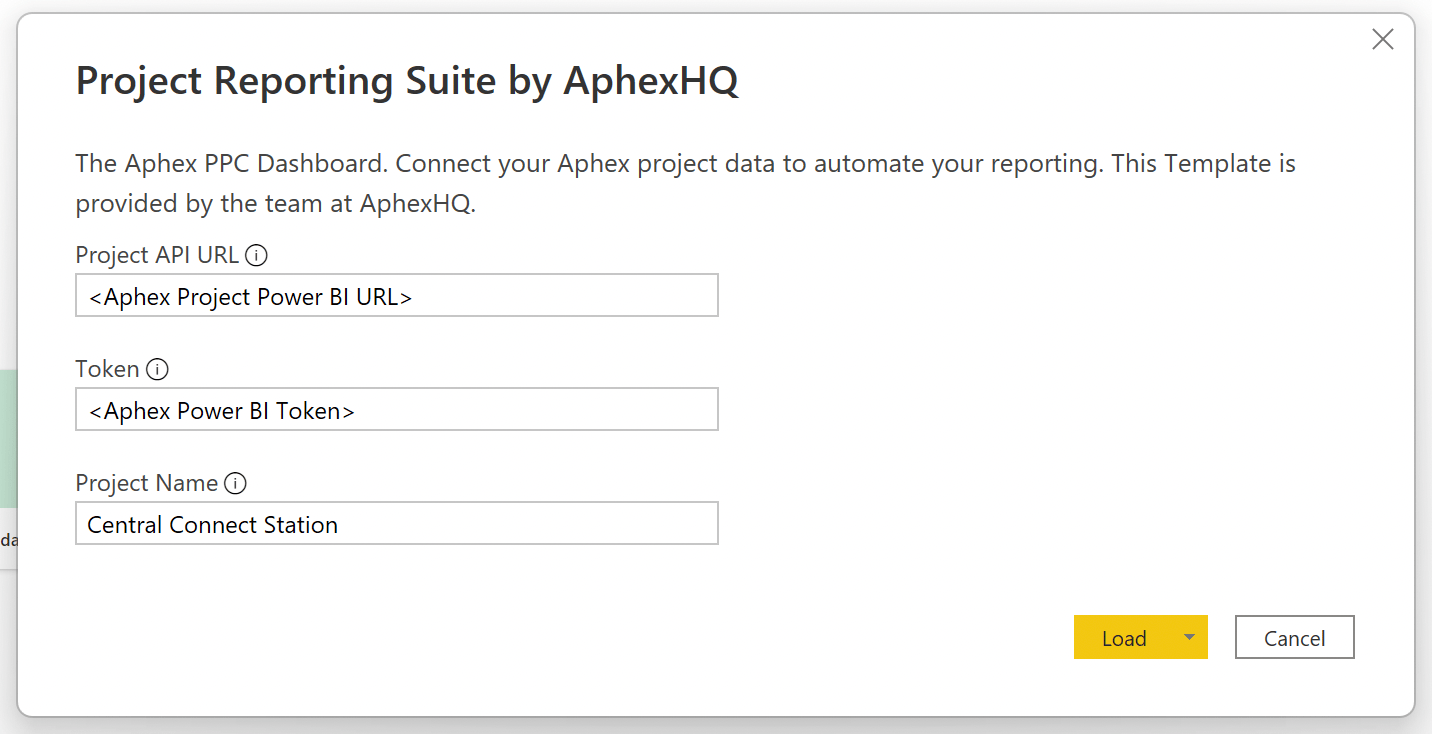


Contributing to a Diary Entry means adding the details of your day's work: which tasks you completed, how they progressed, materials used, and any notes or observations. The contribution workflow is the same whether you're using the mobile or web app, though the interface differs slightly. If you are using the web version, see our
To begin contributing to a Diary Entry, you will need to either create a new Diary Entry or open an existing Diary Entry that someone in your team has already created.
To open a new Diary Entry:
Select from the bottom navigation bar
Locate the unopened Diary Entry from the list and click
Select at the bottom of the screen
To contribute to an existing Diary Entry:
Select from the bottom navigation bar
Select at the top of the screen
Locate or search for the open Diary Entry from the list
Tap on the Diary Entry
This is where you tell the Entry which tasks you worked on today. Selected tasks determine what you can log in later steps (progress, quantities).
To add suggested tasks:
Tap the on suggested tasks that match your work for the day
Selected tasks show a blue checkmark and move to the top Selected Tasks section
To add other tasks:
Tap
In the search screen, use to narrow results
Tap the on the tasks you want to add to the Diary Entry
To create an unplanned task:
Tap
Select
Add the Task Name
Tap
Log how tasks progressed during your shift: on track, delayed, or ahead of schedule.
To make progress updates:
Review tasks that already have progress logged
For tasks needing an update, click the icon
Add the Production record (if applicable)
Confirm the Finish Date
See for a detailed step-by-step on Progress Updates.
For each Planned Material allocated to a Linked Task, diary contributors can record Material Actuals against.
To record Planned Material Quantities against tasks:
Locate the task you want to record actual material quantities for
Enter the actual quantity, or click to browse recent inputs
To record Unplanned Material Quantities against tasks:
Locate the task you want to record an unplanned material quantities for
Select and select the material from the dropdown
Input the material quantity
Record actual Labour and Plant details for the day.
To add Labour & Plant details:
Tap the
Input the required * and optional Labour or Plant details
Tap
Add related notes and photos to the Diary Entry and link to specific tasks.
To add a note or image:
Select and choose which note you'd like to attach
Image to Text: Take a photo of handwritten notes to be generated into text
Voice to Text: Speak into the microphone to generate a transcribed note
To link notes and images to a task:
Locate the note or image you wish to link, and click beneath it
Select the related task
To link multiple tasks to one note or image:
Click on the image or note
Tap in the top right corner
Select duplicate and tap ←
Select and Add from Clipboard
Generate a summary of your entry with AI, or write one manually.
To generate a summary:
Click to draft an AI-generated summary
Review the generated summary and add any additional details
Alternatively, manually type the summary in the text box
Once all contributors have updated the diary entry for the day, the next step is to review and submit the diary. It is the responsibility of the contributors to either lock, or submit the entry for review at the end of each day.
To Review & Submit the Diary Entry:
Review the diary entry details and confirm that all information is correct
If information needs to be updated, navigate back to the relevant section and make any changes
Once reviewed, click
Note: If your Diary has one or more Reviewer assigned, you will be prompted to instead
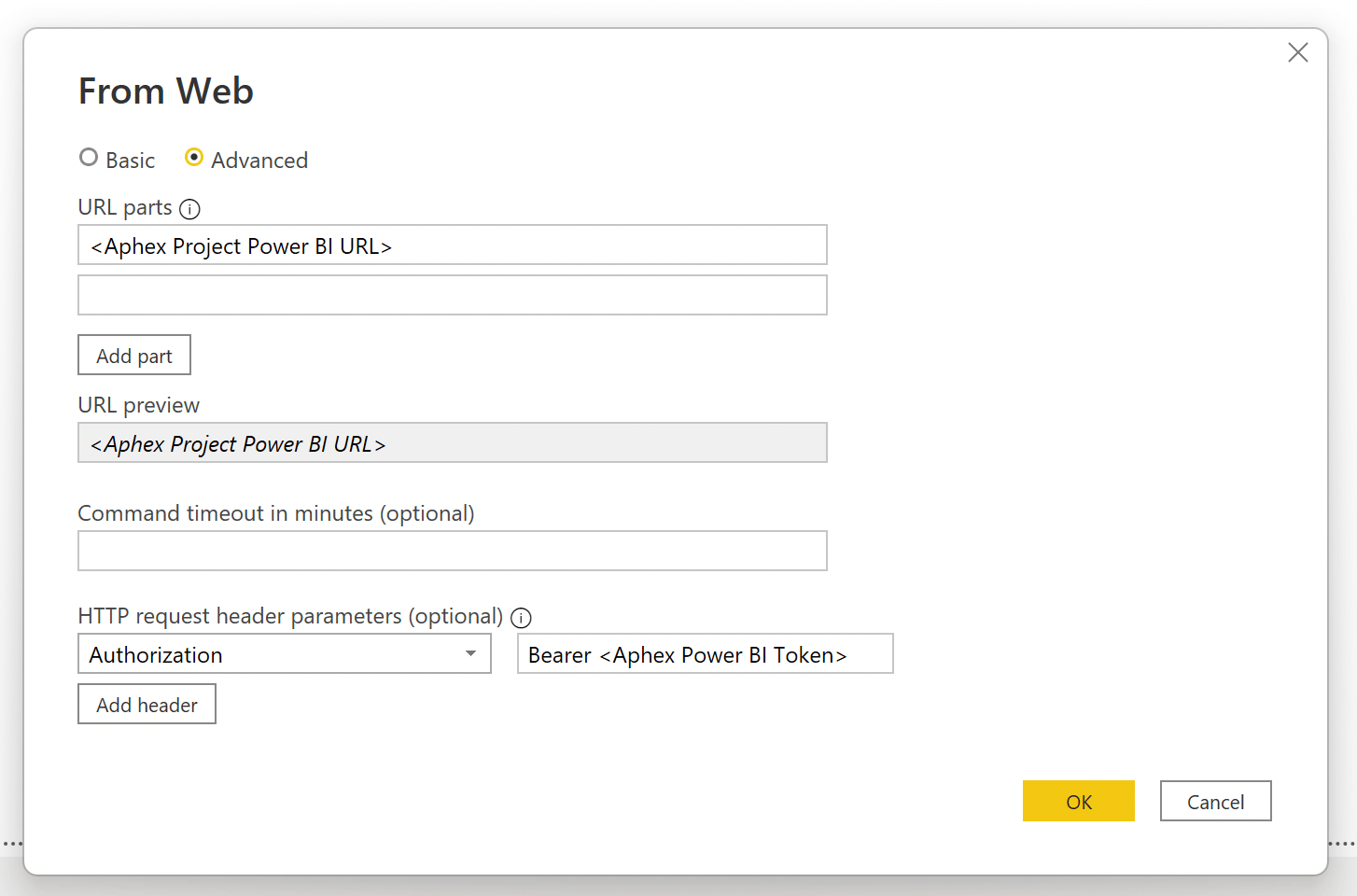
Select at the bottom of the screen
Review Progress details and add additional context
Tap
Write Note : Type a note to add to the Diary Entry
Tick the duplicated image and select
Tap beneath the duplicated task
Select the related task


This guide outlines how to prepare your Asta Powerproject file before importing into Aphex. We've included known quirks, export tips, supported file types and small adjustments that can make a big difference once the file is uploaded into your Aphex Project.
Once you've exported your file, see how to run the import into Aphex:
XER
XML (Primavera P6 Schema)
XML ( Microsoft Project Schema)
MPP
Visit the Asta Documentation for guidance on how to export to &
Often, your delivery team won't need to see every single task in the Master Schedule in Aphex - they just need the right slice of it. Filtering before you export from Asta means the plan you import into Aphex includes only relevant tasks, not cluttered with everything else, like Procurement or Design. There are three main ways to filter, let's take a look at each below.
Best For: Quick exports of exactly what’s on screen
Supported Export Formats: MS Project XML or MPP
For full details, visit the Asta Documentation to see how to and learn more about the
Best For: Selecting a complete phase/area/discipline directly from the WBS (one or several branches) and bringing it across intact.
Supported Exported Formats: MS Project XML or MPP
For full details, visit the Asta Documentation for
Best For: Granular control over exactly which tasks you want to import, regardless of where they sit in the overall structure.
Supported Exported Formats: MS Project XML, MPP, P6 XML, XER
For full details, visit the Asta Documentation to see how to work with
See also: apply your Custom Filter during the
Aphex can build your folder structure from your Asta hierarchy. It only creates Folders for WBS levels that have Tasks included in your import (empty branches aren’t created).
Your mapping options depend on the export schema you’re using:.
What it is: The formal WBS code in the exported file
Why pick this: You want folders to follow the project’s formal WBS exactly. Only select this option if you’ve built/assigned WBS codes to activities
Supports: Primavera P6 XML and XER
What it is: A hierarchy built from the chart/summary grouping at export time (the “natural” on-screen order)
Why pick this: You want Folders to mirror the practical on-screen grouping you used when exporting. Select this option when you’re organising by visible grouping and don’t have WBS codes in place.
Supports: Primavera P6 XML and XER
What it is: An automatic path like 1.2.3 that shows a task’s exact position in the outline
Why pick this: You want Folders to mirror the on-screen outline from an MS Project-schema export
Supports: MS Project XML and MPP
What is it: Asta’s Work Breakdown Number assigned to each task. It’s a hierarchical, generated identifier (often looks like 1.2.3). It isn’t the formal WBS code; it’s Asta’s task ID scheme
Why pick this: If your team already references WBNs and wants that familiar structure reflected in Aphex
Supports: MS Project XML
By default, Aphex imports all core task & relationship data from your export.
If you've already captured extra information in Asta, like Owner, Location, Subcontractor or Notes, you can pull these into Aphex too, using Asta's Task-level User Fields.
If you don't - that's no problem! It's easy and quick to apply the same edits in the Aphex plan.
Create a User Field in Asta:
Select Task in the Object type dropdown
Choose String as the Field type
Repeat for any other optional property you want to import.
Also: How to map User Fields during the
Asta’s Summary Bars are used to group and structure Tasks in a hierarchical plan. In Asta, they’re a distinct Object Type.
However, when imported into Aphex, Summary Bars are treated as regular Tasks, which can result in duplication if the Tasks they summarise are also imported.
Mid‑Links are a type of logic link in Asta where the dependency connects to or from the middle of an activity, rather than the start or finish.
To keep things as simple as possible for end users, Aphex doesn’t handle mid‑link logic - all links must connect to either the start or end of a task.
Additionally, as mid-links aren’t supported in P6 or MS Project, Asta converts them during export to XML or XER to the closest matching link type.
In Aphex, the smallest possible task duration is one day.
This works well once tasks are in Aphex, but it can cause changes if you’re importing from a Master Schedule where some tasks are shorter than a full day.
Aphex automatically handles these adjustments during the import process, which should result in sequenced tasks remaining aligned on the correct dates, without you needing to do anything.
To keep Aphex as simple as possible, constraints are not supported (e.g., “Must Start On”, “Start No Earlier Than”). When you import from Asta, Aphex will schedule from links, durations, start date and calendars. As a result, tasks that were being “held” by constraints in the source file can move once imported and be a source of variance.
Aphex assumes the lookahead inside Aphex is most up-to-date version of the plan, once tasks are imported. On later imports, existing Aphex tasks are not overwritten. Imports only ever create new tasks (i.e., tasks that don’t already exist in Aphex).
Often, your Master Schedule is contractual, so nothing should change by accident. Aphex shows what’s moved and why; updates back to Asta stay manual, deliberate, and on your terms.
Weekly Published Versions & Import Baselines - snapshots you can compare against.
Variance Reports & Exports - quickly see what changed since the last baseline (date moves, duration changes, new/removed tasks, completion).
External ID
Each user has an Project Role that controls what Tasks they can edit, and what data they can manage inside the Project.
Project Admin
Everything. Full control over the Project Users, Settings, Assets, Imports, Publishing & Permissions. Can edit all Tasks in the Project.
Project Member
Additional Permissions allow Project Admins to grant specific capabilities to Project Members without changing their Project Role.
Currently the available additional permissions include:
Separate from their Project Role, Users either have Full or Limited Planner Access - this defines product functionality access.
Planner access is set per Project, but requires a paid Planner Seat for Full access.
Planner Access can be set to Full or Limited for users whether you’re updating one person, multiple users at once, or inviting someone new.
Open the Project and click your Project Title in the top left, then Users
Individual Assignment:
Locate a specific User in the table
Toggle their Planner Access to Full
These same steps can be taken to set Planner Access to Limited
Project Admins can grant the Import Master Schedule permission to Members either individually or in bulk.
Individual Assignment (User Panel)
Locate a specific User in the table
Click on the User's name
In the Extra Permissions section, toggle on Import Master Schedule
Open the Project and click your Project Title in the top left, then Users
Click "Add User" to trigger the Project Add User window
Enter email addresses separated by commas
The system will validate email formats and check for existing users
Archiving a User blocks their access to the Project without deleting their data or records in the Project.
Open the Project and click your Project Title in the top left, then Users
Indiviual Archive:
Locate a specific User in the table
Hover over their row and click ... then Archive User
Deleting a Project User removes all record of that User from your Project. Users must already by archived, and not own any Tasks or Packages before they can be deleted.
Open the Project and click your Project Title in the top left, then Users
Individual Delete:
Locate a specific User in the table
Hover over their row and click ... then Delete User
Task Delegates allow one user to edit all tasks owned by another. For example, if User A is set as a Task Delegate for User B, they can edit any task assigned to User B.
A user can have multiple Task Delegates, and there’s no limit to how many can be assigned.
Open the Project
Click your Project Title in the top left, then Users
Locate the User you want to set a Delegate for
Click on the User's name to open the User Panel
See also:
Plan Reviewers create a two-step approval process for weekly plan updates. When a Task Owner marks their work as Ready, their assigned Reviewer gets notified and should review it before the final version is published.
Open the Project
Click your Project Title in the top left, then Users
Locate the User you want to set a Reviewer for
Click on the User's name to open the User Panel
See also:
Exporting Project Users allows you to download a CSV file containing user data from the Project Users table.
Open the Project and click your Project Title in the top left, then Users
Select at the top right of the table
Briefings turns your live plan into a printable Daily Brief for your crews. Set up a Briefing Template once, choosing the tasks, maps and columns you want to show, then hit Publish each day to generate a PDF from the latest version of your plan.
Every Daily Brief is saved to the template's history, giving you a dated record of exactly what was briefed to the crew on any given day.
A Briefing Template stores the layout of your brief, so you only need to set it up once. Each template has a name, a date and one or more Sections.
To create a Briefing Template:
Click your Project Title in the top left
Select Project Assets
Select Briefings from the Planner section of the menu
Click + Create New Briefing Template
Enter a name for your template
Select a date. Use the Today or Tomorrow shortcuts, or pick a future date from the calendar
Click in the bottom left corner and choose Location or Task Table to add your first Section
Configure your Section and add as many more as you need
Click Create & Publish Briefing to save the template and publish your first Daily Brief
To save the template without publishing, click and select Create Briefing Template Only.
Location Sections show a map of your site with Work Areas, Markups and Connected Layers, plus an optional table of the Tasks happening there.
To add a Location Section:
Click and select Location
Choose a from your Project's library
The map will zoom to fit the Tasks scheduled for the template's date
Optionally click Set Map Extent to pan, zoom or rotate
Task Table Sections show a list of Tasks without a map. They use the same filters, grouping and columns as the Task Table in a Location Section.
To add a Task Table Section:
Click and select Task Table
Set your filters to choose which Tasks are shown
Optionally select a Grouped by option
Click + Add Column to add the columns you need, and drag and drop them to reorder
Sections can be reordered, duplicated and copied between, so you can quickly build up a multi-page brief. For example, you could add a map for each area of site, followed by a full Task Table.
To reorder Sections:
Drag and drop a Section card in the strip at the bottom of the page
Or, click ... on the Section card (or right-click the Section) and select Move Left or Move Right
To add a Section in a specific position:
Click ... on a Section card
Select Insert Before or Insert After
Choose Location or Task Table
To copy settings between Sections:
Click ... on the Section you want to copy and select Copy Config
Click ... on the Section you want to update and select Paste Config
Publishing pulls the latest Tasks and plan into your template and creates a new Daily Brief. You can publish from the Briefings page or from inside the template.
To publish a Daily Brief:
Click your Project Title in the top left
Select Project Assets
Select Briefings from the Planner section of the menu
Click Publish on the template's row
Click into any template to see every Daily Brief it has published. It's a quick way to check exactly what the crew was briefed on any given day.
To open a Daily Brief:
Click your Project Title in the top left
Select Project Assets
Select Briefings from the Planner section of the menu
Click into a template
Download any Daily Brief as a PDF to print, hand out or share with your crew. You can download a brief straight after publishing, from the template's history, or from the viewer.
To download a Daily Brief:
Click your Project Title in the top left
Select Project Assets
Select Briefings from the Planner section of the menu
Click into a template
Delete a single Daily Brief if it was published by mistake or is no longer needed. Deleting a Daily Brief only removes that one publish. The template and its other Daily Briefs aren't affected.
To delete a Daily Brief from the template:
Click your Project Title in the top left
Select Project Assets
Select Briefings from the Planner section of the menu
Click into a template
Duplicating a template copies every Section and setting, making it easy to set up a similar brief for another trade, shift or area of site.
To duplicate a template:
Click your Project Title in the top left
Select Project Assets
Select Briefings from the Planner section of the menu
Hover over a template and click ...
Archiving a template stops it from being published, but keeps the template and all of its Daily Briefs. You can restore an archived template at any time.
To archive a template:
Click your Project Title in the top left
Select Project Assets
Select Briefings from the Planner section of the menu
Hover over a template and click ...
To restore an archived template:
Click your Project Title in the top left
Select Project Assets
Select Briefings from the Planner section of the menu
Hover over an archived template and click ...
To delete a template:
Archive the template first
Hover over the archived template and click ...
Select Delete Briefing Template
Type delete to confirm
See also:
We've suggest naming it something descriptive, like Aphex_Subcontractor
Add this new User Field as a column in your Asta view
For each Task you're importing, add in the value (the Subcontractor name, in this example) in the relevant cell
Select multiple Users using the checkboxes
Use the multi-select toolbar to turn on Full Planner Access for all selected Users
Adding New Users:
When using the Add User flow, you can allocate Full Planner Access during the invitation process by toggling their Planner Access to Full
Bulk Assignment (User Table)
Select multiple Users using the checkboxes
Click the Additional Permissions icon in the multi-select toolbar.
Toggle on Import Master Schedule for the selected users.
Choose between Admin or Member for their Project Role
Toggle the Full or Limited Planner Access options as needed
Click
Bulk Archive:
Select multiple Users using the checkboxes
Use the multi-select toolbar to choose ... then Archive Users
Confirm
Bulk Delete:
Select multiple Users using the checkboxes
Use the multi-select toolbar to choose ... then Delete Users
Confirm
Click in the Task Delegate section
Select one or more Users who should be able to edit all Tasks owned by this User
In the Plan Reviewer section, open the dropdown menu
Choose one User to act as the Reviewer for that person’s plan
Can make edits to their own Tasks and add new Users to the project.
Import Master Schedule
Allows a Member to import a Master Schedule and manage imported tasks
Full
Complete access to all Planner features and View types
Limited
Restricted to List View only and mobile app access

Set your filters, layout, columns and map settings. The preview will update as you make changes
Configure the Brief: Edit filters, grouping, remove columns or rearrange the sections. Any changes you make here will update the Briefing Template.
Click Publish Daily Brief
Click a Daily Brief to open the viewer
Use the zoom and rotate controls to adjust the page
Click to open Full Screen mode, and use your arrow keys to move between pages
Locate the Daily Brief you need using its publish date and time
Click on the row to download it without opening the viewer
Hover over the Daily Brief you'd like to delete and click ...
Select Delete Daily Brief
Select Duplicate Briefing Template
The copy will be named with a number at the end, e.g. Site A Morning Brief-01
Select Archive Briefing Template
Select Restore Briefing Template


Task Table
Toggle the Task Table on or off
Layout
Show the Task Table on the same page as the map (Combined), or on its own page (Separate Page). Combined is selected by default
Grouped by
Group the Task Table by Owner, Package, Folder, Subcontractor or Shift
Columns
Click + Add Column to add columns to the Task Table. Drag and drop to reorder them
Labels
Show Task Names or Reference Numbers on the map. Task Names is selected by default
Work Area Colour
Pick from either Owner, Subcontractor or Shift for the Work Area colour. Owner is selected by default
Show Clashes
To Include/Exclude clashes on the map
Layers
Show or hide Markups and Connected Layers, and select a Basemap of Satellite, Street or None
Move Left / Move Right
Move the Section one position along the strip
Insert Before / After
Add a new Section before or after the selected Section
Duplicate Section
Create a copy of the Section, including its Location, directly after the original
Delete Section
Remove the Section from the template
Make sure this is selected - otherwise, Asta will export the entire schedule.
For Owner, insert the email address of the activity’s owner.
Check that this matches the email address the team member uses for Aphex. This will ensure the Tasks are automatically assigned to the correct user.
If not, the address entered will receive an invite to join the Aphex project.
For Notes, they will automatically be added as a text note to the specific imported activity
<taskUniqueId> is the unique task ID from the fileE.g. if you have a task with ID 123 in a file called "aphex-program-2.0", the External ID would be aphex-program-2.0_123.
Cannot export filtered view
MPP and XML (MS Project Schema)
Exporting specific branches
Exporting filtered views
Using WBN or OutlineNumber
Repeating imports over time is harder if the Asta project name changes, as it affects task identifiers and can cause duplicates
Subcontractor Name
Aphex_Subcontractor
Owner
Owner's Aphex Email Address
Aphex_Owner
Location
Location Name
Aphex_Location
Notes
Free Text
Aphex_Notes
Create Tasks
Edit Tasks
Members can only edit tasks they are the owner, assignee or delegate for
Manage Project Settings
Manage Project Permissions
Add Project Users (who already exist at the Organisation level)
Project-controlled
Add Project Users (who do not already exist at the Organisation level)
Organisation-controlled
Manage Project Users
Create Teams
Manage Integrations
Import Tasks via CSV
Import Master Schedule
Members require the Import Master Schedule additional permission to access this feature
Publish the Plan
Make Ready
For their own part of the plan
Manage Publicly Shared Data
Create and Share Views
Manage All Views
Create & Manage Folders
Project-controlled
Create & Manage Packages
Create & Manage Labour
Create & Manage Plant
Create & Manage Materials
Create & Manage Subcontractors
Create & Manage Locations
Create & Manage Calendars
Create & Manage Delay Reasons
Create & Manage Blockers
Project-controlled
Create & Manage Tags
Project-controlled
Create New Diaries
Edit Own Diaries
Edit Diaries Created by Others
Contribute to All Diaries
Members can only contribute if they are added as a Contributor
Board Views
Map Views
List Views
Aphex Mobile (List & Map)
Published Versions
User's chosen display name
User's email address
Role
User's Project Role
LastLogin
The date of the last time the user logged in to the Organisation
Planner Access
Full/Limited
Status
Archived/Active
Task Delegate
Email addresses of the User's Task Delegates
Plan Reviewer
Email address of the User's Plan Reviewer


Here at Aphex, we aim to keep things simple! That’s why we’ve created a set of pre-designed Power BI reports that allow you to pull data and insights directly from your project.
A key advantage of these templates is that they exclusively pull from your published versions, ensuring you always have the most accurate and up-to-date information at your fingertips.
This feature enables confident, data-driven decision-making. Each template is fully customisable to suit your unique project needs, but you can also use them as-is for immediate reporting.
This report provides a snapshot of your project's progress against its plan, tracking key metrics such as PPC (Percent Plan Complete) and identifying recorded delays within your publications.
Key Measures:
Available In:
See Also:
This report provides a comprehensive overview of your project's performance, including weekly and cumulative Percent Plan Complete (PPC) scores, reasons for non-completion (RNC), and detailed task status breakdowns.
Key Measures:
Available In:
See Also:
This report offers an in-depth analysis of your project's weekly progress, highlighting task statuses and providing insights into reasons for non-completion. With detailed visualisations, you can effectively track performance and identify areas for improvement.
Available In:
This report monitors the completion and quality of your weekly publications, tracking user involvement and identifying potential issues such as clashes or missing information. With clear visualisations, you can easily assess the status of each publication and address any concerns that may arise.
Key Measures:
Available In:
See Also:
The Plan Comparison report provides a comprehensive analysis of plan and milestone variances, enabling you to compare the overall plan or specific milestones effectively. By highlighting changes between any two points in time, this report helps you to make informed decisions based on real-time data insights.
Key Measures:
Available In:
The Milestone Comparison report provides a focused analysis of milestone date changes across your publication history, enabling you to track schedule progression and identify trends in milestone movement over time. By comparing milestone end dates between publications and visualising variance trends, this report helps you understand schedule stability, anticipate potential delays, and communicate milestone changes effectively.
Key Measures:
Available In:
The Daily Task Allocation report provides a detailed view of task distribution across your team, enabling you to compare planned versus actual work execution on a daily basis. By analysing task allocation between any two publications, this report helps you identify workload patterns, capacity constraints, and deviations from your original plan, supporting more accurate resource planning and scheduling decisions.
Key Measures:
Available In:
The Blockers Dashboard provides a comprehensive overview of key details regarding blockers (issues or obstacles) that may impact your project. By tracking and analysing these blockers, you can identify potential risks and implement strategies to mitigate them effectively.
Key Measures:
Available In:
The Material Resource offers valuable insights into how effectively material resources are planned and utilised across your project. By comparing planned quantities against actual usage, this report helps you identify trends and discrepancies, ensuring you have a comprehensive understanding of your material distribution.
Key Measures:
Available In:
The Labour and Plant Resource delivers clear visualisations and precise forecast allocations, enabling you to effectively analyse how Labour and Plant resources are planned across your projects. With this dashboard, you can easily identify trends and make informed decisions regarding resource allocation.
Key Measures:
Available In:
Packages: Displays all Package Names with tasks in the selected publications
Subcontractors: Displays all Subcontractors with tasks in the selected publications
Folder Code: Displays nested folder codes for the purpose of filtering to a specific branch of the folder tree.


Each user has an Organisation Role that controls what Organisation information they can access and manage in the Admin Console.
Billing Admin
Access to billing and subscription management only.
Member
Access assigned at the project level only - no admin or billing permissions.
Alongside their Organisation Role, Users can also be granted a Planner and/or Diary Seat. Seats are paid and will determine if the user has the possibility of accessing Planner and Diary in each Project they are invited to:
Planner
Can be given Full Planner Access in any Project they are a User on
Is able to open Aphex Insight
Diary
Can be given Diary Access in any Project they are a User on
Diary access and Full Planner access is determined at the Project level, but Users must first be assigned the correct seat to be eligible.
You can assign or revoke Seats individually, in bulk, or during the user invite flow.
Open the Admin App and select Organisation Users
Indiviual Assignment:
Click on a specific User to open their slide-in panel
Toggle on Planner Seat and/or Diary Seat
Bulk Assignment:
Select multiple Users using the checkboxes
Use the multi-select toolbar to provision Seats for all selected Users
Adding New Users:
When using the <+ add user> flow, you can assign Seats during the invitation process by toggling Planner Seat and/or Diary Seat .
Seat states help you understand whether a user holds a paid seat and whether they're actually using it on active projects.
There are three seat states for Planner and Diary:
Active
The user has been assigned this seat AND has full access to it on at least one active project. Archived Projects and Archived Project Users do not count. Active Seats are labeled with a
Idle
The user has been assigned this seat BUT does not have full access to it on any active projects. Idle Seats will have a warning next to the
Not Assigned
Diary and Planner Seats holds their own states independently, a user can be Active on Planner and Idle on Diary, so the two are shown separately in the table.
Open the Admin App and select Organisation Users
Click "Add User" to trigger the Organisation Add User window
Enter email addresses separated by commas
The system will validate email formats and check for existing users
Toggle the Planner Seat option as needed
Click
Adding a User at the Organisation level gives them access to the Organisation, but they won’t see any plans until they’ve been
Suspending a User blocks their access to the Organisation and all associated Projects without deleting their data. Suspended Users no longer count toward your billed seat total.
Open the Admin App and select Organisation Users
Indiviual Suspension:
Click on a specific User to open their slide-in panel
Click ... then Suspend User
Confirm
Bulk Suspension:
Select multiple Users using checkboxes
Use the multi-select toolbar to choose ... then Suspend
Deleting an Organisation User removes all record of that User from your Organisation. Users must be suspended before they can be deleted.
Open the Admin App and select Organisation Users
Indiviual Delete:
Click on an already suspended User to open their slide-in panel
Click ... then Delete User
Confirm
Bulk Delete:
Select multiple suspended Users using checkboxes
Use the multi-select toolbar to choose ... then Delete User
Exporting Organisation Users allows you to download a CSV file containing user data from the Organisation Users table.
Open the Admin App and select Organisation Users
Select at the top right of the table
Each invoice on the Subscription & Billing page has a download menu with three options: the Tax Invoice, the Billed Seats Record, and a Seat Apportionment pack.
To download from an invoice:
Open the Admin App and select Subscription & Billing
Locate the invoice you need
Click Download on the invoice row
Select Tax Invoice, Billed Seats Record or Seat Apportionment
Seat Apportionment breaks a monthly Planner or Diary invoice down by Project, and by Business Unit if your Organisation uses them. It shows what share of the billed seats each Project accounts for, and the named people behind that share. Forward each Project's page to whoever pays for that Project, as evidence for internal cost recovery.
Shares are shown as seats and as a percentage of the invoice, never as a dollar amount. Use your Tax Invoice to work out the cost.
To download a Seat Apportionment pack:
Open the Admin App and select Subscription & Billing
Locate a monthly Planner or Diary invoice
Click Download on the invoice row
Select Seat Apportionment
A ZIP of PDFs will download
Super Admin
Everything. Full control over the Organisation, Project management, Users, Settings, Billing - even deletion.
System Admin
Same as Super Admin, except they can’t delete the Organisation or manage billing.
Full access and management of the Projects page
Full access and management of the Security controls
Ability to permanently delete the Organisation (Obliterate)
Management of Advanced Permissions
Full access and management of Billing & Subscription
Full access and management of the Projects page
Full access and management of the Security controls
Management of Advanced Permissions
Access the Org
Be added to Projects
Access Aphex Insight
Open the Admin App
Manage Org Settings
Delete the Org
Manage Org Users
Provision Paid Seats
Members & Billing Admin:
Only possible via Invite User flow. This can be restricted to System Admins only on an Enterprise subscription
Downgrade Paid Seats
Manage Existing Projects
Manage Billing
Invite New Members to Org
Permissions can be customised
Create New Projects
Permissions can be customised
Transfer Projects Between Orgs
Manage Authentication
The user has a Diary Seat but no Diary Access on any active projects
Once a user is granted Diary Access to one or more active projects, their Diary Seat will no longer be flagged as
Additional Idle Rules:
If a user has Full Access only on archived projects, their seat is still be
Suspended users will not show labels
Seat State Matrix:
Full Diary & Planner access on an active project
Active ()
Active ()
Full Diary access only on an active project
Idle ()
The invite link is optional - invited Users can also sign up directly using their invited email address at app.aphex.co/sign-up
Last Login: Shows as "never" until first login
Suspended users show as Suspended throughout the system
Billing Impact
Suspended users are no longer billed
Records Preserved
User data and activity history remain intact
User's email address
Role
User's Organisation Role
LastLogin
The date of the last time the user logged in to the Organisation
Planner Seat
Yes/No
Auth
How users sign in to the system
Suspension Status: Shows "Suspended" for suspended users
Billed Seats Record
A ZIP with two CSVs: Org Users and Projects
All invoices
Seat Apportionment
A ZIP of PDFs breaking the invoice down by project and business unit
Enterprise orgs with Seat Apportionment enabled, on monthly Planner or Diary invoices
User's email address
Role
User's Organisation Role
Planner Seat
Yes/No
Authentication
How users sign in to the system
Suspension Status: Shows "Suspended" for suspended users
Projects CSV
Now includes each Project's External ID, as set in Project Settings → External Project ID
One per Business Unit, showing its Projects and the people behind its share. Projects without a Business Unit go on an Unassigned PDF. Only included if your Organisation uses Business Units
Project
One per active Project, listing the named people behind its share. This is the page to forward to a Project team
Every PDF shows the invoice number it relates to.
A Diary pack only includes Projects with Diary enabled, so the same person's seat can split differently across their Planner and Diary packs
Every page adds back up exactly to the seats on that invoice
Example: an invoice bills 30 Planner seats. Priya has access to Project A and Project B, so each gets 0.50 of her seat. Once every user is split this way, Project A might total 3.58 seats, or 11.9% of the invoice.
The invoice is from a billing cycle before Seat Apportionment was released, so there's no seat record to break down
Seat Apportionment is download only. It isn't sent automatically with your invoice.
User has not been assigned this seat. Not Assigned Seats are labeled with a
Full access and management of Organisation Settings
Management of Organisation Settings
Full access and management of Billing & Subscription
Turning a Planner Seat on gives the User the ability to access Planner in any Project they’re part of, and they’ll be included in billing.
If a Planner Seat is removed, any Projects where the user had Full Planner Access will automatically downgrade them to Limited access.
Users with Planner Seats count toward your billed seat total - this directly affects your Organisation’s subscription cost.
Only Super Admins and System Admins can manage Planner Seat assignments at the organisation level.
Turning a Diary Seat on gives the User the ability to access Diary in any Project they’re part of.
If a Diary Seat is removed, any Projects where the user had Diary Access will automatically remove their access.
Only Super Admins and System Admins can manage Diary Seat assignments at the organisation level.
Name
Tax Invoice
The invoice PDF
Display Name
Summary
Every Project's share of the invoice, as seats and % of invoice, grouped by Business Unit where used. Idle seats have their own row, and the total always matches the seats billed


Full access and management of Organisation Users
Full access and management of Organisation Users
User's chosen display name
All invoices
User's chosen display name
Business Unit
Active ()
Full Planner access only on an active project
Active ()
Idle ()
Full access on archived project only
Idle ()
Idle ()
Only Limited Planner access and no Diary access on any active project
Idle ()
Idle ()
Not part of an active project
Not Assigned ()
Not Assigned ()

Gantt Views can be grouped by different properties within your plan to organise your Tasks in different ways.
To change how the Gantt is Grouped:
Click the menu in the top left of the Gantt
Select a Primary Grouping. Pick from Folder, Owner, Package, Shift or Location
Optionally, select a Sub-Grouping to apply another level of structure beneath the Primary Group
When Hide Empty Primary Groups is , only Groups that contain visible Tasks will show on the Gantt. Any Groups without Tasks in your current View will be hidden.
Click the menu in the top left of the Gantt
Select either Collapse All or Expand All
Gantt Views are very flexible and allow you to visualise any set of Tasks over time.
To change the visible Date Range on the Gantt:
Click at the top of the Gantt
Yours might also look similar to or
Choose your preferred mode from the selector:
Filters in Aphex let you show only what matters, whether that’s Tasks with certain properties, or ones that are missing something. Keep it simple or build something more detailed, it's up to you.
To filter the Tasks you see in a Gantt View:
Click at the top of the Gantt
In the dropdown that appears select and choose the property you'd like to filter by
Change the logic from options like or to or to hide or reveal the relevant Tasks
Click to swap between and
Using Filter Groups:
Groups are helpful when combining logic and logic in your filter
Click to create an additional filter group
See also: creating & sharing
If your Gantt looks empty, it's usually because settings like Filters, your Date Range, or the Hide Empty Groups toggle are hiding your tasks or groups. Aphex provides clear messages and icons to help you adjust your view.
Empty Gantt Message:
When no tasks or groups are visible, a message will appear in the Gantt:
Looks like your Gantt is empty Try adjusting or to reveal activities and groups
To reveal your tasks, simply click the highlighted or in the message to open the relevant panel and adjust your view settings.
Hidden Groups Notification:
When the Hide Empty Groups toggle is active, a notification appears at the top of the Gantt if any groups (Folder, Location, Owner, Package, Shift or Subcontractor) are hidden as a result:
[X] Hidden [Group Type] Adjust your and configuration to reveal hidden groups
To reveal hidden groups:
Click the highlighted or in the message to open the relevant panel and adjust your view settings.
Open [View Settings Icon] and set the Hide Empty Groups toggle to [Toggle Off Icon].
Hidden Items in Folders:
Look for the next to a Folder Row. This icon indicates the folder contains subfolders, but they are hidden by your current Filters, Date Range, or Hide Empty Toggle.
To temporarily reveal the hidden folers:
Click the next to the folder name. This displays the contents without changing your overall Gantt view.
Tasks on the Gantt will always be sorted by Start Date - the earlier a Task starts, the higher it will appear within it's grouping.
Aphex will hold the position of your Tasks while you make edits, and then when you're ready to re-apply the Sort Order, click in the bottom left corner.
Refreshing your Aphex window will also trigger the sort order to be re-applied to your Gantt View.
You can view your projects on a range of time scales, from a single day to a full year:
Head to the bottom-right corner of your Gantt
Use the menu to switch between Day, Week, Month, or Year
The Gantt will instantly update to show your plan on the scale you’ve selected
Overlays let you layer in things like baselines, critical path visibility, or daily resource demand. This means you can add extra context to your Gantt without changing up or leaving your View.
Click at the top of the Gantt
Select from Resource, Baseline, Critical Path
To compare the Live Plan to a previous week, select Baseline
See also: and
When viewing your Gantt, Aphex automatically calculates a Start Date, End Date, and Duration for Folders, Packages, and Parent Tasks. These adjust based on what’s visible in your View and which working calendar you chose to apply.
Click
Select Group Duration Calendar
Choose one out of: Project Default, 5 Day Week, 7 Day Week
Open the Column Picker and toggle Duration or Start / End
These values change dynamically with Filters or Date Range updates
Filtered values are marked with a icon so you know they’ve been adjusted
See also:
Turn on any Task Property as a spreadsheet-style column, then click into cells to edit, bulk-fill, or paste across Tasks.
To hide and show Gantt Columns:
Click the button at the top of the Gantt
Set the toggles to or to hide or reveal any combination of columns
Once a column is enabled, select any cell to change the value
Every colour and icon on the Gantt tells you something. Whether it’s a Milestone, a delay, or who is responsible for the work - you can choose what shows and how it looks.
Click in the top right of the Gantt
Select Bar Colour
Choose how you’d like to colour the Gantt; by Subcontractor, Shift, or Owner
Milestones will appear as and any associated Target Dates will be if slipped and if on track
Overdue Blockers will be represented with next to the end of the Task
Delays are shown as a on the Task Bar, displaying the total amount of days the Task has been delayed by
Click and toggle
See also:
Use the Gantt search to quickly find Tasks. As you type, matching Tasks are highlighted and jumped into view automatically.
To Search for Tasks:
Click into the Search Bar in the top left of the Gantt
Type in your search term
Press Enter on your keyboard or click the < and > icons to cycle through all matching Tasks
When you add a Task, you can customise its properties to reflect exactly what’s being done, by who, and when, making sure the plan communicates clearly to anyone who needs to see it.
Tasks can store everything from planned resource quantities and work areas to subcontractor assignments and permit requirements. This way, as your plan changes, not only does everything reschedule automatically, but things like resource forecasts, staging diagrams and daily task-lists update on the spot.
You can create Tasks from wherever you’re working - from the Gantt, from the Board, or imported from another source. For an easy start, try adding them directly inside your Folder structure.
On the Gantt, find the Folder where you want the Task to live
Select at the bottom of the group
Your new Task will appear as a line item within that Folder, ready to edit
See also:
Tasks can be edited at any time; whether you're refining the plan, making updates as work progresses, or finalising details for the as-built record. You can update Tasks one by one or in bulk. Let's look at making edits across a selection of Tasks.
Use the to select all Tasks you want to update
Hold Shift on your keyboard to quickly select everything in between
Once selected, the multi-select toolbar will appear at the bottom of the Gantt
Click the
See also: editing via
Drag-and-drop Tasks on the Gantt to easily adjust the start and end dates.
Hover over the Task Bar on the Gantt
Drag either end of the Task Bar to extend or shorten its Duration
Drag the middle to shift the entire Task forward or backward in time
Subtasks work just like regular Tasks, with all the same properties, but are nested inside a Parent Task. They’re ideal for breaking down higher-level activities, especially when importing from a Master Schedule, while keeping a clear link back to the source activity.
Hover over the Task you want to break down
Click
Hover over Add Subtasks
Enter the number of Subtasks you want to create
Subtasks can only go one level deep (Parent → Subtask). If you need more structure, it's best to use Subfolders to build out your plan.
See also:
Subtasks can be moved from one Parent Task to another, as long as a few conditions are met.
Click the column picker towards the top left of the Gantt
Toggle on the Parent column
Click into the cell for the Subtask you want to move
Select the new Parent Task from the list
Use the to select all Tasks you want to duplicate
Hold Shift on your keyboard to quickly select everything in between
Once selected, the multi-select toolbar will appear at the bottom of the Gantt
Click
Hover over the Task Name
Select
Select Duplicate
Use the to select all Tasks you want to delete
Hold Shift on your keyboard to quickly select everything in between
Once selected, the multi-select toolbar will appear at the bottom of the Gantt
Select
Hover over the Task Name
Select
Select Delete Task
If you have multiple Aphex Projects, you may want to move Tasks & assets from one to another. We'll show you how.
Use the to select all Tasks you want to copy
Hold Shift on your keyboard to quickly select everything in between
Once selected, the multi-select toolbar will appear at the bottom of the Gantt
Click the
You can open a Task from anywhere; Gantt, Map, Board, or List View. Just click the task to open the full Task Panel, right on top of your current view so you won’t lose your place. Reorder the panel sections to keep the most relevant info where you need it.
Right-click any Task and select View Details
The Task Panel will open
Click any Task Card from the section on the left hand-side
Or, click the Work Area on the Map and then the icon
The Task Panel will open
Click any Task Card on Board
The Task Panel will open
Click the name of any Task in your List
The Task Panel will open
The Task Activity Log shows a full history of every change, from edits and delays to comments & documents, with who made the change and when.
Right-click any Task and select View Details
The Task Panel will open
Click to toggle the Activity Log on or off
Right-click any Task and select View Details
The Task Panel will open
Start typing into the Add Comment box at the bottom of the panel
Right-click any Task and select View Details
The Task Panel will open
Click the at the bottom of the panel
Select or to upload an image or document

- Enter the number of days before and/or after today to create a moving window.
- Pick specific start and end dates using the date pickers.
Optional: Toggle "Show Surrounding Weeks" to add an extra week of visibility on either side of your selection
This will show a list of all Published Versions, and all Master Schedule Imports
Select any option to see how how your current plan compares to your baseline
Hover over the icon to see:
The Filtered value
The Total value
Your Gantt will update instantly to reflect the new colour scheme
Show Progress and Show Overdue Blockers to hide these Icons from the Gantt


Select the new value from the list
Click the to confirm. Your update will be applied to all selected Tasks
Click the to confirm
Your Task is now a Parent Task with embedded Subtasks
To add more Subtasks later, click directly under the Parent Task
The Subtask will move under the selected Parent
Click Delete Tasks to delete all selected Tasks
Copy to an Aphex ProjectPick an existing Project or create a new one
Select whether to copy all Task Properties or pick from a custom list
Review the 'Copy Task Summary' and Click
Open the destination project: your tasks will be waiting on the Gantt
Uploaded files will appear in the Task Activity Log
Use filters to show only


X Week Lookahead
Today + (Project Lookahead Period)
Next 30 Days
Today + Next 30 Days
Next 3 Months
Today + Next 12 Weeks
Next 6 Months
Today + Next 25 Weeks
Next 12 Months
Today + Next 52 Weeks
All Future Tasks
From Today to Last Task
Project to Date
From First Task to Today
All Tasks
From First Task to Last Task
Forwards
Today + specified days into future
Backwards
Today - specified days into past
Combined
Start Date
Selected start date
End Date
Selected end date
Combined
Off (default)
Displays exactly the calculated range, no additions
On
Adds 1 week before start date + 1 week after end date to visible area
5 Day Week
(Mon–Fri) Static calendar
7 Day Week
(Mon–Sun) Static calendar
Ctrl + 1
All required columns
Ctrl + 2
Time columns
Ctrl + 3
User columns
Ctrl + 4
Resource columns
Ctrl + 5
Map columns
Ctrl + 6
Structure columns
Ctrl + 7
Other columns
Ctrl + 8
Copy
Ctrl + C
Paste
Ctrl + V
Select multiple cells
Shift + Click (cell)
Select multiple tasks
Shift + Click (checkbox)
Undo
Ctrl + Z
Redo
Shift + Ctrl + Z
New line
Shift + Enter
Move task and break links
Shift + Click + Drag (task)
Duplicate Task
Ctrl + D


Full rolling window centred on today
Fixed range from start to end date
Subcontractors can be assigned to Tasks to show who’s delivering the work. They help teams organise, group, and colour Tasks by Subcontractor, making it easier to coordinate and track progress across your plan.
Creating Subcontractors lets you build a reusable library of Subcontractors to assign to Tasks.
Click your Project Title in the top left, then select Project Assets
Select Subcontractors from the menu
Click
Create your Subcontractor by entering a name and assign a colour
The Subcontractor is added to the library of Subcontractors the team can assign to their Tasks
Assigning a Subcontractor to a Task can show who’s responsible for the work and helps with organising and visualising your plan.
On the Gantt, use the column picker to toggle Subcontractor
Click a cell in the column and add a Subcontractor to the Task from the dropdown
See also:
Make it easier to see which Subcontractor is responsible for an activity by changing your Task or Work Area colour according to which Subcontractor is completing the Task.
Open a Gantt View
Click
Click Bar Colour and select Subcontractor
Open a Board View
Click
Click Task Card Colour and select Subcontractor
Open a Map View
Click
Click Work Area Colour and select Subcontractor
Grouping by Subcontractor arranges the Plan by who's delivering each Task. This is possible across all View types, but let's start by looking at Group By Subcontractor on Board.
Click
Select Subcontractor
Optionally, select a different Primary Group, and select Subcontractor as the Sub-Group
Turn on the Resources Overlay to see how many Tasks are planned each day per Subcontractor. You’ll get a clear view of daily workload, plus a breakdown of which Tasks are contributing to it.
Open a Gantt View
Click and select
Click the icon on the left to view your Subcontractors
Hover over the numbers to view your Total and Project Utilisation
Filter by Subcontractor to review and manage Tasks related to particular Subcontractors across your plan.
Click then
Select Subcontractor in the first dropdown
Select from Is, Is Not, Is Empty or Is Not Empty
See also: create & share
Once Subcontractors have been assigned to Tasks, all updates (including Delays, On Track & Improvement events) can be traced back to each Subcontractor. This makes it easy to understand how each Subcontractor is performing across the project.
Aphex Insight gives you a live snapshot of Subcontractor performance - no set up required. Automatically see which Subcontractors are responsible for the highest shares of delay and why.
User Power BI to build custom reporting on Subcontractor delays and performance, based on data in your weekly Published Versions. Aphex provides free templates as a starting point but everything can be customised to suit your project reporting requirements.
See also:
Shifts help you show when work is planned to happen whether it’s during the day, in the afternoon, overnight, or across multiple shifts.
Assigning a Shift to a task helps clearly communicate when the work is planned to happen.
On the Gantt, navigate to the column picker and toggle Shift
Click a cell in the column and select from Day
Click the Resources Configuration icon to switch between Tasks in View and Project Utilisation
Hover over the daily quantity value to see the daily breakdown
Select your desired Subcontractor in the third dropdown


NightAfternoonAllGroup by Shift gives you a simple way to lay out your plan by all the different Shifts the team is working. This is possible across all View types, but let's start by looking at Group By Shift on Board.
Click
Select Shift
Increase visibility of Shifts by updating the task bar, card colour, or work area based on shifts assigned to Tasks.
Open a Gantt View
Click
Click Bar Colour and select Shift
Open a Board View
Click
Click Task Card Colour and select Shift
Open a Map View
Click
Click Work Area Colour and select Shift
Filter by Shift to see Tasks planned for a specific time of day, perfect for coordinating teams across different shifts.
Click and
Select Shift in the first dropdown
Select from Is or Is Not in the second dropdown
Select from Day, Night, Afternoon or All in the third dropdown

The Aphex MCP connector reads your diary and your plan, so you can work with your project data directly from your AI tool (Claude, ChatGPT, Perplexity, Copilot, or any other tool that supports MCP). Ask about your diaries, your tasks, what moved and who moved it, and how things compare with your published plan, and your AI can pull from the diary and the plan together to answer. Aphex supplies the data word-for-word, and your AI does the thinking and writing.
With the Aphex MCP connector, you can ask your AI tool about your diaries, your plan, or both at once.
Project Utilisation
The demand for your entire project
Hide Un-utilised resources
Removes resources that aren’t assigned to any Tasks from the resource list
Multi-Select

Applies to work scheduled later in the day. Ideal for teams running extended hours beyond the usual daytime window.
Night
Covers tasks planned to take place overnight. Common for work that needs to happen outside normal site hours.
All
Used when a task spans multiple shifts or doesn’t fit neatly into a single timeframe.
Day
Used for tasks planned during the daytime. Typically, for tasks within standard site hours.
Shift
Is Is Not


Afternoon
Day, Night, Afternoon, All
"How did we go last week?"
Planner
"Did any milestones move since Friday's publish? Why?"
Planner
"Who moved the [task] dates last week?"
Diary
"Summarise total steel fixer hours across last week's diaries."
Diary
"Find every record mentioning [subcontractor]'s progress on [scope] over the last two months - I'm drafting a letter."
Diary
"Read the diaries from last week on this project - are there any early warnings we should be issuing?"
Both
"How is [subcontractor] tracking against the plan?"
Both
"What did the delays in last week's diaries do to the programme?"
Your AI reads the records, spots patterns, and drafts the output. Aphex provides the data exactly as it was recorded, with who recorded or changed it and when.
Before you can set up the MCP for the organisation, you'll need to with our team to have the feature enabled.
Once enabled, system admins can turn on the feature for the organisation.
To switch on the MCP for the organisation:
From your Aphex Homepage, go to Admin → AI
Toggle on MCP
Once enabled, all users in the organisation can connect their AI tool to Aphex.
If you are not a System Admin, you can check if the MCP is enabled at the project level.
To see if the MCP is enabled:
Open your project
Click the Project Name → AI
If the MCP has been enabled: You will see the steps to setting up the MCP
If your System Admin is yet to enable the feature: You will be prompted to request that the feature is enabled
If the MCP is not included in your plan: You will be prompted to get in touch with us
Once the MCP has been turned on for the organisation, all users within the organisation can connect their AI tool to Aphex.
How to connect your AI tools:
A single connection works with one organisation at a time. You choose your organisation during sign-in.
To switch organisations:
Go to your AI tool's connector settings
Click Disconnect next to Aphex
Click Reconnect
Sign in again and choose a different organisation this time
You're now connected to the new organisation
The connector can access exactly what you can see in Aphex, and nothing more. The connector signs in as you and respects the same permissions as the app. If you can open a project, view its diaries or view its plan in your browser, your AI can read them. If you can't, it can't.
Planner Access
Find and read tasks, compare them against published plans, and see how they changed and what they affect
Full Diary Access
List, read and search those diaries
No access to the Project
Your AI tool chooses the right tools for your question - you don't need to name them.
aphex_list_projects
Finds the projects you can access
"Which of my projects have diaries?"
aphex_get_project_context
Gives an overview of a project: areas, subcontractors, packages and recent publications
All of these tools only read your records. Nothing you ask can create, edit, or delete anything in your plan or diary. We're expanding the toolset based on feedback, and this page will always list what's available.
When you use the MCP connector, your Aphex data goes to your AI tool - the Claude, ChatGPT, or Copilot account you connected - and nowhere else. Aphex doesn't send your data to AI providers as part of MCP, and your data is never used by Aphex to train AI models.
The MCP is off by default - MCP is only available where your organisation's plan includes it, and your system admin has switched it on.
Your permissions, mirrored - Every user connects individually and sees only what they already see in Aphex.
Today's tools read, not write - The current toolset can't create, edit, or delete anything in Aphex.
Your account, your data - Your AI tool account is separate from your Aphex account. Your email addresses don't need to match.

Planner
Search Aphex
Click the + next to the Aphex Connector
Your browser will open and ask you to sign in - use your Aphex account
Choose the organisation you want to connect to
Click Allow to grant access
Return to Claude and start asking questions about your projects
Troubleshooting tips:
"No tools available" - Your organisation doesn't have MCP switched on yet. Ask your system admin to enable it in Org Settings → AI.
Connected to the wrong organisation? - Disconnect the Aphex connector in Claude settings and reconnect; you'll be asked to choose your organisation again.
Can't find a project you expected? - Check you can open it in Aphex with the same account you connected. The connector sees exactly what your Aphex account sees.
Click the + to create a new connector
Enter the Aphex server URL
Set authentication to OAuth
Click Create
Sign in with your Aphex account and choose your organisation
In a chat, select the tools menu and enable Aphex
Troubleshooting Tips:
Developer Mode not available - Check you're on Plus, Pro, Business, or Edu. Workspace plan admins may need to enable it separately.
"No tools available" - Your organisation doesn't have MCP enabled. Ask your system admin to check Org Settings → AI.
Connected to the wrong organisation? - Go to ChatGPT Connectors, disconnect Aphex, and reconnect to choose again.
Choose Remote
Enter the name Aphex and paste the server URL
Set authentication to OAuth
Set transport to Streamable HTTP
Click Create
Sign in with your Aphex account and choose your organisation
Troubleshooting Tips:
"No tools available" - Your organisation doesn't have MCP enabled. Ask your system admin.
Can't connect? - Make sure you're using the correct server URL and selecting OAuth as the authentication method.
Search Aphex in the Agent Store and click Add
In a chat, type @Aphex followed by your question
The first time, you'll be asked to sign in - use your Aphex account and choose your organisation
Troubleshooting Tips:
Can't find Aphex in the Agent Store? - Your IT admin may need to allow the Aphex app for your organisation: Teams admin center → Teams apps → Manage apps → Aphex → Allow.
Copilot answers without checking Aphex? - Start your message with @Aphex to direct the question to the agent.
"No tools available" or no data - Your organisation doesn't have MCP enabled in Aphex (ask your system admin to check Org Settings → AI), or you signed into the wrong organisation - sign out of the agent and reconnect to choose again.
Paste the Aphex server URL
Set authentication to OAuth and transport to Streamable HTTP (if options are available)
Follow the sign-in flow, authenticate with your Aphex account, and choose your organisation
Once connected, enable Aphex in your tool's tools menu and start asking
Nothing - it won't appear at all
"Give me an overview of Riverside - its areas, subcontractors and recent publications."
aphex_list_diary_entries
Lists diary entries by date range or by task
"What diaries were completed on Riverside last week?"
aphex_get_diary_entries
Reads full diary content - delays, labour, plant, notes and photos
"Read Wednesday's diary and summarise the delays with the reasons given."
aphex_find_tasks
Finds tasks by name or description, area, subcontractor or date, and what moved since a publication
"Which Level 3 tasks have moved since Friday's publish?"
aphex_get_tasks
Shows tasks as they are now, or as they were at a past date or publication
"Show me the façade tasks as they were in the 1 September publication."
aphex_get_task_history
Shows how a task changed and who changed it
"Who moved the Level 4 pour dates last week?"
aphex_get_task_impact
Shows what a task affects further along the plan, including milestones
"What does the Level 4 pour affect further along the plan? Any milestones?"
aphex_trace_delay_impact
Takes the delays recorded in diaries and shows what they did to the plan
"What did the delays in last week's diaries do to the programme?"


Every Task in Aphex has an Owner: the person ultimately accountable for that scope of work. Owners can add Assignees to help update and progress the Task.
Teams are collections of Tasks Owners you can use as quick filters, making it easy to see work owned by a specific group of Users.
Every Task will always have an Owner, but Ownership can be changed at any time. You can reassign Tasks individually or in bulk to reflect who’s now responsible.
Open the column picker and toggle Owner
Click into the Owner cell
Select a different user from the dropdown
Need to give another user the same permission as the Owner so that User A can always edit User B's tasks? Set up Owner Delegates.
See also: and and
Assignees are collaborators on a Task. You can Assign one or more people to help update the Task - they’ll then see it in their daily Task List, can report progress, and make edits if needed.
Open the column picker and toggle Assignee
Click into the + Assignee cell
Select all the users you want to set as Assignees
See also: and and
Create a Team to group Task Owners for quick filtering. A team can be used in filters like “Owner = Civils Team” to show related work.
Click your Project Title in the top left and select Users
Select Teams from the menu
Click
You can filter any View by who Owns the Task, who's been Assigned to it, or which Team they're part of. It's a simple way to focus on just your scope, or keep track of work across different roles.
Click and
Select Owner in the first dropdown
Select from Is or Is Not in the second dropdown
Click and
Select Assignee in the first dropdown
Select from Is , Is Not, Is Empty or Is Not Empty
See also: create & share
Grouping by Owner arranges the Plan by the person responsible for each Task. This is possible across all View types, but let's start by looking at Group By Owner on the Gantt:
Open a Gantt View
Click
Select Owner
Optionally, select a different Primary Group, and select Owner
Grouping by Assignee organises your Board by the person(s) each task is assigned to, so you can quickly see who’s working on what (and what’s still unassigned):
Open a Board View
Click
Select Assignee
Optionally, select a different Primary Group, and select Assignee
Make it easier to see which Owner is responsible for an activity by changing your Task or Work Area colour according to which Owner is completing the Task
Open a Board View
Click
Click Task Card Colour and select Owner
Open a Gantt View
Click
Click Bar Colour and select Owner
Open a Map View
Click
Click Work Area Colour and select Owner
Because every Task has a clear Owner, it's easy to track how each person is performing across the Project - not just in terms of delays, but also how consistently they're keeping their part of the plan up to date.
Aphex Insight gives you a live snapshot of Owner performance - no set up required. Automatically see which Owners are responsible for the highest shares of delay and why.
User Power BI to build custom reporting on Owner delays and performance, based on data in your weekly Published Versions. Aphex provides free templates as a starting point but everything can be customised to suit your project reporting requirements.
See also:
Click Create Team
Select from Me, any combination of specific Users, or any Team on the project
Select from Me, any combination of specific Users, or any Team on the project


Single-Select from the Project User list, Teams or Me (dynamic - will always show Tasks owned by the logged in user)
Assignee
Is Is Not Is Empty Is Not Empty
Multi-Select from the Project User list, Teams or Me (dynamic - will always show Tasks assigned to the logged in user)
Entry versions save automatically every 2 minutes, but you can view older versions of an Entry and restore them if needed.
To view and restore a previous version:
Click the Diary Entry from the Diary Entries list
Select in the top right-hand corner
Click on any previous versions from the right-hand panel to preview them
If you want to restore that version, click
The Entry will revert to the selected version and its contents
Diary Entries can be archived, restored and deleted. Archived entries don't count toward performance or completion metrics.
To archive an entry:
Click the Diary Entry from the Diary Entries list to expand the right panel
Click the menu
Select Archive Diary Entry
The entry moves to Archived status and hides from your Entries list
To restore an archived entry:
On the Diary Entries list, click and select the Include Archived Diary Entries checkbox
Click the Archived Entry you want to restore
In the right panel, select - the entry will return to its previous status (Open, Awaiting Review or Locked)
To delete an archived entry:
On the Diary Entries list, click and select the Include Archived Diary Entries checkbox
Select the Archived Entry you want to delete
Click the and Delete Diary Entry
Export individual or multiple entries as PDF files for sharing and reporting.
To export a single entry:
Click the Entry in the Diary Entries list
In the right panel, click
Select which sections to include or hide and drag & drop the sections to reorder them
Click
To export multiple entries:
Select multiple entries from your Diary Entries list using checkboxes
Click the download icon in the bottom menu
Select sections and drag & drop to reorder (applies to all selected entries)
Click
Entries move through three statuses depending on your Diary's review configuration.
The file is named after the entry (e.g., "KSU-North-03-08-2026-Day.pdf")
A ZIP file named "Aphex Diaries" containing individual PDFs will automatically download
Entry is finalised
View (read-only); only Admin or Reviewer can reopen for edits
Entry is being worked on
Edit, add content, save progress, submit or lock
Entry submitted, waiting for reviewer


View (read-only); Reviewers and Contributors can re-open to make changes


Diary Recaps automatically pull the highlights from your team's diaries so you don't have to go digging for important information. AI-generated Recaps summarise the key events, delays, improvements, and insights from your selected diaries and deliver them to your email on a schedule you choose.
Create a new Recap from the Recap section. You'll choose which diaries to include, pick the content sections to summarise, and set when you'd like your Recaps delivered.
To create a Diary Recap:
Navigate to the Recap section of your Diary
Click to start configuring your Recap
Enter a name for your Recap (e.g., 'Daily Site Handover' or 'Weekly Safety Summary')
Select which content to you want to include:
Improvements - tasks that were shortened, or progressed ahead of schedule
Delays - tasks that experienced delays and the reasons
Quality - quality and inspection updates from diaries
Scroll down to the Schedule section
Click the Recap card to edit which sections are included in your Recaps.
Choose how often you want to receive Recaps and what time of day.
To configure your Recap schedule:
In the Schedule section, select your cadence:
Daily - receive a Recap every day
Weekly - select which day (Mon-Sun) to receive your Recap
Monthly - choose: First day, First Monday, Last day, or Last Friday of the month
A countdown will show when your next Recap will run, but you can run a One-Off Recap outside of your schedule by clicking the
Choose which Diaries to summarise in your Recap. You can include all Diaries you contribute to or follow, or select specific diaries.
To select which Diaries to include:
Scroll down to the Diaries section
Click to automatically include all diaries where you're a contributor
Click to automatically include all diaries you follow
Click to select specific diaries
Once you've configured your Recap name, sections, schedule, and diaries, save it to enable your Recap.
To save your Recap:
Enter a Recap name and complete recap details
The button will appear in the top right corner when all required fields are complete
Click
After saving, a modal will appear showing:
When you save a Recap, you’ll have the option to run it immediately (One-Off Recap) without waiting for your first scheduled run.
To run a One-Off Recap:
Click into the recap from the Recap tab
Click the in the top right hand corner
Select Run one-off Recap
Your Recap is generated and sent immediately to your email
This endpoint provides access to the Work Areas on Published Plans for a project.
Teams generating plans utilising Map Space Locations generate a unique related dataset of real-world work areas and schedule tasks. Teams can use this location data in any of their external GIS or analytics tools with the Work Area API.
The Work Area API has three components.
Safety - safety briefings and incidents
Environmental - environmental updates and issues
Set the time using the time picker
Contributors - filter by contributor name or Select All
Shift - filter by shift
Click the checkbox for each Diary you want to include.
Recap Scheduled!
When your next Recap will run
Your Recap email address
The option to run a one-off recap immediately
Click


You can access the Work Area API by querying the endpoint URL for your desired project and providing a valid Token.
Finding your API URL
As a Project Administrator, head to your project in the Aphex Planner app. From the Integrations page, the API can be enabled.
This will uncover the API URL specific to that project. The URL structure will be;
From the same location you sourced the API URL, a new Token can be created.
To successfully authenticate your request to the API, set the Token in the Query String of the URL.
The example below can be used by replacing the API account ID and Token using those retrieved in the earlier step
Valid requests to the API will return a JSON response consistent with the API data model.
The Work Area API Data Model contains the following objects;
Work Area ID
HEntifOafSu297hg3oj8.2IPGEecKYBdwrpxcwXCX
The Work Area API has a small number of restrictions and limits to ensure the availability of the system and the security of customer data.
Token Management Restrictions: As covered in the Authentication section, requests to the API will only succeed if they follow the correct request structure and include both a valid URL and Token. Tokens are generated individually for a Project, by a user with Project Admin rights.
Token Validity Limits: Generated tokens have a maximum lifespan of 3 months to ensure that over time, project data is secure by default. On expiry, or at any time, new tokens can be generated for the project.
Publication Limit: To maintain system availability, a Publication Limit exists for the Work Area API. Successful API requests will return up to a maximum of five (5) of the most recent Publications of data.
Fair Use Policy: The API endpoint is designed to support periodic (usually weekly) requests from projects. Use of the service outside that threatens the availability of the service for other projects could result in a suspension of the service for the offending project.
https://app.aphex.co/work-areas/v1/<your_api_account_id>https://app.aphex.co/work-areas/v1/<your_api_account_id>/t/<your_token>Location Name
Main Site
Location Type
Map Space
Task ID
2IPGEecKYBdwrpxcwXCX
Task Name
Build Wall
Start
2022-06-13 00:00:00+00:00
End
2022-06-14 00:00:00+00:00
Duration
2
Shift
day
Owner Display Name
Bruce Wayne
Owner Email
Subcontractor
Batman Ltd
WBS Path
12.2.3
WBS Name
Factories
External ID
Aiw9123
Package Code
W-203
Package Name
Internals
Task ID
2IPGEecKYBdwrpxcwXCX
Key Task
False
Status
Planned
Notes
Crane access at 10AM

Map View gives you a visual way to track work on site. Use it for daily coordination, spotting clashes, creating automatic staging diagrams, or to walk others through what’s happening; where, when & who. Maps can be simple floor plans or real-world maps with coordinates, and can connect to external layers like GIS data or drone imagery.
Every Task on the Map is tied to the schedule, so when the plan moves, the Map automatically updates too.
Each Project can have multiple Maps. From static Site GAs to geolocated Maps - pick the one you want to view and work with. You'll only see Tasks linked to that Map.
Click + Views at the top of the View Tabs
Scroll through Views you & your team have created, or Views Aphex has provided
Open any Map View
Open any Map View
In the top left, open the Map Selector
Click into the Map you want to open
See: and
Use the Date Picker to show what's happening on site for a certain day, week, month or custom range.
Click the Date Range at the top of the Map
Pick one of the shortcuts: Today, Next Week, This Month or use the calendar to select a specific date range
Use the < arrows >
The Task List on Map Views can be organised into different groups, depending on what type of set up you need.
Click at the top of the Map View
Select how you want to group tasks
Clicking a task on the Map will open its full details in a panel, right on top of the Map. You can view, update or progress the Task without moving away from your current view.
Click any Task Card from the section on the left hand-side
Or, click the Work Area on the Map and then the icon
The Task Panel will open
Click the Work Area on the Map to open the Task Preview
Click any of the Progress Bars, underneath any of the current or past Task Days
Select or
Record the delay
See also:
You can toggle external map layers on or off to bring in additional site context, like utilities, drone flyovers, or design information, without crowding the Map view when they’re not needed.
Open a Map View
Click into the tab in the left-hand panel
Use the to turn Layers on and off
Toggle individual sublayers for more detailed control
Open a Map View
Click into the tab in the left-hand panel
Swap between Satellite, Street or None
See also:
You can change how Work Areas are colour-coded on the map to reflect what matters most during planning. Switch between colours for Task Owner, Subcontractor, or Shift, or choose to highlight Clashes and Overdue Blockers in red when you need to spot issues quickly.
Click and select Work Area Colour
Pick from Subcontractor, Owner or Shift
Click and select Highlight Issues
Pick from Clashes or Overdue Blockers
Filters in Aphex let you show only what matters, whether that’s Tasks with certain properties, or ones that are missing something. Keep it simple or build something more detailed, it's up to you.
Click at the top of the Map
In the dropdown that appears select and choose the property you'd like to filter by
Change the logic from options like or to or to hide or reveal the relevant Tasks
Click to swap between and
See also:
Markups turn the map into a richer planning surface where you can annotate visual context using polygons, arrows, text, and icons across named layers you can toggle on or off - ideal for traffic layouts, briefing notes, and risk callouts. Kept entirely separate from scheduled work, they never affect clashes, connected external layers, or work areas.
Open a Map View
Click into the tab in the left-hand panel
Click
Use the Editor menu to add polygons, arrows, text or icons to your layer
If you want to add more mark-ups later, just click the Layer title in the left-hand panel to bring up the Editor menu.
Hold SHIFT then Click to turn multiple on and off at once
Use theto turn Layers on and off


Today
Today’s Date
This Week
Monday to Sunday of the Current Week
Next Week
Next Monday to Sunday (1 week into the Future)
Custom
Custom dates selected by the user
Advance Selected Range
Move the date range forwards and backwards by your selected range
Package
Owner
Folder
Subcontractor
Subcontractor
Shift
Shift
None
